Chart app overview
The chart app displays a representation of your vessel in relation to land masses and other charted objects, which enables you to plan and navigate to your desired destination. The Chart app requires a GNSS (GPS) position fix in order to display your vessel at the correct location on a world map. For the chart app to recognize vessel direction, a heading sensor is recommended. If heading data is not available, a stable source of Course Over Ground (COG) data may be used instead.
Chart app OverviewThe chart app uses chart modes to configure the chart screen and settings for the relevant activity. Chart modes can be selected from the Chart app menu.
For each instance of the chart app, you can select which chart mode and which electronic cartography you want to use. The selection will be saved and persist over a power cycle.
The chart app can be displayed in both fullscreen and splitscreen page layouts. A single App page may consist of up to 4 instances of the chart app.
If you are underway and using a chart mode that is not suitable for navigation, it is recommended that you create a splitscreen app page and use navigate mode in one of the splitscreen panes.
Below is an overview of features available in the chart app. Some features may not be available in all chart modes. If a required setting option or feature is not available, try changing the chart mode.
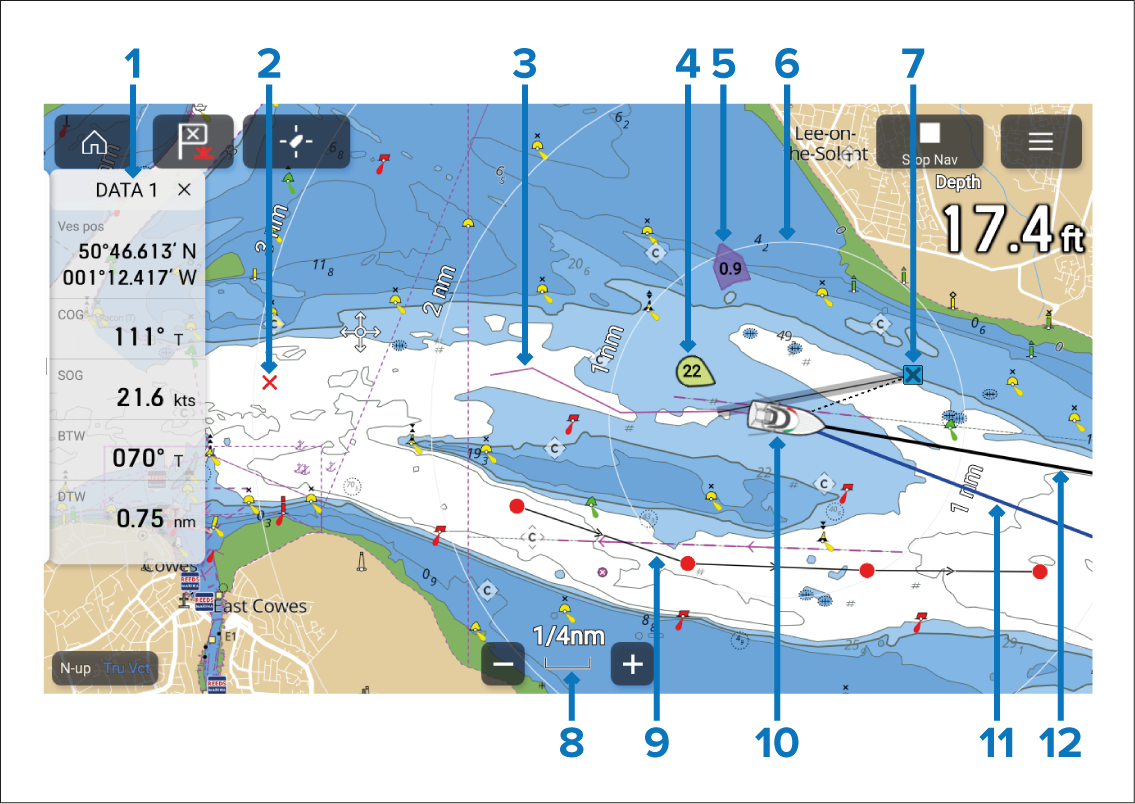
Sidebar — The Sidebar contains system data that can be viewed in all apps.
Waypoint — Use waypoints to mark specific locations or points of interest (POI).
Track — Record the passage your vessel takes.
Wind indicator — Provides indication of wind direction and speed (Wind transducer required).
Tide indicator — Provides tide Set and Drift indicators. Requires the following data: COG (Course Over Ground), Heading, SOG (Speed Over Ground), and STW (Speed Through Water).
Range rings — Provides a distance indication around your vessel at set intervals.
Destination waypoint — During a Goto operation, this is the current destination waypoint.
Chart range — Identifies the scale for the displayed Chart range.
Route — You can plan your route in advance by creating a Route using Waypoints to mark each route leg.
Vessel icon — This icon represents your vessel, and is only displayed when a GNSS (GPS) position fix is available. The icon will be a black dot if no Heading is available.
COG line — If COG data is available, you can display a COG (Course Over Ground) vector for your vessel.
Heading line — If Heading data is available, a Heading vector for your vessel can be displayed.