Info boxes
In the chart app, the default behavior when the screen is selected is to display an Info box. The Info box provides information related to the selected location or object. From the Info box, the context menu can be displayed by selecting the “3 dots” menu icon.
ChartInfo boxes
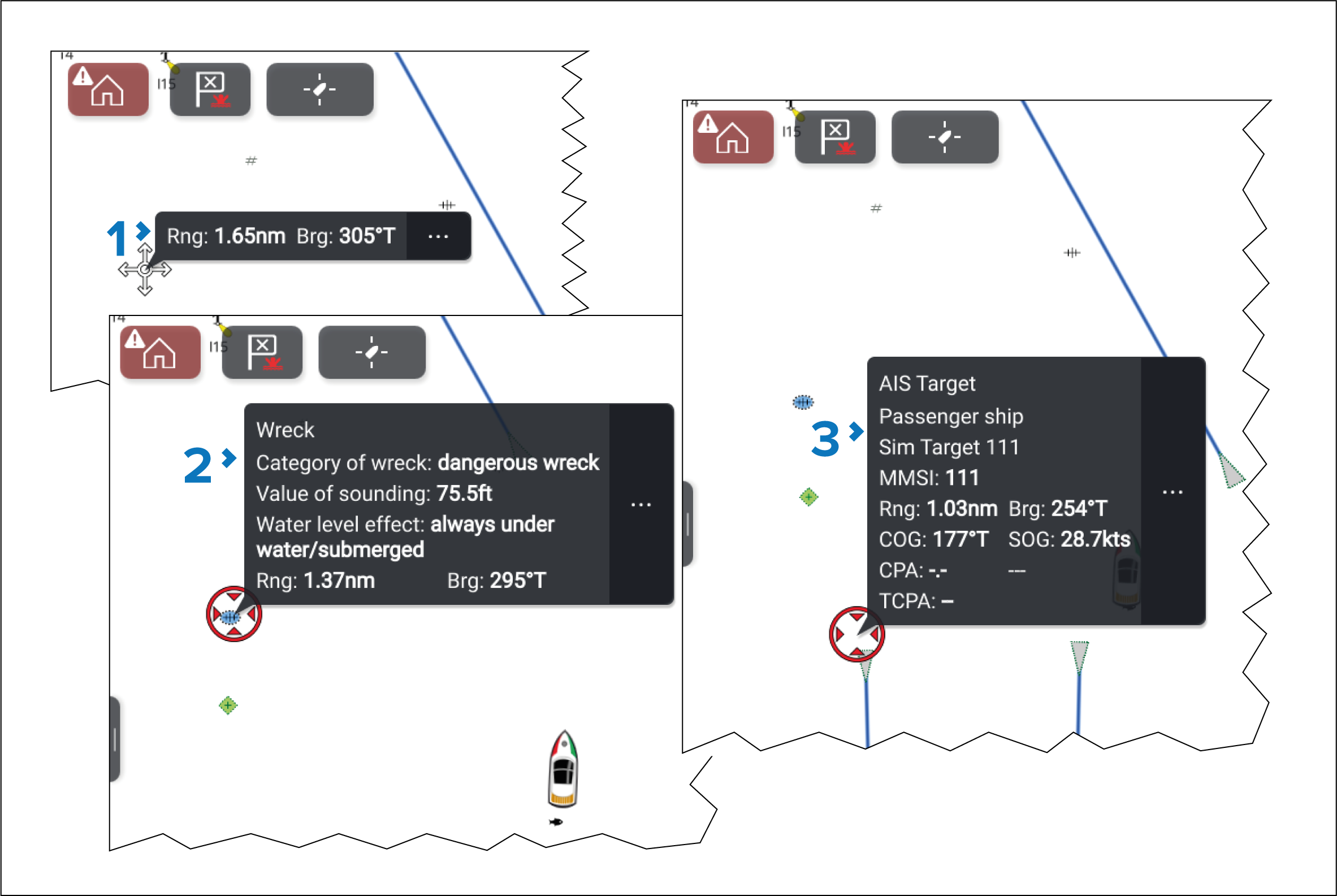
Figure 1. Example info boxes
Location info box — The Location info box is displayed when the cursor is placed on an area of the screen that does not include a charted object or target.
Object info box — displayed when a charted object is selected.
Target info box. — displayed when an AIS or Radar target is selected.
Info box configuration
Info boxes can be configured from the Chart app’s Advanced settings menu: .
Cursor info boxes — When enabled info boxes will be displayed. If Cursor info boxes is disabled no info boxes will be displayed.
Background info boxes — When enabled the Location info boxes will be shown at the cursor’s location.