Chart modes
The Chart app provides preset modes that can be used to quickly set up the Chart app for your intended use.
The example images below are used when the Homescreen icons are set to Classic icons. If Homescreen icons are set to Mode icons then the icons used on the Homescreen will be used instead. For details of Mode icon refer to: Chart app
Chart,ModesTo change Chart mode select the required mode from the app menu.
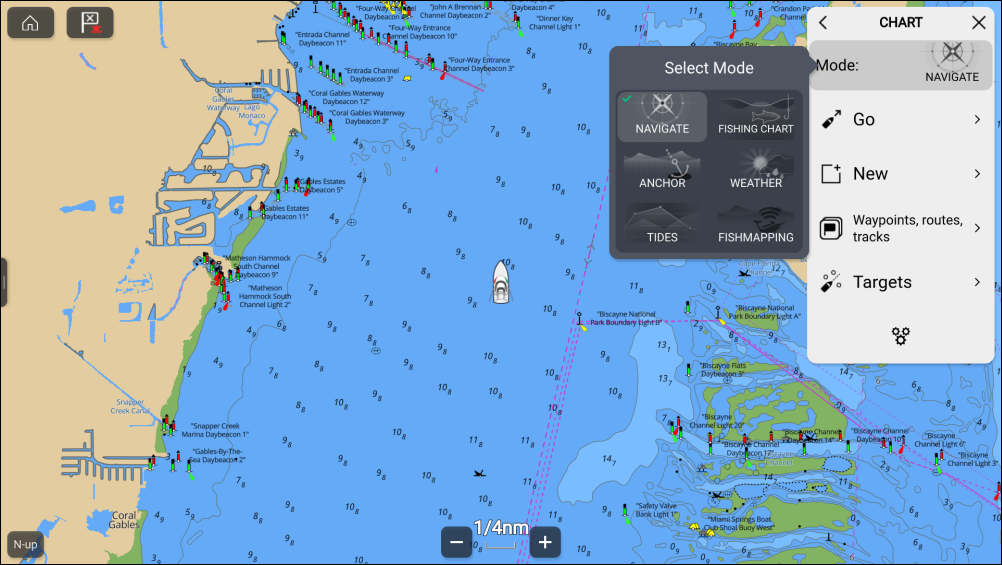
The following chart modes are available:
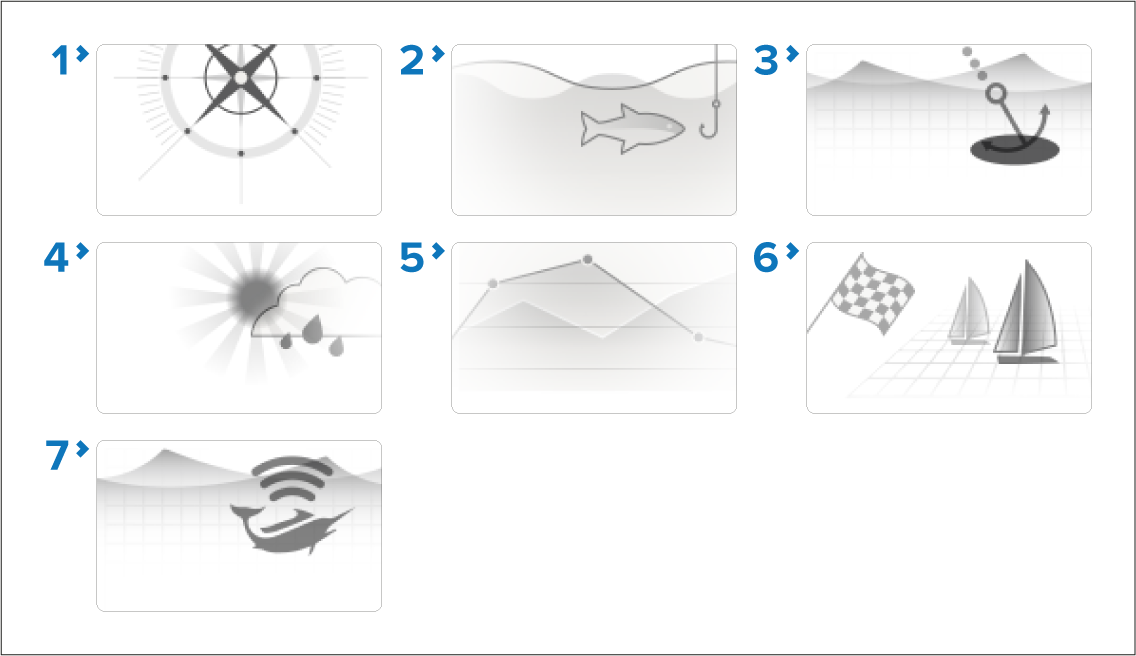
NAVIGATEChartNavigate mode — Navigate is the default mode. Full chart detail and menu options are available. Settings changes are saved to the user profile in use. For details refer to: Chart app - Detailed mode
FISHING CHARTChartFishing mode — Fishing mode optimizes the chart app for Fishing and if supported by your selected cartography, displays more detailed contour lines. Full menu options are available. Settings changes are saved to the user profile in use. For details refer to: Chart app - Fishing chart mode
ANCHORChartAnchor mode — Anchor mode optimizes the chart app for anchoring and provides access to the anchoring wizard so that the anchor drag alarm parameters can be configured. Full menu options are available in Anchor mode, and any settings changes are saved to the user profile in use. For details refer to: Chart app - Anchor mode
WEATHERChartWeather mode — Weather mode allows you to overlay weather data directly on the chart and view animated weather graphics or read weather reports. Settings changes are saved to the user profile in use. Weather mode is available when the MFD is connected to a SR150 or SR200 Sirius receiver. and requires a SiriusXM weather subscription. For details refer to: Chart app – Weather mode
TIDESChartTides mode — In tides mode, tide station and current station icons are replaced with graphics representing tide and current conditions. Animation controls are displayed that enable playback of tide and current predictions over a 24 hour period. For details refer to: Chart app - Tides mode
RACINGChartRacing mode — Racing mode optimizes the chart app for Race Sailing. Racing mode is available when the MFD is configured using the Sailing boat activity. In racing mode the race start line and race timer options are available from the menu, allowing you to create a start line and countdown timer which can help optimize your racing start. For details refer to: Chart app - Racing mode
FISHMAPPINGChartFish mapping mode — Fish mapping mode enables you to overlay fish mapping layers and fish types directly on the chart. Settings changes are saved to the user profile in use. Fish mapping mode is available when the MFD is connected to an SR200 Sirius receiver and requires a SiriusXM fish mapping subscription. For details refer to: Chart app - Fish mapping mode