Chart motion mode
The chart motion setting controls the relationship between the chart and you vessel.
Chart Chart motion Motion modes3 chart motion modes are available:
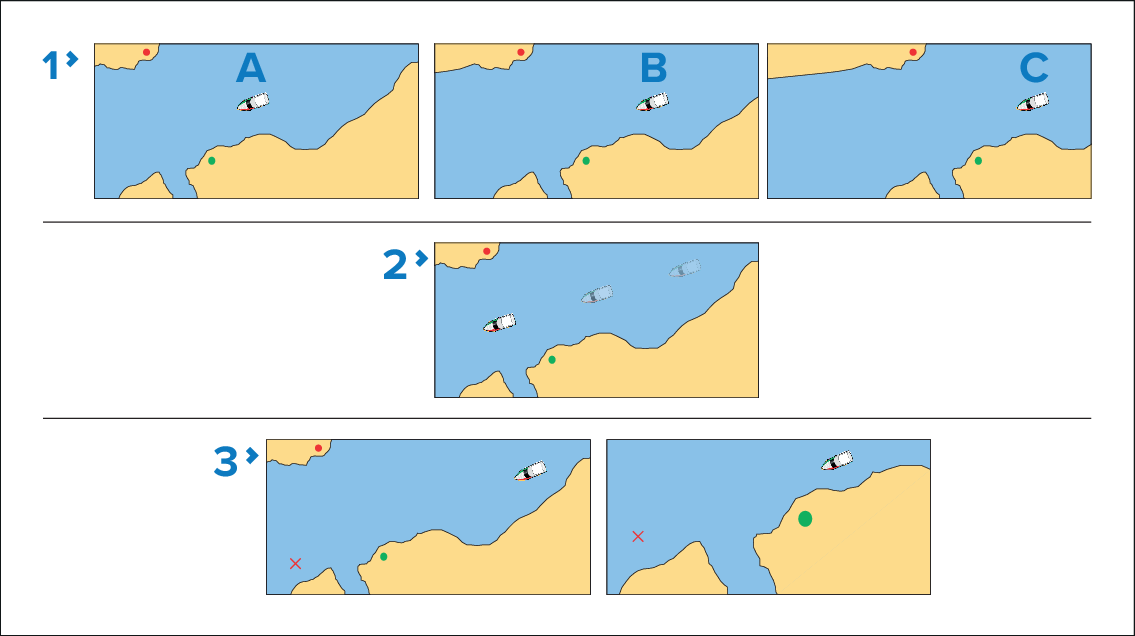
Chart Relative motionBoat positionRelative motion — Relative Motion mode fixes your vessel’s icon position and the chart image moves relative to your vessel. In Relative Motion mode you can use the Boat position setting to determine whether the vessel is fixed in the Center of the chart display or has a Partial offset, or Full offset. Selecting the partial or full offset has the effect of increasing the view ahead of your vessel icon on the chart display.
Chart True motionTrue motion — True Motion mode fixes the chart position and the vessel icon moves in true perspective to the fixed land masses shown on the screen. As the vessel’s position approaches the edge of the screen, the chart image is automatically redrawn to reveal the area ahead of the vessel.
NoteTrue Motion mode is not available when the Radar orientation is set to “Head-up”.
Chart Auto rangeAuto range — Auto Range mode ensures that the largest possible chart scale will always and automatically be maintained, to display both the vessel and the target waypoint on-screen at the same time.
Boat position in not available in True motion or Auto range modes..
The Chart motion and Boat position options are available from the View & Motion settings menu: .