Quick adjust menu
The Chart app includes a Quick adjust menu which provides quick access to some common Layer, Vectors and View options, as well as Recent waypoints and routes.
Quick adjust can only be accessed using the touchscreen.
The Quick adjust menu is accessed by selecting the Quick adjust icon located in the bottom left corner of the screen.
The Quick adjust menu is available in the following Chart modes:
Navigate
Fishing
Anchor
Racing
AIS and Radar options will only be available if compatible hardware is detected.
Quick adjust menuChart app Quick adjustThe following options are provided:
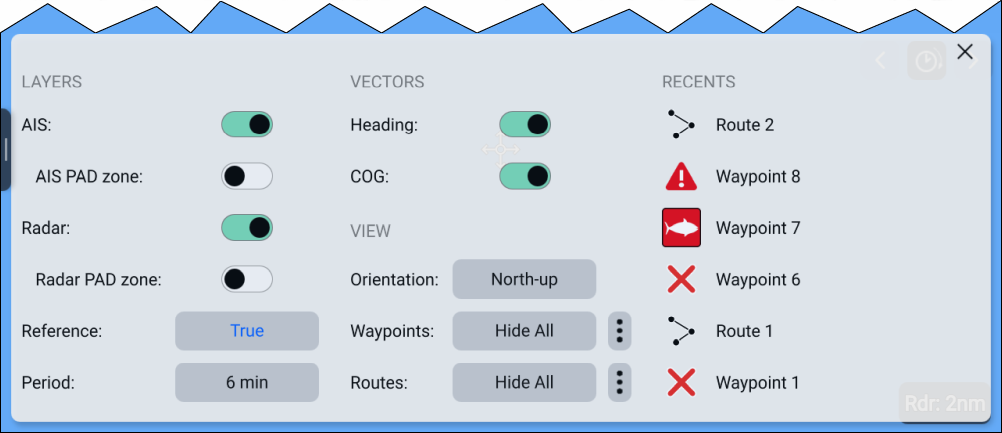
LAYERS
AIS — Switches AIS layer on and off.
AIS PAD zone — Switches display of Predicted Area of Danger (PAD) zones on or off for AIS targets.
Radar — Switches Radar layer on or off.
Radar PAD zone — Switches display of Predicted Area of Danger (PAD) zones on or off for Radar targets.
Radar PAD zone — Switches display of Predicted Area of Danger (PAD) zones on or off for Radar targets.
Reference — Switches Radar reference mode between True and Relative.
Period — Adjust the vector time period.
VECTORS
Heading — Switches own vessel Heading vector on or off.
COG — Switches own vessel COG vector on or off.
VIEW
Orientation — Changes the Chart app’s Orientation mode.
Waypoints — Shows or hides all waypoints. Selecting the “3 dots” icon displays the Waypoint list.
Routes — Shows or hides all routes. Selecting the “3 dots” icon displays the Routes list.
RECENTS
Up to 6 recently used routes and/or waypoints can be listed. Selecting an item in the Recents list will close the menu and zoom to and highlight the selected item on the Chart app screen.