Homescreen overview
All settings and apps are accessed from the Homescreen. The homescreen is split into 3 pages. The center page is shown by default.
Homescreen
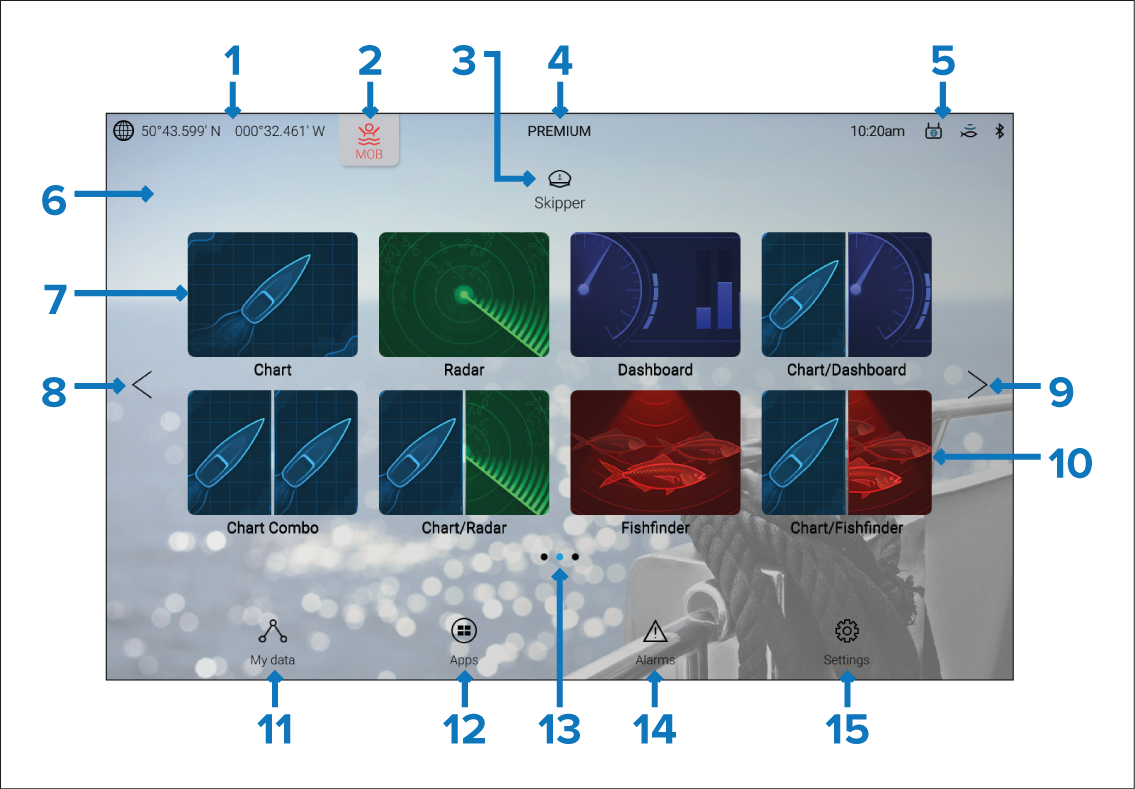
GNSS / GPSGNSS position/fix details — Select the text or icon to view GNSS settings and fix accuracy details. For details refer to: GNSS (GPS) Status
Man Over Board (MOB)MOB (Man Over Board) — Select and hold to activate the MOB alarm. For details refer to: Man Overboard (MOB)
ProfilesProfiles — Select the text or icon to access user and demo profiles. For details refer to: My profiles
LightHouse ChartsPremium subscriptionPremium subscriptionPremium logo — The premium logo identifies that you have a LightHouse Charts card inserted that has a valid premium subscription. The logo is not displayed if your subscription has expired. For details refer to: LightHouse charts
ConnectionsSystem timeExternal device connections and system time — Icons are displayed to signify external device connections. Select this area to access Bluetooth and YachtSense™ Link settings, disengage your autopilot or to adjust the UTC time offset. For details refer to: Status area
HomescreenBackground imageHomescreen background image — The default image is determined by the boating activity selected during the start up wizard. The background image can be customized from the This display settings menu: . For details refer to: Splash screen and Homescreen background images
App page iconsFullscreen app page icon — Select an icon to open the relevant MFD app page. For available MFD apps refer to: MFD Apps
Homescreen pagesHomescreen page navigation — Select the < (left) arrow, or swipe your finger from left to right across the homescreen to cycle though homescreen pages on the left.
Homescreen pagesHomescreen page navigation — Select the > (right) arrow, or swipe your finger from right to left across the homescreen to cycle though homescreen pages on the right.
App page iconsSplitscreen app page icon — Select an icon to open the relevant MFD app page. App pages can contain more than 1 MFD app. For details on creating new homescreen app pages refer to: Creating an app page
My dataMy data — Select to access my data (Waypoints, Routes and Tracks), the fuel manager and to view files on external storage. For details refer to: My data
App launcherApp launcher — Select to access installed Android apk apps and shortcuts to user interfaces for integrated partner hardware. For details refer to: App launcher
Homescreen pagesHomescreen page navigation — Identifies the current homescreen page.
Alarm managerAlarm manager — Select to access the alarm manager and view alarm history. For details refer to: Alarms manager
Homescreen Settings menusSettings menus — Select to access the MFD’s settings menu. For details refer to: Settings
When more than one display is connected to the same network, the Homescreen of the MFD designated as datamaster will be mirrored on all MFDs.