App launcher
The app launcher provides access to installed Android third-party apps and Interface shortcuts for third-party partner hardware.
App launcherthird-party appsLightHouse third-party appsThird-party appsSelect the Apps icon located at the bottom of the Homescreen to open the App launcher.
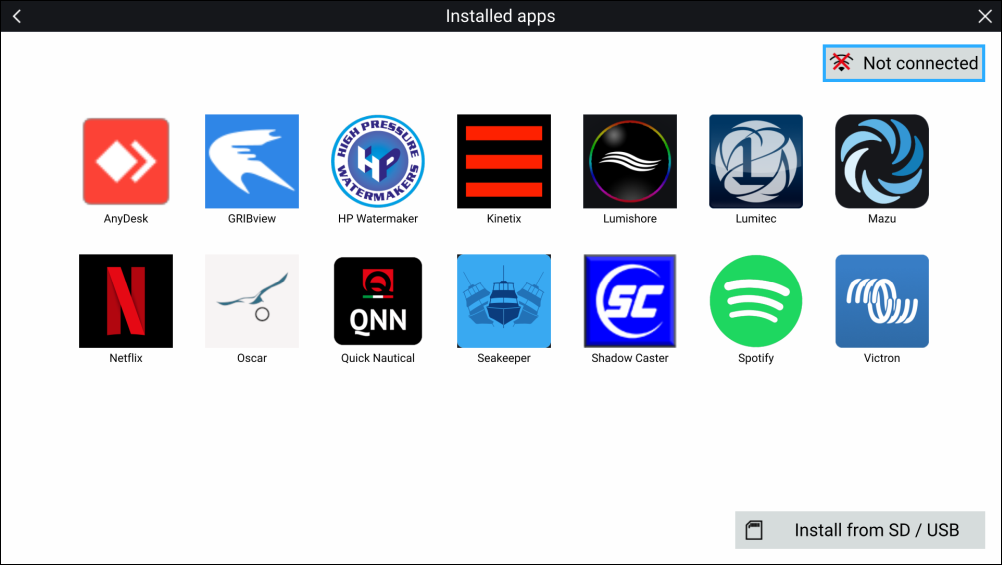
Selecting an icon will launch the app.
Some apps require an internet connection. You can connect your MFD to the internet by selecting the Wi-Fi connection icon located on the top right of the screen. Refer to: Internet connection
APK apps downloaded from the Raymarine website can be installed by selecting Install from SD / USB. Refer to: Installing third-party Android apps
AudioTo listen to audio, a Bluetooth speaker must be connected to the MFD. Refer to: Pairing a Bluetooth speaker
LightHouse third-party appsBackground appApps may run in the background, enabling you to use your MFD as usual whilst, for instance, listening to music.
MFD alarmsMFD alarms will be displayed and sounded as normal whilst using apps or partner interfaces. When paired with a Bluetooth speaker, alarms will also be sounded through the speaker.
BluetoothVolumeBluetooth speaker volume can be controlled from the Shortcuts page or from the Status bar area on the Homescreen.
If you use a wireless connection to a Quantum Radar, the Radar should be put in Standby before connecting your MFD to the internet.