Data item options
Data items within the Data app can be modified
Data appEditing data itemsSelect and hold on a data item to enter edit mode. In edit mode the data item will be highlighted and the ••• icon will appear.
While in edit mode the data item can be:
Moved by dragging it to a new empty position on the page.
Resized by dragging the triangle located in the bottom right corner.
Selecting the ••• icon will open the pop-over menu.
These details apply to standard data items. The changes that can be made to gauges are limited to preserve their appearance and intended use.
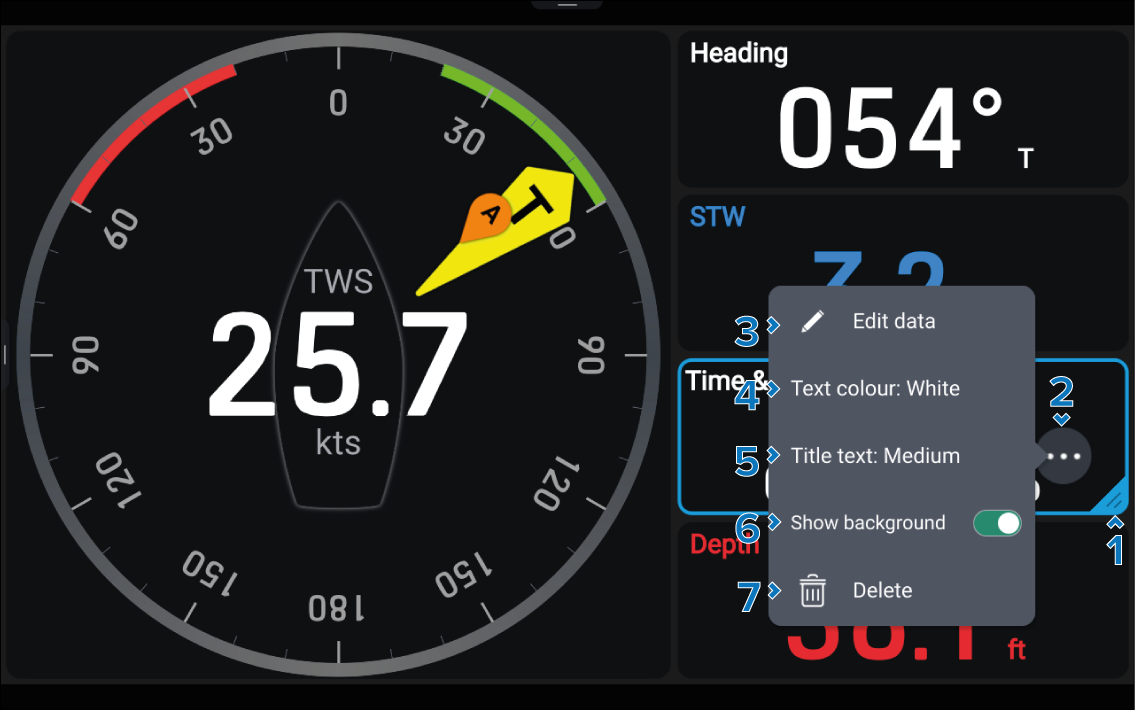
Description |
|
|---|---|
1 |
Resize Drag the corner to resize the data item. |
2 |
••• icon Opens the pop-over menu. |
3 |
Edit data Browse and choose a different data item |
4 |
Text color Change the color of the data item’s text. |
5 |
Title text Change the size of the data item’s title text. |
6 |
Show background Toggle the data items background on and off. |
7 |
Delete Delete the data item. |
Additional options
Additional options are available that are data item, or widget type specific.
Option |
Description |
|---|---|
Battery settings |
Opens the Battery configuration menu. This setting is available for battery data items. For information about battery configuration refer to: Battery configuration |
Generator settings |
Opens the Generator configuration menu. This settings is available for generator data items. For information about generator configuration refer to: Generator configuration |
Graph color |
Change the graph’s color. |
Time scale |
Change the interval of time shown in the selected graph. The Time scale options are: 1 m, 5 m, 10 m, 15 m, 30 m, 45 m, 1 h, 6 h, 12 h and 24 h. |
Wind |
Change whether the selected sailing gauge uses True, or Apparent wind. |
Show TWA & TWS |
Show, or hide the TWA & TWS vector on the rolling road graphic. |
Create group |
Create a group of level widgets. For instructions refer to: Creating a data item group |
Edit group |
Edit a group of level widgets. |