Autopilot control
Overview of connecting and controlling an autopilot system with the MFD / chartplotter.
Your display can be used to control a Raymarine Evolution-Series autopilot. The display can be used as the autopilot’s only controller, or can be used in conjunction with dedicated controllers such as p70-Series controllers.
Before using your autopilot for navigation, it must be correctly commissioned. Refer to the Commissioning instructions for your autopilot for more information.
AutopilotConnectionAutopilot connection:
The display (or the display designated as the datamaster display, when more than one display is networked) must be connected to the same SeaTalk NG / NMEA 2000 network as the autopilot system. Please refer to the documentation supplied with your autopilot for details on installing and connecting your autopilot system to your display.
On multi-display networks, all displays on the same Ethernet / RayNet network as the datamaster display can control the autopilot.
AutopilotControlAutopilot control:
Autopilot control must be enabled from the display’s Autopilot settings: .

When autopilot control is enabled the Pilot sidebar and Pilot icon will be available:
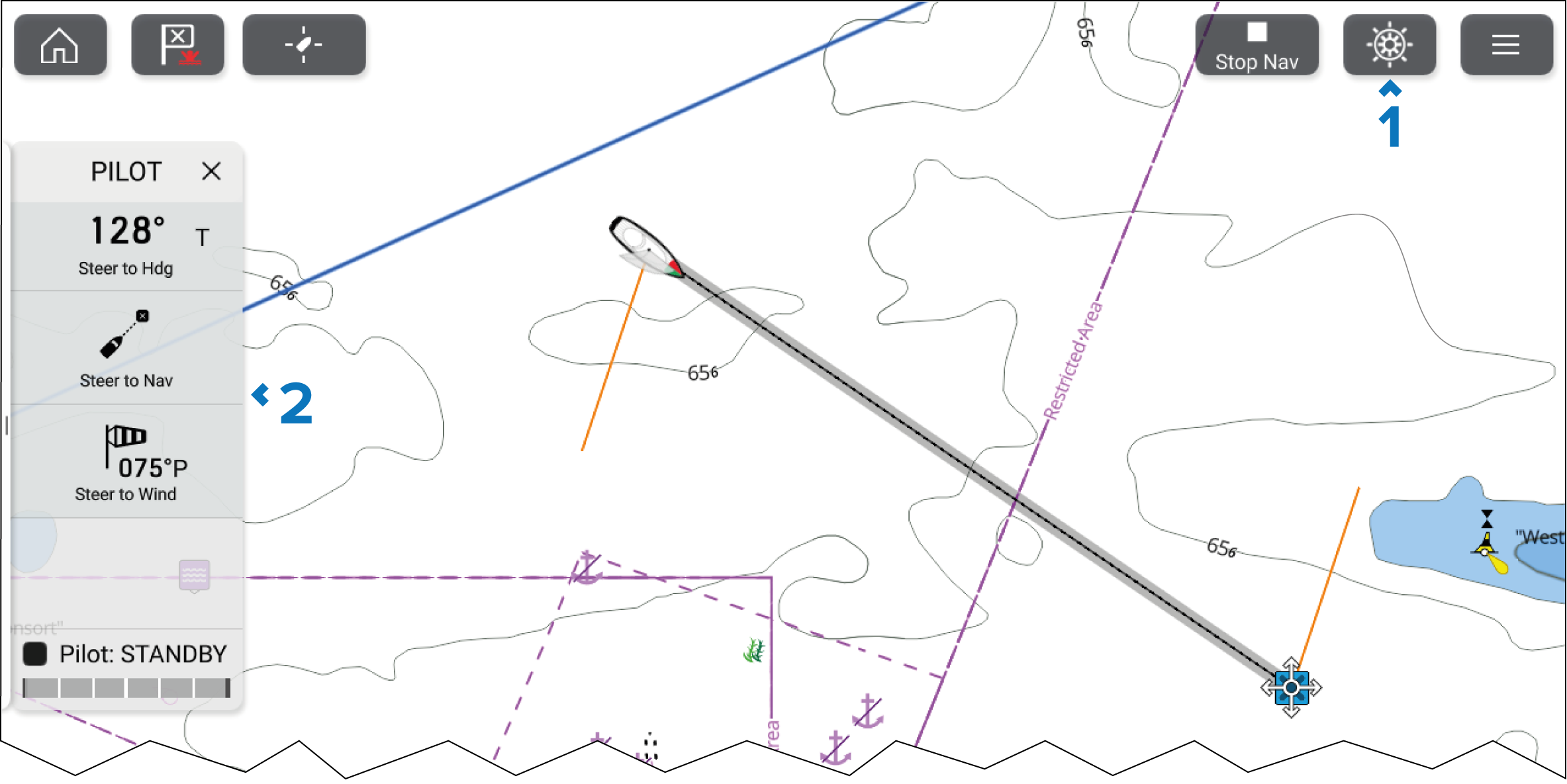
Autopilot Pilot iconPilot iconPilot icon — With autopilot control enabled, the Pilot icon is displayed on the screen; selecting the icon opens the Pilot sidebar. When the autopilot is engaged, the Pilot icon is replaced with the Disengage pilot icon.
Autopilot Pilot sidebarPilot sidebar — The Pilot sidebar provides controls and information relating to your autopilot system. When the autopilot is engaged, the Pilot sidebar’s content is expanded to provide further controls and information. The Pilot sidebar can be hidden by swiping the sidebar to the left. The sidebar can be displayed again by swiping from the left of the screen towards the center of the screen.