Steer to Navigation
The Steer to Navigation mode causes your autopilot to turn and navigate to a selected waypoint / cursor goto location or along a planned route.
While the Steer to Navigation mode is active, the following options and visual indicators shown below will be displayed onscreen.
Each widget can be further customized to suit your preference. If you wish to reset the data page to the default configuration, tap-hold one of the available widgets and select Reset page from the list of widget options shown.
Example: Steer to Navigation mode
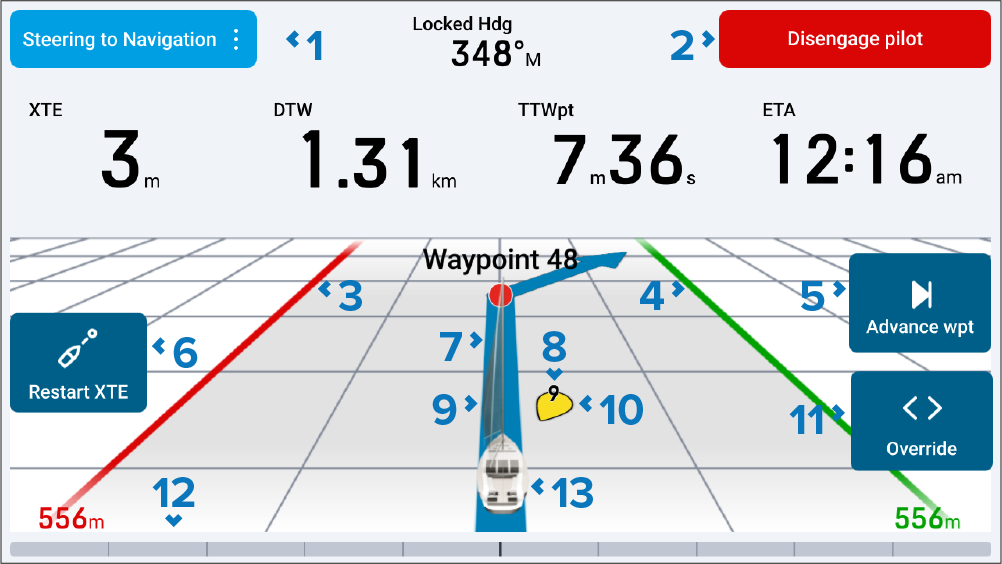
Steering to Navigation — Selecting will allow you to switch your autopilot to another ‘steer to’ mode.
Disengage pilot — Selecting will disengage your autopilot, after confirming a disengage pop-up.
Port XTE limit — If your vessel steers or drifts from its intended course to the cross track error (XTE) limit, the Off track alarm will trigger (if enabled on your multifunction display / chartplotter).
Starboard XTE limit — If your vessel steers or drifts from its intended course to the cross track error (XTE) limit, the Off track alarm will trigger (if enabled on your multifunction display / chartplotter).
Advance waypoint — Selecting will skip to the next waypoint on a route, after confirming a turn direction pop-up.
Restart XTE — Selecting will restart the cross track error (XTE) at your current location.
Active waypoint symbol — Symbol representing the current active waypoint.
TWS indicator — True Wind Speed.
Route line — Current and next leg direction.
TWA indicator — True Wind Angle.
Override — Selecting will display an ‘Override’ pop-up onscreen. For more information, refer to: Override controls
Rudder bar / Wind shift bar (sailing only) — Rudder bar. If your boating activity was set to Sailing during your connected multifunction display / chartplotter’s initial startup wizard, selecting will change between a Rudder bar and a Wind shift bar.
3D Vessel icon — 3D vessel icon. The vessel icon will change depending on the boat type selected on your multifunction display / chartplotter. Tap-hold to display a Show TWA & TWS toggle.