Stream Format
The Stream Format page provides settings to adjust the camera’s video streams.
The Stream Format page is accessed by selecting: in the Navigation pane.
The Stream Format page includes the following expandable sections:
1st Stream Setting
2nd Stream Setting
3rd Stream Setting
1st Stream Setting
User interface1st Stream Setting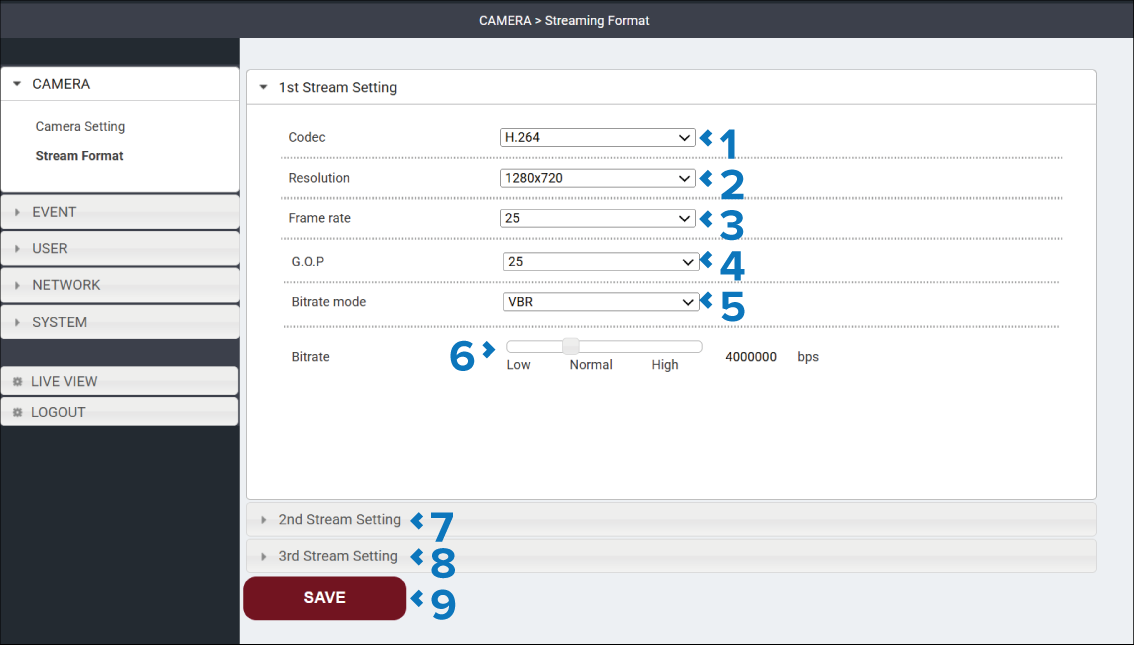
Description |
|
|---|---|
1 |
Codec drop down The Codec setting determines the video compression used for the stream. The available options are:
Changing the Codec setting to MJPEG will change the available settings and options. Refer to the 3rd stream settings for the available MJPEG stream settings. |
2 |
Resolution drop down The Resolution setting specifies the size of the image in pixels. Higher resolutions provide more image detail but requires more bandwidth and processing resources. The available options are:
|
3 |
Frame rate drop down The Frame rate setting specifies the number of video frames transmitted each second. Higher frame rates provide smoother motion but require more bandwidth. The available options are:
|
4 |
G.O.P. drop down The Group Of Pictures G.O.P. setting specifies the interval between full reference frames (I-frames) within the video stream. Lower values increase image quality during motion and improve seek performance but require more bandwidth. Higher values reduce bandwidth usage but can make compression artefacts more noticeable during movement. The available options are:
|
5 |
Bitrate mode drop down The Bitrate mode setting specifies how the camera controls the amount of data used by the video stream. The available options are:
|
6 |
Bitrate slider The Bitrate setting specifies the maximum amount of data used by the video stream. Lower bitrates reduce bandwidth usage and file sizes. Higher bitrates improve image quality, particularly in scenes with significant movement or detail.
|
7 |
2nd Stream Setting heading Select to expand the 2nd Stream Setting section. |
8 |
3rd Stream Setting heading Select to expand the 3rd Stream Setting section. |
9 |
SAVE button Select the SAVE button to save any changes you have made before leaving the page. |
2nd Stream Setting
User interface2nd Stream Setting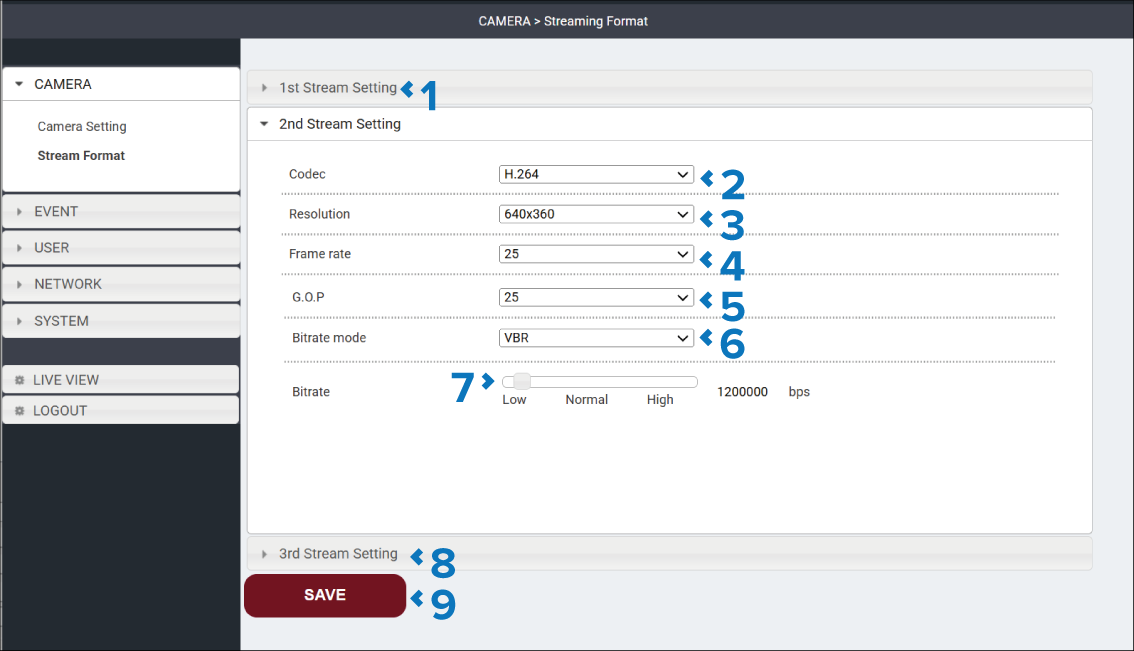
Description |
|
|---|---|
1 |
1st Stream Setting heading Select to expand the 1st Stream Setting section. |
2 |
Codec drop down The Codec setting determines the video compression used for the stream. The available options are:
Changing the Codec setting to MJPEG will change the available settings and options. Refer to the 3rd stream settings for the available MJPEG stream settings. |
3 |
Resolution drop down The Resolution setting specifies the size of the image in pixels. Higher resolutions provide more image detail but requires more bandwidth and processing resources. The available options are:
|
4 |
Frame rate drop down The Frame rate setting specifies the number of video frames transmitted each second. Higher frame rates provide smoother motion but require more bandwidth. The available options are:
|
5 |
G.O.P. drop down The Group Of Pictures G.O.P. setting specifies the interval between full reference frames (I-frames) within the video stream. Lower values increase image quality during motion and improve seek performance but require more bandwidth. Higher values reduce bandwidth usage but can make compression artefacts more noticeable during movement. The available options are:
|
6 |
Bitrate mode drop down The Bitrate mode setting specifies how the camera controls the amount of data used by the video stream. The available options are:
|
7 |
Bitrate slider The Bitrate setting specifies the maximum amount of data used by the video stream. Lower bitrates reduce bandwidth usage and file sizes. Higher bitrates improve image quality, particularly in scenes with significant movement or detail.
|
8 |
3rd Stream Setting heading Select to expand the 3rd Stream Setting section. |
9 |
SAVE button Select the SAVE button to save any changes you have made before leaving the page. |
3rd Stream Setting
User interface3rd Stream Setting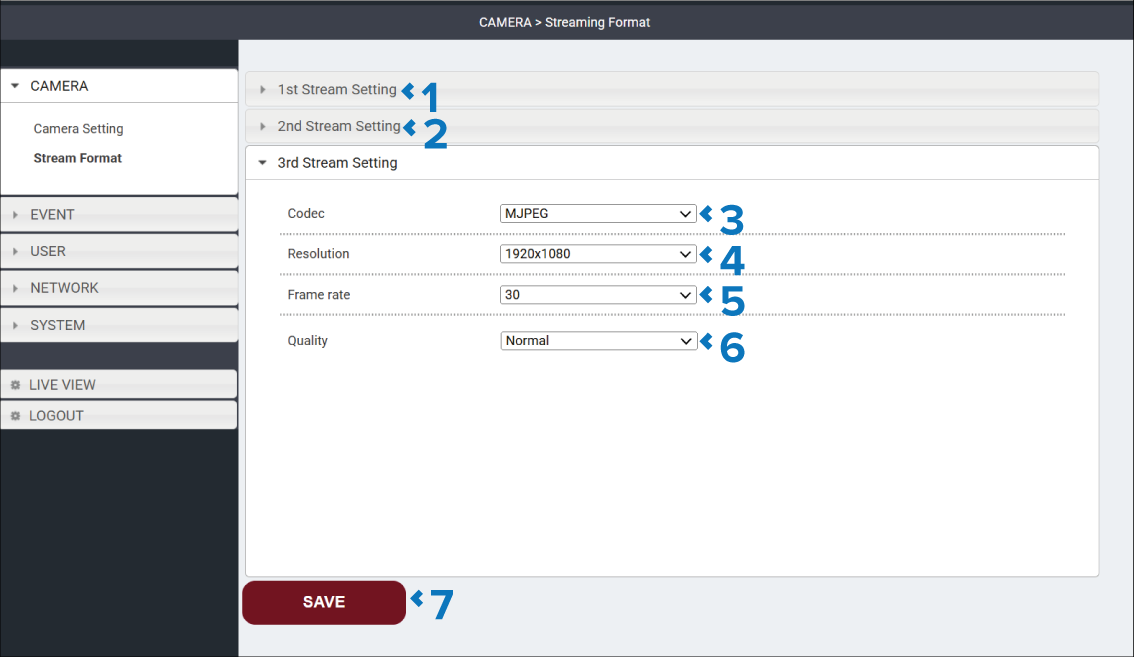
Description |
|
|---|---|
1 |
1st Stream Setting heading Select to expand the 1st Stream Setting section. |
2 |
2nd Stream Setting heading Select to expand the 2nd Stream Setting section. |
3 |
Codec drop down The Codec setting for the 3rd stream is MJPEG and cannot be changed. |
4 |
Resolution drop down The Resolution setting specifies the size of the image in pixels. Higher resolutions provide more image detail but requires more bandwidth and processing resources. The available options are:
|
5 |
Frame rate drop down The Frame rate setting specifies the number of video frames transmitted each second. Higher frame rates provide smoother motion but require more bandwidth. The available options are:
|
6 |
Quality drop down When using the MJPEG Codec the Quality setting replaces the G.O.P., Bitrate mode, and Bitrate settings. The Quality setting specifies the quality for the MJPEG video streams. The following options are available:
|
7 |
SAVE button Select the SAVE button to save any changes you have made before leaving the page. |