IP Filter
The IP Filter page enables you to allow or block access to specific IP addresses or ranges of IP addresses.
The IP Filter page is accessed by selecting: in the Navigation pane.
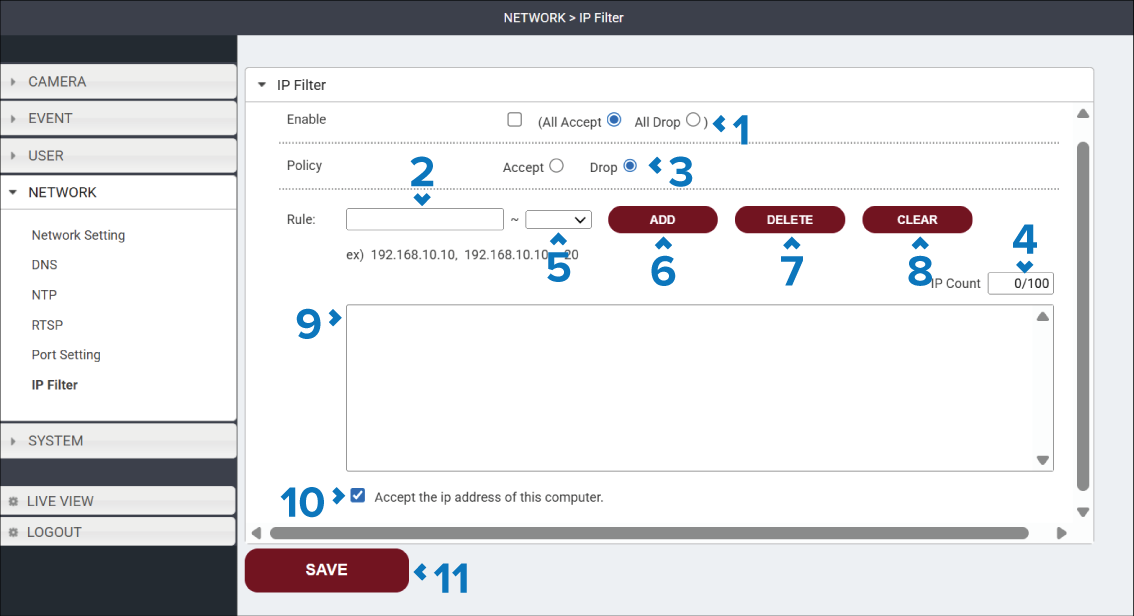
Description |
|
|---|---|
1 |
Enable tick box Enables or disables IP address filtering. The available options are:
|
2 |
All Accept / All Drop radio button Specifies the default action applied to IP addresses that do not match a filter rule. The available options are:
|
3 |
Policy radio button Specifies the action applied when adding a new filter rule. The available options are:
|
4 |
Rule field and drop down Specifies the IP address or IP address range to which the policy will be applied Enter a single IP address in the field, or if adding a range enter the first IP address in the range and then select the end IP addresses final octet from the drop down (e.g.: 198.18.4.10 — 20 will apply to IP addresses ending 10 through 20). |
5 |
Add button Select the Add button to add the policy to the IP filter list. |
6 |
Delete button Select the Delete button to remove the selected rule from the IP filter list. |
7 |
Clear button Select the Clear button to remove all rules from the IP filter list. |
8 |
IP Count field Displays the number of IP addresses currently being filtered out of the total number that can be filtered. Up to 100 IP addresses can be filtered. |
9 |
Rule list A list of all current filtering rules. |
10 |
Accept the IP address of this computer tick box Automatically permits access from the computer currently being used to access the camera. This option prevents the current connection from being blocked when restrictive IP filtering rules are applied. |
11 |
SAVE button Select the SAVE button to save any changes you have made before leaving the page. |