Product pop-over menu options
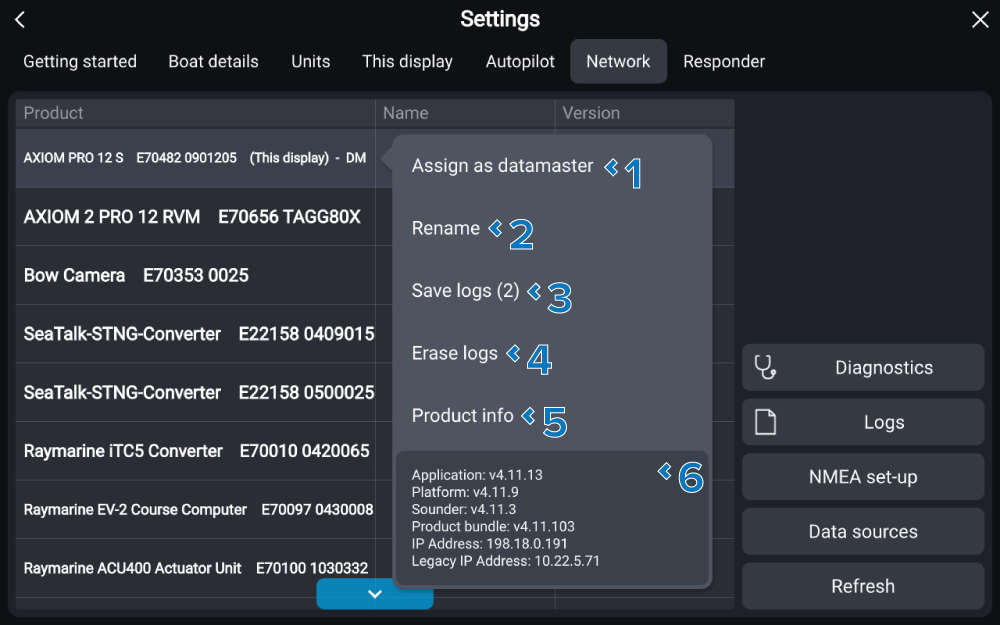
Selecting a product from the list in the Network settings menu will open the pop-over menu. The options available in the pop-over menu are device specific.
Example — Chartplotter pop-over menu options
Option |
|
|---|---|
1 |
DatamasterAssign as datamaster Assign the selected chartplotter as your system’s datamaster. This option is only available for chartplotters. For more information refer to: Datamaster |
2 |
ProductNamesRename Select to enter a name for the selected product. The name will be shown in the Name field of the network list. This option is available for all products. |
3 |
LogsSaveSave logs Select to save logs to a memory card. This option is available for all products that can produce logs. For more information refer to: Saving crash and system logs |
4 |
LogsEraseErase logs Select to erase the logs from the selected product. This option is only available if the selected product is the chartplotter you are currently using. |
5 |
ProductInformationProduct info Select to view the selected product’s full product information page. This option is available for all products. For more information refer to: Saving product information |
6 |
IP addressSoftware versionSoftware and IP address Current software versions and IP address details. This information is only available if the selected product is the chartplotter you are currently using. |
Other available options
Option |
Applicable product types |
|---|---|
Keep network active while display in standby Enables networked devices to remain connected while the display is in standby mode. |
Only available on Axiom 2 Pro displays. |
CalibrationCalibrate Select to calibrate a sensor, or where applicable view a product’s web interface. |
|
LEDLEDs The LED status indicator on some GNSS receivers/Heading sensors can be switched off. For more information refer to: Switching off sensor LEDs |
|
Find Me Enables flashing of the devices LED status indicator to enable you to locate the physical device. For more information refer to: Find me |
|
RouterSettingsRouter settings Access the router’s web interface. |
|
InternetUse as Internet source Select the router as the system’s source for an Internet connection. |
|
Configuration settings Access the transducer’s configuration settings. For more information refer to: Configuring RSW-Series wind transducers using a compatible chartplotter |
|
Debug Set a debug mode for troubleshooting purposes. |
|
C-Monster connection Pair C-Monster gateway. For more information refer to: Pairing Power-Pole® devices using the display |
Only available for the Power-Pole® C-Monster Gateway. |