Chart app
The Chart app displays electronic cartographic information from your Chart cards and when used in conjunction with a GNSS receiver, plots your vessel’s position. The Chart app can be used to mark specific locations using Waypoints, build and navigate Routes, or keep a record of where you have been by recording a Track.
Chart appMFD appsChart appTo use the chart app for navigation, as a minimum navigational electronic charts and a GNSS receiver are required.
For more information refer to Chart app - General
Chart app icons
The following icons can be used on the Homescreen for Chart app pages:
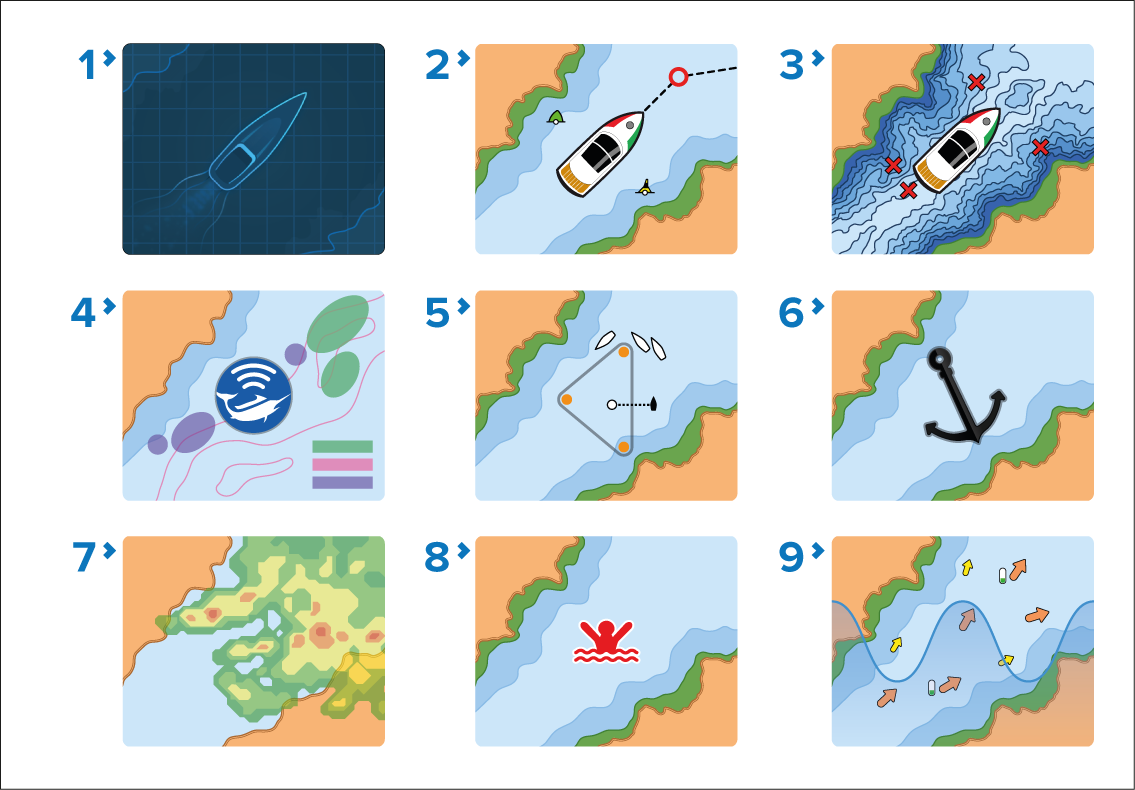
Classic chart icon — This is the icon used for all chart app pages when the Homescreen icons are set to the default Classic icons.
Navigate mode icon — When the Homescreen icons are set to Mode icons, this icon is used for charts app pages where the chart app is set to Navigate mode. The vessel icon will be updated dynamically to show your chosen vessel type.
Fishing mode icon — When the Homescreen icons are set to Mode icons, this icon is used for charts app pages where the chart app is set to Fishing mode. The vessel icon will be updated dynamically to show your chosen vessel type.
Fish mapping mode icon — When the Homescreen icons are set to Mode icons, this icon is used for charts app pages where the chart app is set to Fish mapping mode. When compatible hardware (e.g.: SR200) is detected, fish mapping mode will be available. Fish mapping mode also requires a valid SiriusXM subscription.
Racing mode icon — When the Homescreen icons are set to Mode icons, this icon is used for charts app pages where the chart app is set to Racing mode. Racing mode is available when the boating activity selected during the initial start up wizard was set to Sailing.
Anchor mode icon — When the Homescreen icons are set to Mode icons, this icon is used for charts app pages where the chart app is set to Anchor mode.
Weather mode icon — When the Homescreen icons are set to Mode icons, this icon is used for charts app pages where the chart app is set to Weather mode. When compatible hardware (e.g.: SR200) is detected, Weather mode will be available. Weather mode also requires a valid SiriusXM subscription.
MOB mode icon — When the Homescreen icons are set to Mode icons, this icon is used for charts app pages where the MOB alarm is currently active.
Tides mode icon — When the Homescreen icons are set to Mode icons, this icon is used for charts app pages where the chart app is set to Tides mode.