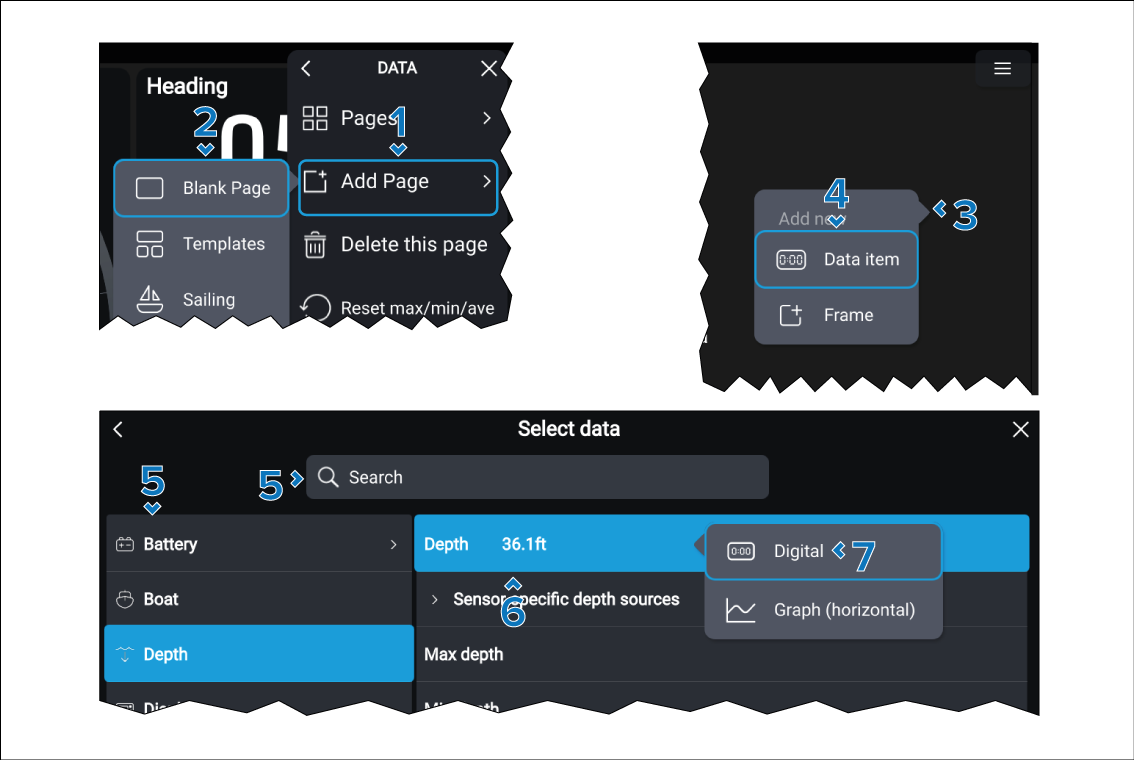
New pages can be created using the Blank page type.
- Select the Add Page option from either
the main menu, or the Pages menu.
- Select the Blank Page option.
The new blank page will be displayed.
- Select and hold anywhere on the screen.
The Add new pop-over is displayed.
- Select the Data item option.
- Browse the data category, or search for the data item you
want to add.
- Select the data item.
- Select the widget type and widget orientation, where applicable.
- Drag the data item to the desired location
- If required, tap and hold the bottom right corner of the
data item and drag it to resize the data item.
Data items can be edited further by selecting the ••• icon. For more information about editing data items refer to: Data item options
- Repeat steps 3 to 9 to add further data items to the page.
- Optionally, you can group data items by creating a frame
around them.
Frames are created by selecting Frame from
the blank page's pop-over menu. You can move and resize frames
in the same manner as data items.
Frames can be edited further
by selecting the ••• icon. For more information about editing
frames refer to: Frame options
Note To add frames there must be a blank area on the page
that you can select and hold on to open the pop-over menu.
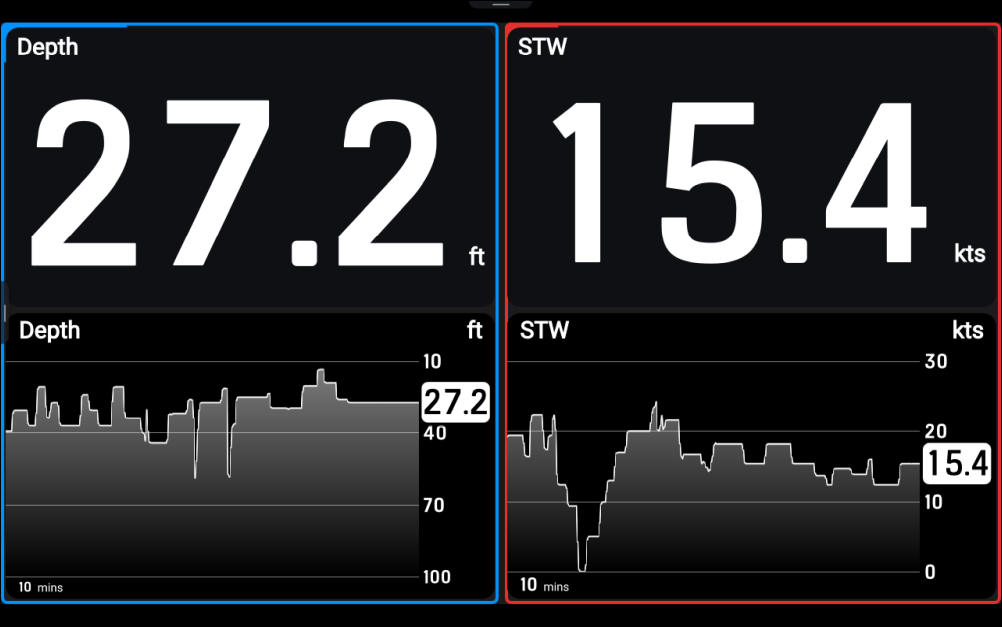
Example depth and speed data page created using the Blank
page type: