System Logs
The System Logs page is used to view, search and delete system logs.
The System Logs page is accessed by selecting: in the Navigation pane.
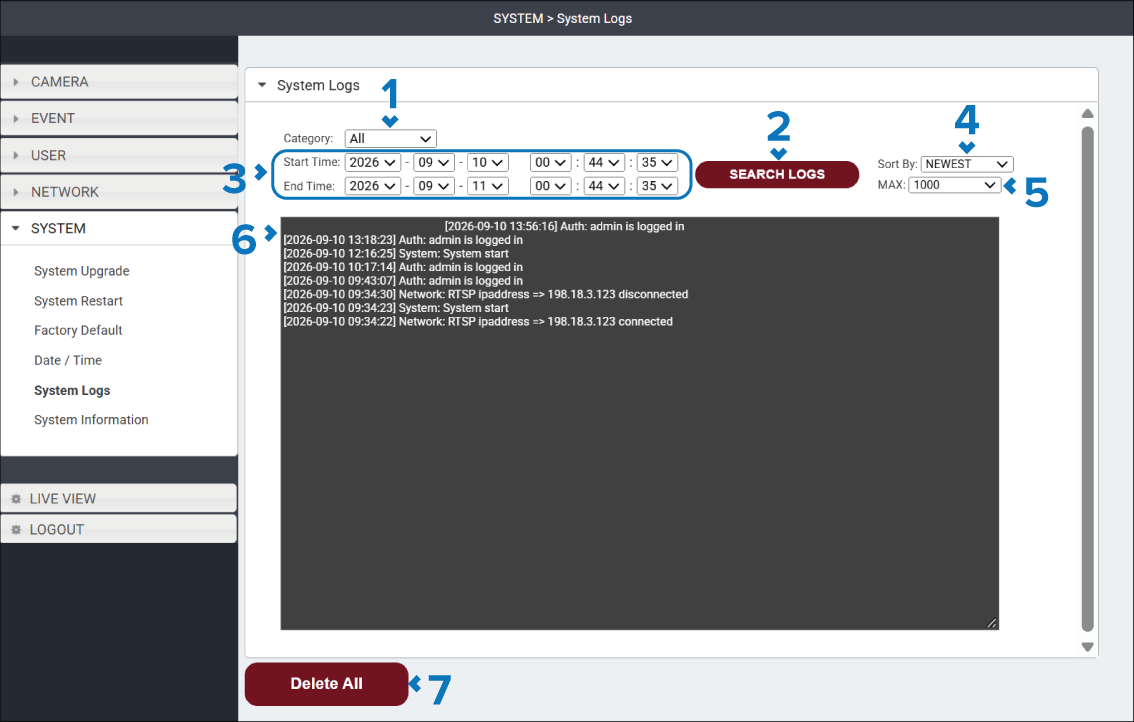
Description |
|
|---|---|
1 |
Category drop down Search for logs of the specified category. The available options are:
|
2 |
SEARCH LOGS button Select the SEARCH LOGS button to perform a search based on the specified criteria. |
3 |
Start Time / End Time drop downs Enter the start date and time and the end date and time in the relevant drop down boxes to search for logs created within the specified dates and times |
4 |
Sort By drop down Specify whether the results are sorted by NEWEST or OLDEST dated logs. |
5 |
MAX drop down Specify the maximum number of logs to be retrieved. |
6 |
Logs entries list Displays all system log events or log events within the search criteria. |
7 |
Delete All button Select the Delete All button to erase all system logs. |