Zoom mode
Zoom mode allows you to magnify a specific section of the water column so that objects or structure appear larger on screen. At maximum zoom the magnified section will show a 1 ft (0.3 m) column of water.
Fishfinder app Zoom modeZoom mode FishfinderZoom mode is available on down-looking sonar channels, such as DownVision™, CHIRP sonar and traditional sonar channels.
Zoom mode can be activated by:
using the zoom-in pinch-to-zoom gesture (i.e.: dragging your fingers apart on the screen).
turning the Uni-controller (if available) clockwise.
using the onscreen Range / Zoom In icon.
Zoom mode splits the sonar screen to show the zoomed area alongside a preview of the full water column.
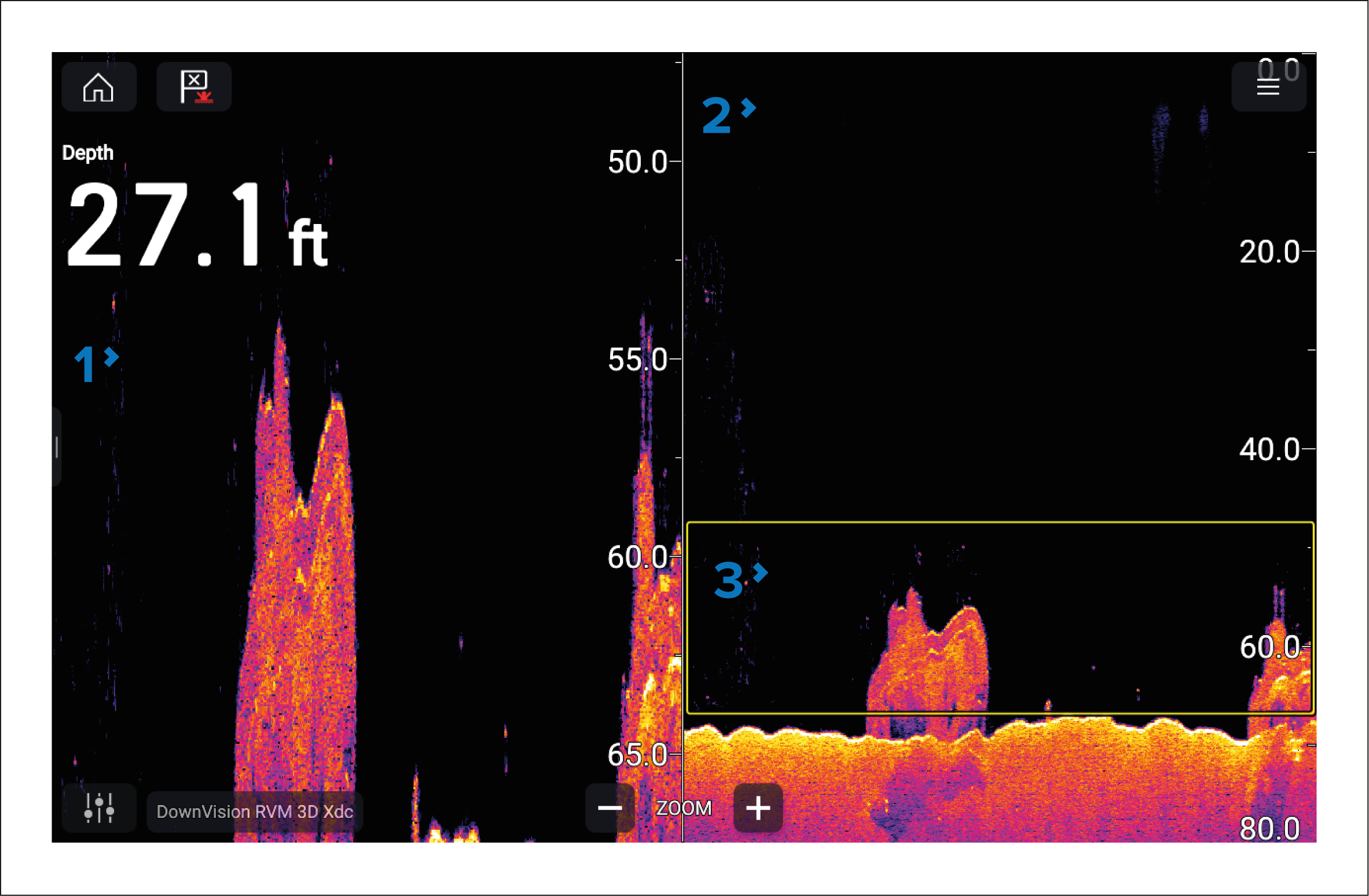
Zoomed area — The zoomed area is shown on the left side of the screen.
Water column — The full water column is shown on the right side of the screen.
Zoom box — The zoom box indicates the section of the water column that is magnified on the left side of the screen.
Zooming
The zoom level can be increased and decreased by:
performing pinch-to-zoom gestures on the zoomed area.
using the onscreen range / zoom icons.
turning the Uni-controller (if available).
You can also increase and decrease the size of the zoom box using pinch-to-zoom gestures on the water column.
Zooming out fully will deactivate zoom mode.
Changing zoom area
The section of the water column being magnified can be changed by moving the zoom box up and down the water column.
You can move the zoom box by:
dragging your finger up and down the water column.
using the Up and Down buttons on the Uni-controller (if available).
Bottom tracking
When zoom mode is first activated, the zoom box position changes dynamically to keep the detected bottom within the zoom box. If the detected bottom is still within the zoom box, automatic bottom tracking will remain active, even when the zoom box is moved. If the bottom does not appear within the zoom box, the box will remain in its current location until the bottom is detected or the box location is moved again.