Once a connection is set up between the Orca app and
a compatible chartplotter, routes can be sent from the Orca app to the
chartplotter.
OrcaRoutesRoutesOrca sync
From the Orca app’s side
menu:
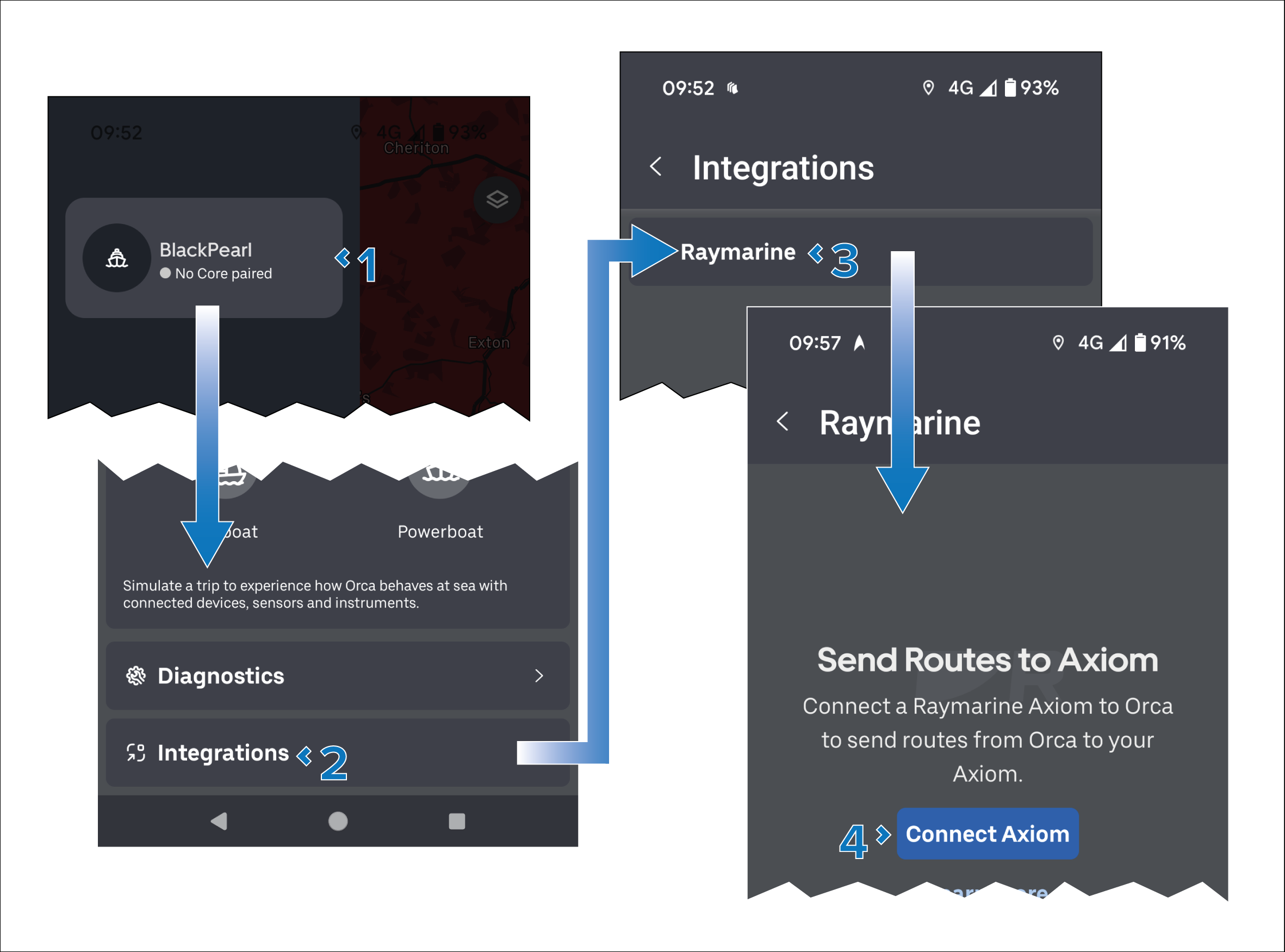
Select your boat’s name.
Scroll to the bottom of the menu and select Integrations.
Select Raymarine.
Select Connect Axiom.
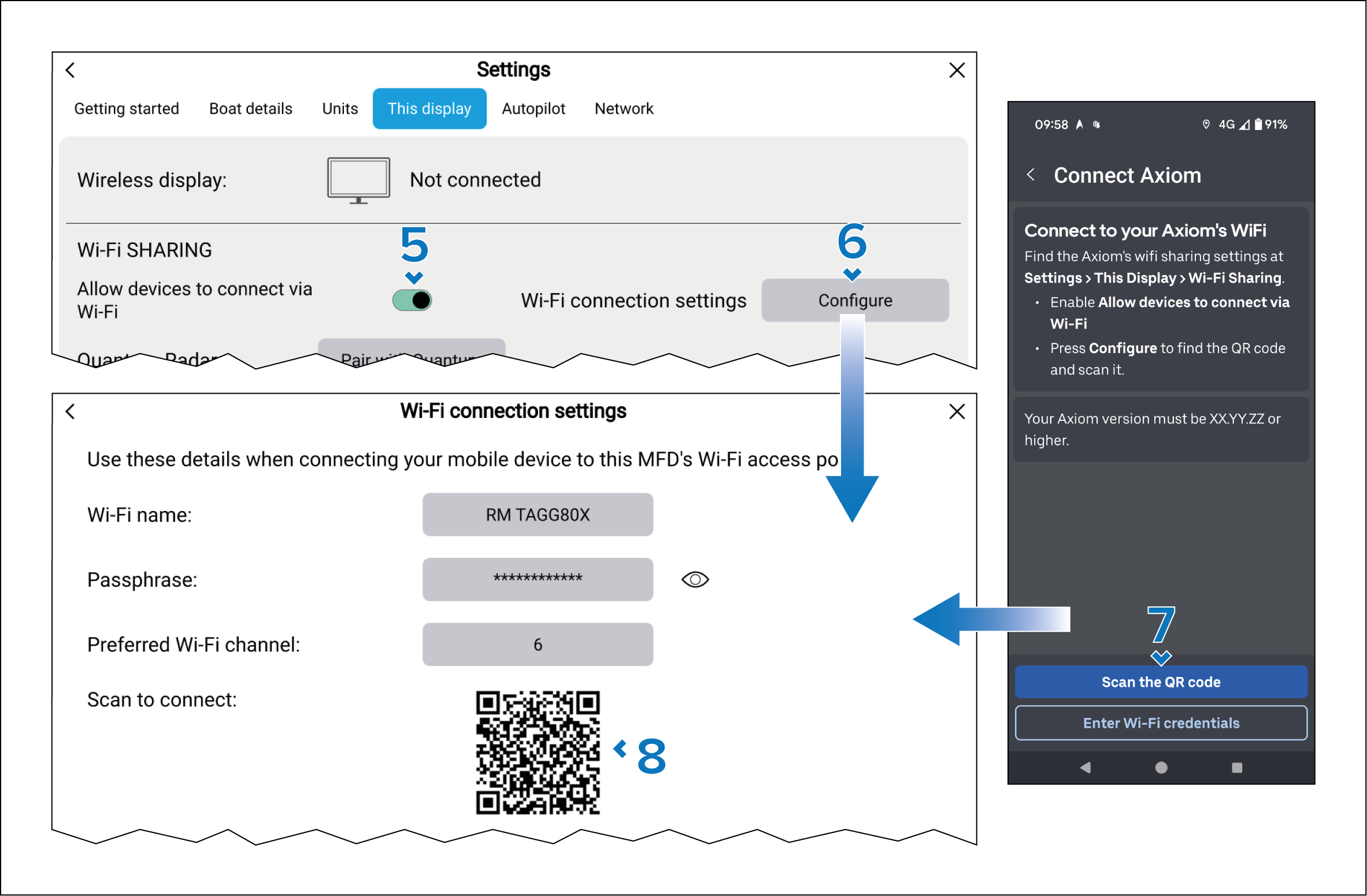
From the MFD / chartplotter: ensure that the Allow
devices to connect via Wi-Fi toggle switch is enabled in
the Wi-Fi SHARING section of the This
display settings menu: Homescreen > Settings > This display > Wi-Fi connection settings > Configure.
Select the Configure button from the Wi-Fi SHARING section of the This display settings menu.
The Wi-Fi settings and QR code will be displayed.
From the Orca app: select Scan QR code.
Scan the QR code that is displayed on the MFD / chartplotter
screen.
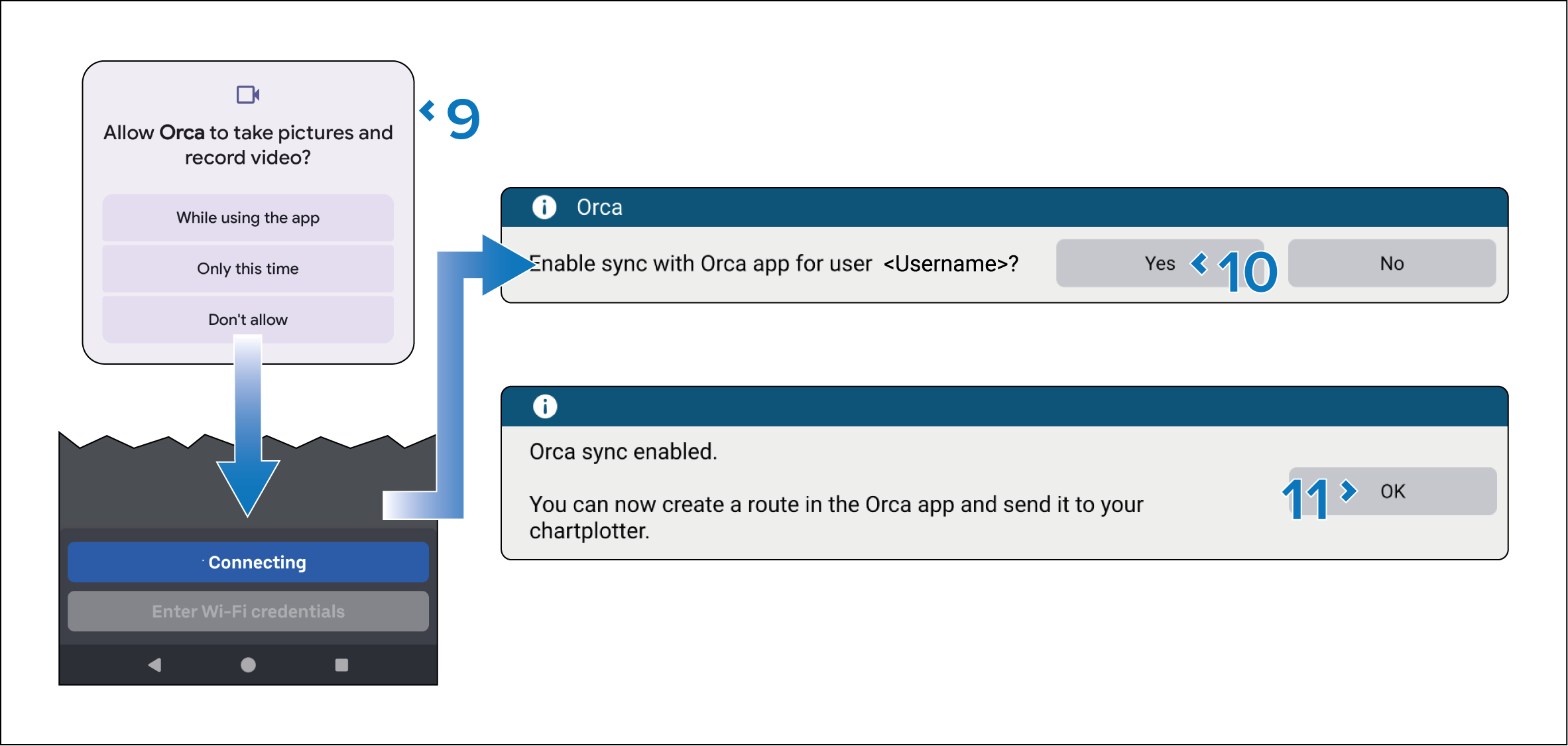
From the Orca app: accept
any permission notifications that appear.
From the MFD / chartplotter: select Yes on the “enable sync” notification.
Select OK on the “sync enabled” notification.
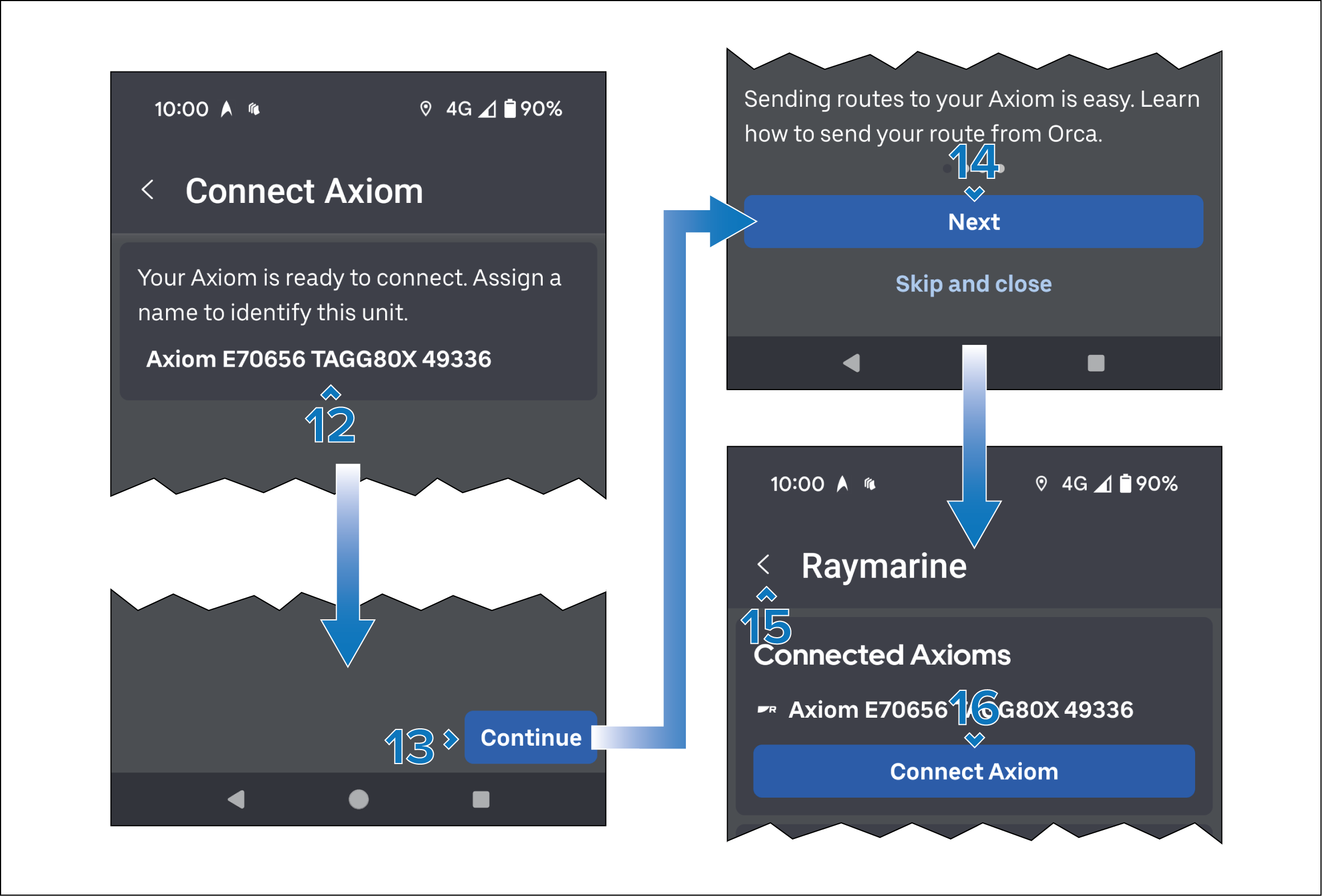
From the Orca app: select
the default MFD / chartplotter name to rename it.
Select Continue.
Select NEXT to read through the tutorial,
which details how to send a route to the MFD / chartplotter. Alternatively,
select Skip and close.
Select the < Back arrow to go back
to the previous menu, or:
Select Connect Axiom to sync another
MFD / chartplotter.