Placing a waypoint at a specific latitude and longitude
In the chart app you can place a waypoint at a specific latitude and longitude.
Waypoints Placing a waypointPlacing a waypointIn the chart app:
- Select New waypoint at lat / long.
The Lat / long onscreen keyboard is displayed.
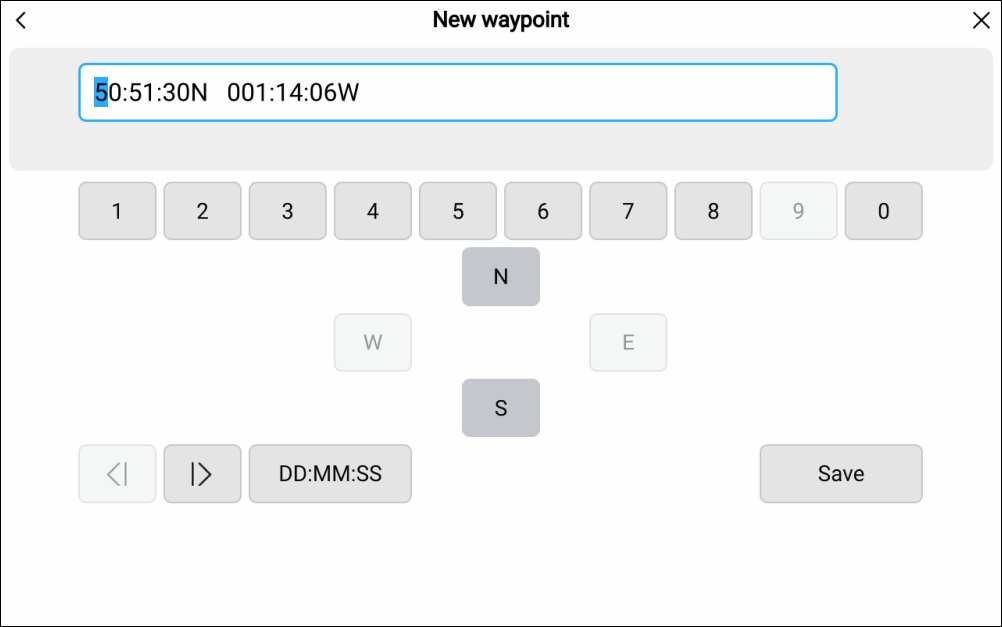
By default, the coordinates are in the display’s selected format and represent your vessel’s current location.
- Select the format for the coordinates you will enter.
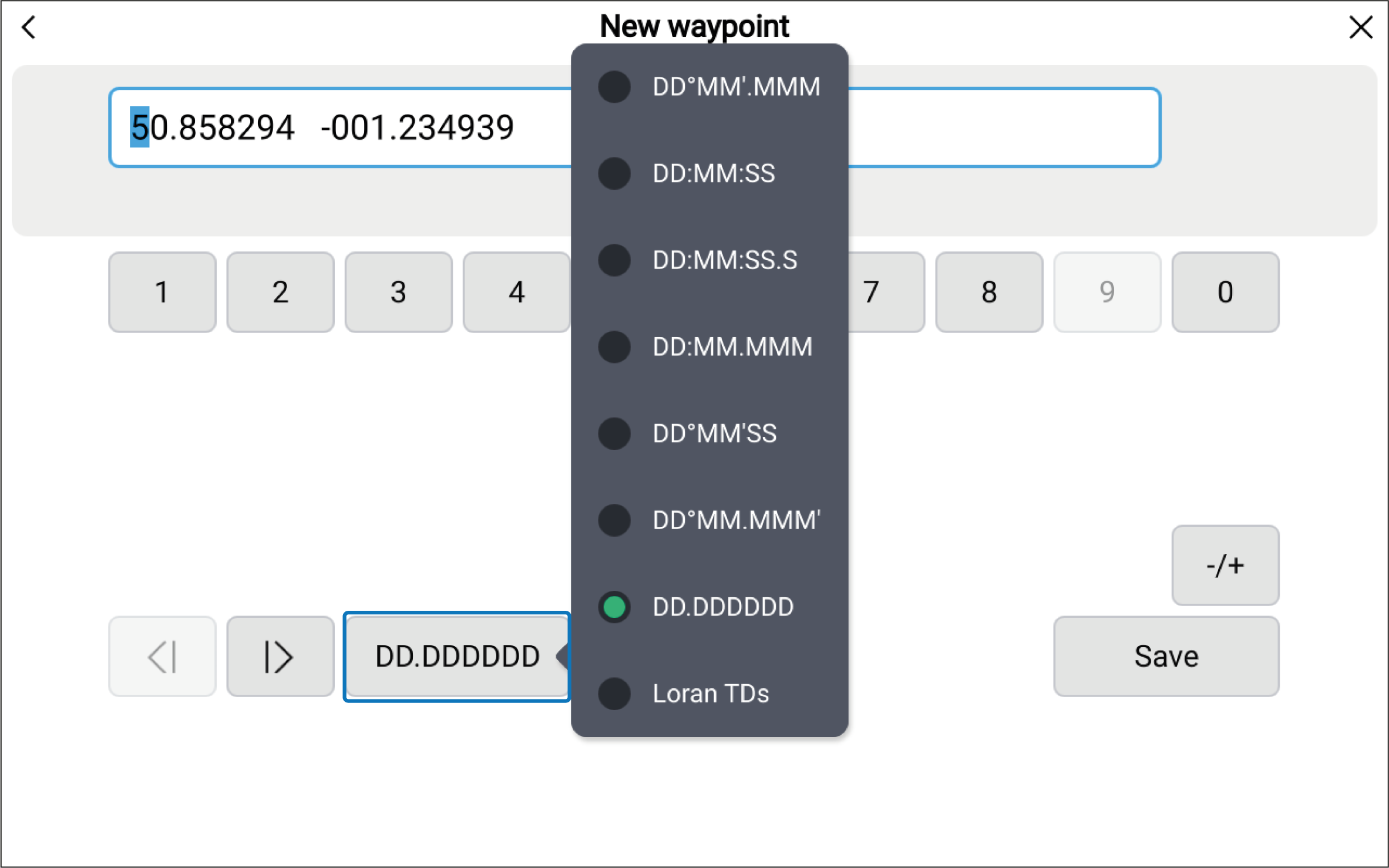
The available formats for inputting position coordinates are:
Position formats:
DD°MM’.MMM
DD:MM:SS
DD:MM:SS.S
DD:MM.MMM
DD°MM’SS
DD°MM.MMM'
DD.DDDDDD (Google Maps)
Loran TDs
NoteThe saved waypoint details will show the coordinates in the format that has been selected in the display’s Units settings menu: Homescreen Settings Units Lat / Long format. Not all inputs formats may be available
Loran TDsThe Lat / Long format options include the commonly used “Google Maps” (DD.DDDDDD) format and the Loran TDs (Time Difference lines) format.
- Select Save.
The waypoint details page is displayed:
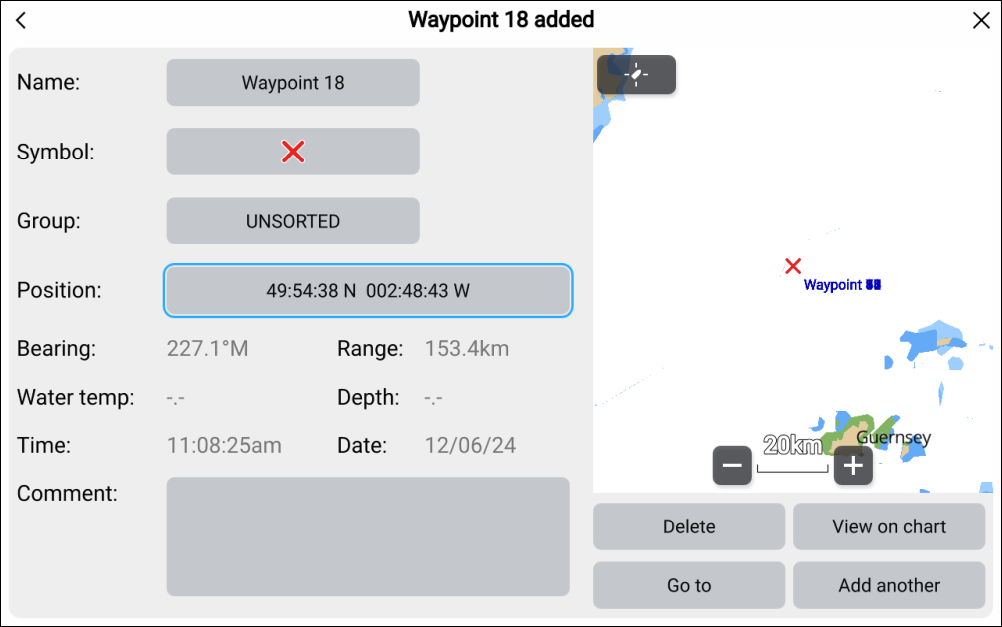
The following waypoint details can be customized:
Name
Symbol
Group
Position
Comment
The following additional data is provided:
Bearing
Range
*Water temp
*Depth
Time
Date
Note*Data is only populated when the Waypoint button or onscreen Waypoint icon is used to create a waypoint at your vessel’s current location.
The following additional options are provided:
Delete — Deletes the current waypoint.
View on chart — Closes the menu and centers the waypoint onscreen.
Go to — Starts active navigation to the waypoint.
Add another — Opens the Lat / long onscreen keyboard so that another waypoint can be added.