Data overlays
Data overlays can be used to display system data on homescreen app pages.
Data itemsData overlaysData overlays
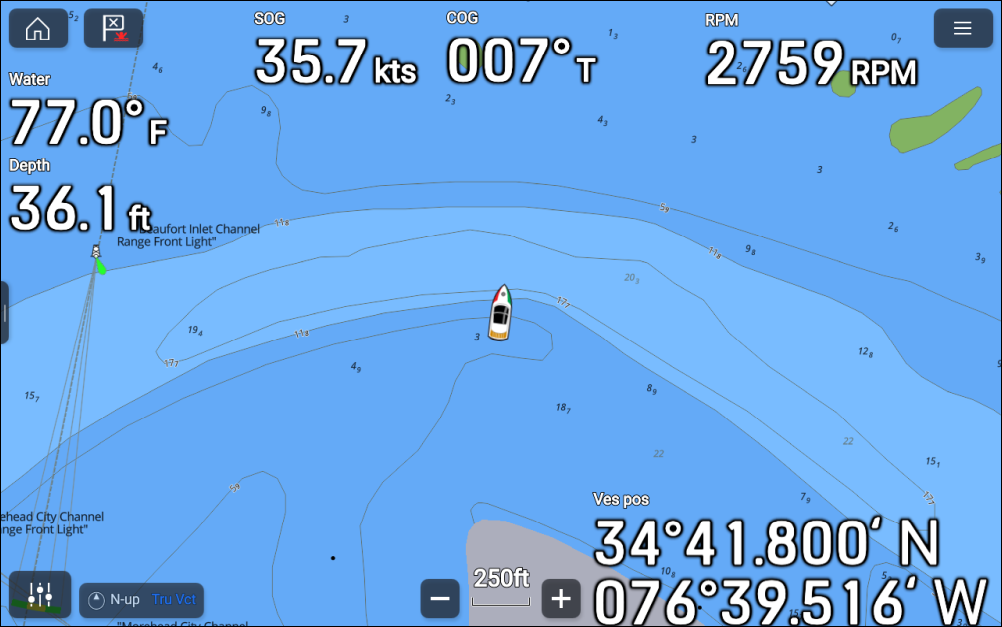
Up to 12 data overlays can be added to each app page.
Data overlays are NOT available for the following app pages: Mercury, Yamaha, Yamaha HDMI, Router Channels, YouTube, YouTube TV, or for fullscreen partner integration shortcut pages.
Data overlays can be added, customized or deleted by selecting Edit data overlays from the app’s Page settings menu: .
In edit mode, you can customize existing data overlays by selecting them, which will display the pop-over menu.
From the pop-over menu, the following options are available:
To change the data item in a data overlay: select Edit and choose a new data item from the list.
To change the location of a data overlay: select Move and then move it to a new location.
To change the size of a data overlay: select Resize and choose either: Small, Medium, Large, or Extra large.
To remove a data overlay: select Delete.