PDF Viewer controls
When a PDF file is displayed in the PDF Viewer app, the following options are available.
PDF Viewercontrols
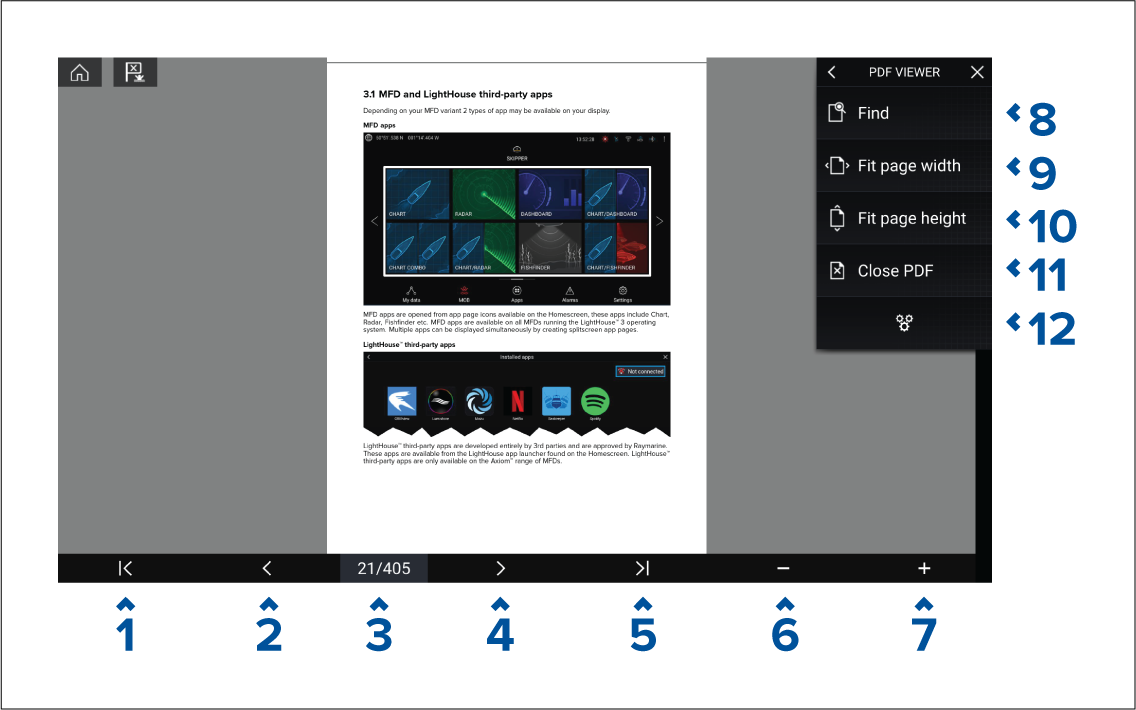
First page — Select to display the first page of the PDF document.
Page back — Select to display the previous page.
Pages — Indicates current page and total number of pages. You can also tap this element and enter a specific page number.
Page forward — Select to display the next page.
Last page — Select to display the last page of the PDF document.
Zoom out — Select to zoom out, in 10% increments.
Zoom in — Select to zoom in, in 10% increments.
Find — Select to display the onscreen keyboard and enter a search word or phrase.
Fit page width — Zoom the document display to fit the width of the PDF page.
Fit page height — Zoom the document display to fit the height of the PDF page.
Close PDF — Closes the PDF and displays the initial PDF Viewer app start screen.
Settings — Displays the Settings menu, which allows you to add data overlays to the PDF Viewer app.