Autopilot control
Compatible Mercury® autopilots connected to the SmartCraft® Connect gateways via the SmartCraft® bus can be integrated with the chartplotter so that the autopilot can be controlled from the chartplotter. On these systems the autopilot control will be available.
Mercury Autopilot controlAutopilot sidebarVesselView Autopilot controlAutopilot sidebar
Autopilot controls can be accessed from the Autopilot sidebar. Performing a Goto or Follow route in the Chart app will also provide options to engage your autopilot.
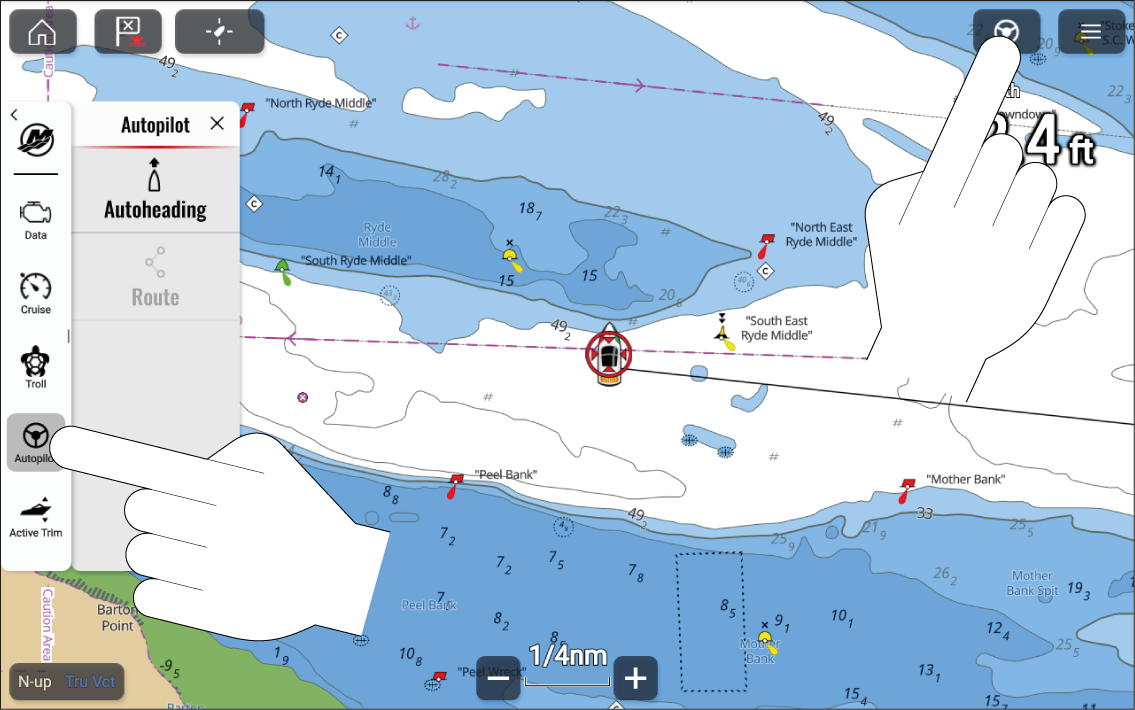
Figure 1. Autopilot sidebar selection
When the autopilot is engaged, the Autopilot sidebar is displayed automatically. With the autopilot disengaged (i.e.: in Standby mode), you can display the Autopilot sidebar by selecting the Autopilot icon located on the top right of the screen, or by manually selecting the Autopilot sidebar icon from the Mercury sidebar options.
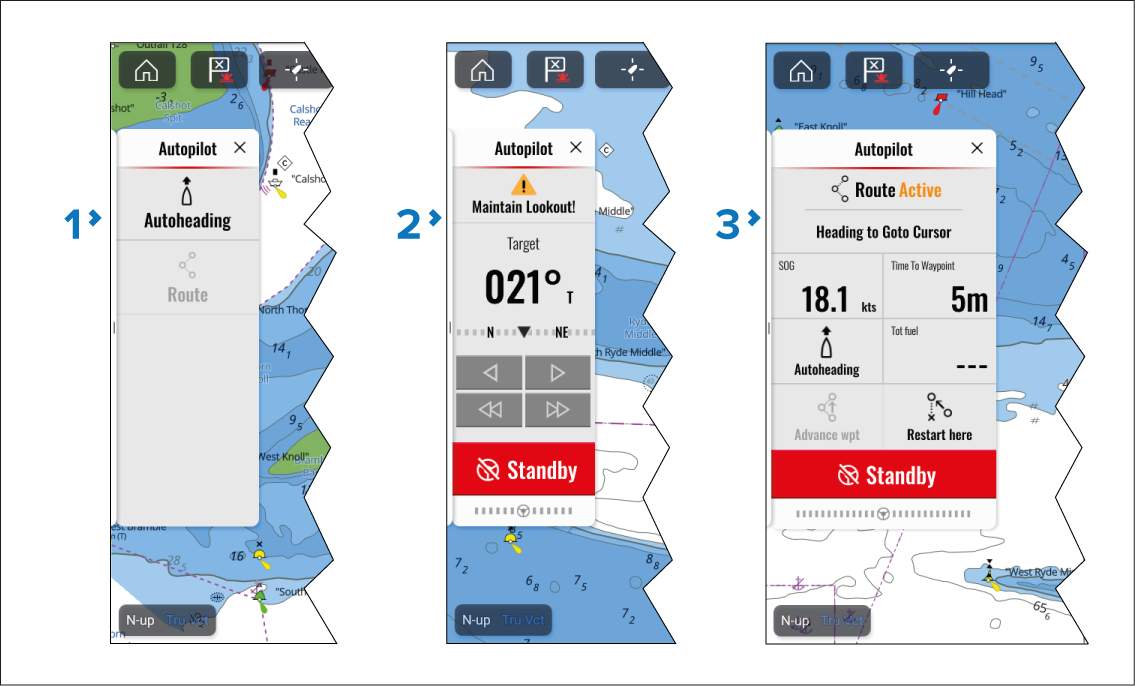
Figure 2. Autopilot sidebar states
With the autopilot in standby, the Autopilot sidebar has Autoheading or Route options. You can select Autoheading to engage the autopilot and maintain the current heading.. If you are already following a route, you can select Route to engage the autopilot in Route mode. In Route mode, the boat will follow the route and when a waypoint is reached the boat will automatically proceed to the next waypoint in the route.
Autoheading — When Autoheading is engaged, the sidebar displays the current target heading and provides controls to increase and decrease the heading angle in 1° or 10° increments.
Route mode — In Route mode, the sidebar displays navigation data and provides controls to switch to Autoheading, advance to the next waypoint (Advance wpt.), or restart the “route follow” command (Restart here).