Assigning app pages to Quicklaunch buttons

App pages assigned to the Quicklaunch buttons are identified using the associated Quicklaunch button number in the top right corner of the app page icon.
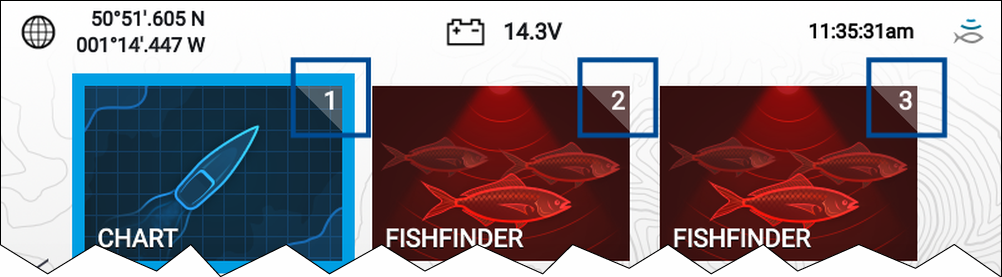
Quicklaunch buttons
You can change which app page is assigned to the Quicklaunch buttons by following the steps below:
  1. Using the Directional pad, highlight the app page icon that you want to assign to a Quicklaunch button.
  2. Press and hold the relevant Quicklaunch button until the ‘Quicklaunch button configured’ message is displayed.
    The app page icon is updated to show the associated Quicklaunch button number in the top right corner of the icon.
  3. Repeat steps 1 and 2 for the remaining Quicklaunch buttons, if required.