Live Video page
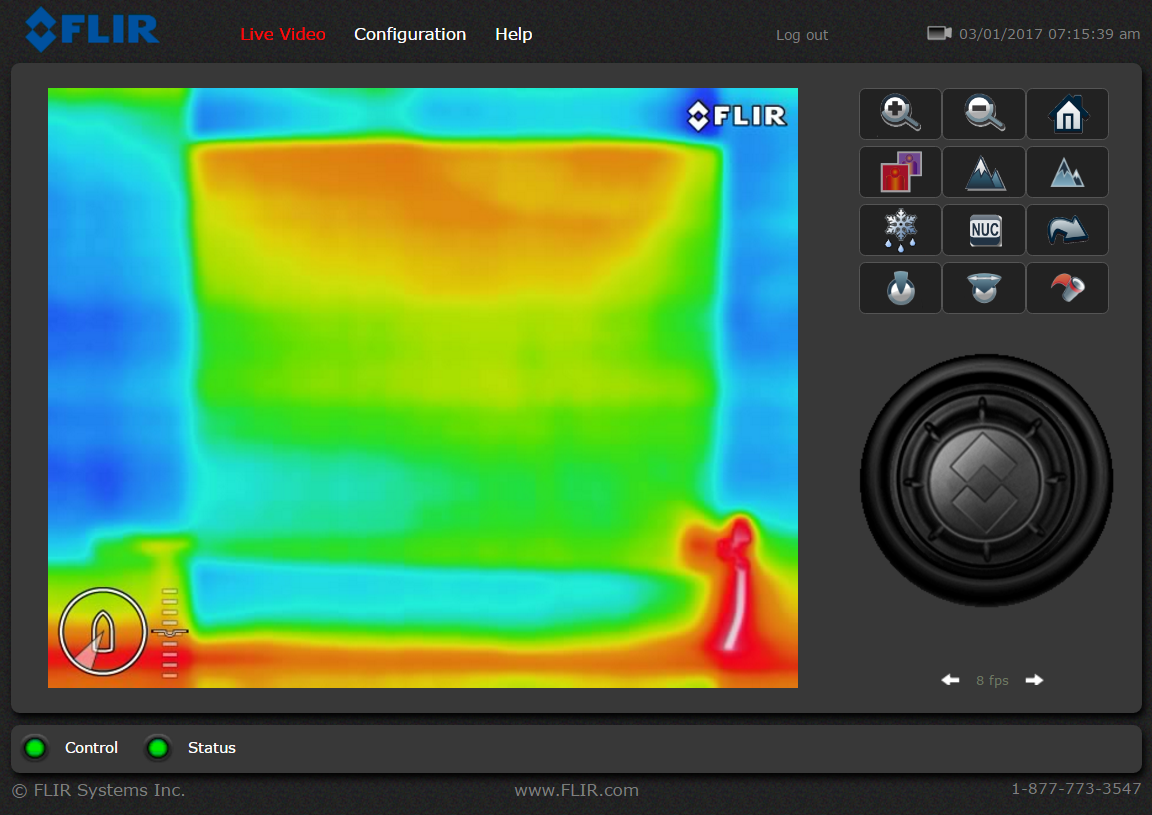
The user login, can only access the Live Video page and controls, and a limited selection of Configuration settings.
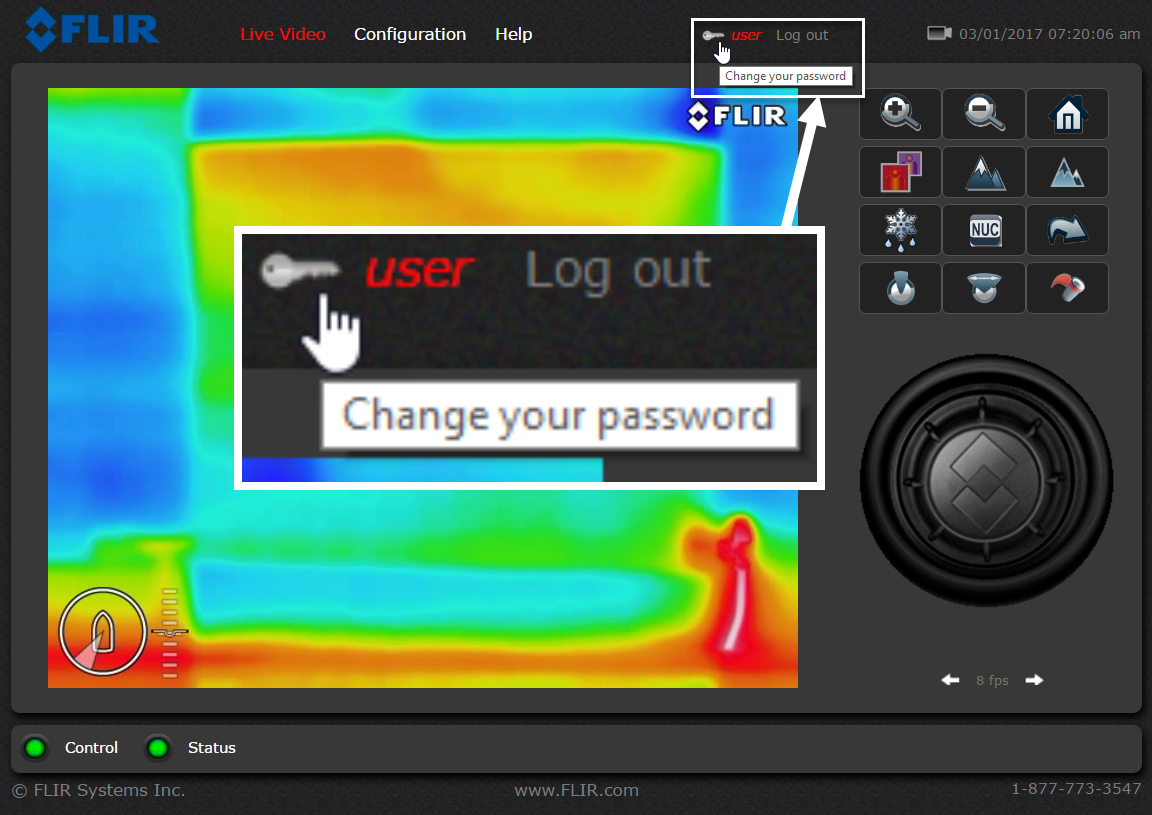
To change the password for the user login, click Configuration in the top menu, then in the Basic User (user) section of the Configuration page, select Allow change password.
Click Live Video to return to the Live Video page, and click user (next to the Log out link). The Password change dialog is displayed.
A frame-rate selector at the lower-right of the page enables you to change the rate at which video frames are displayed. This rate applies only to this instance of the web browser. Video streams for other users are not affected.
At the top of the page, the Help menu shows software version information. This page includes information about the camera, including hardware and software revision numbers, part numbers, and serial numbers. Before contacting FLIR Technical Support for assistance, make a note of the information from this page.
Use the Log out link at the top of the page to disconnect from the camera and stop the display of the video stream. If your web session is inactive for more than 20 minutes, you will be logged out automatically.
In the lower left of the screen are two indicator lights: Control and Status. Initially the Control light is off (black), indicating that you are not able to control the camera.
When multiple users are connected to a camera, only one user at a time can issue commands to the camera. If another user has control of the camera, the Control light is yellow. To request control of the camera, click on the yellow or black light, or by sending a command to the camera. The Status light may turn off (black) temporarily, while waiting for a response from the camera. There may be a slight delay responding to your inputs while the browser waits for a response from the camera.
In addition, when you move the mouse cursor over the video display, pan & tilt arrows, zoom buttons, and a snapshot button are shown.
The pan & tilt arrows and zoom buttons are shown at the lower-left of the screen; the snapshot button is shown at the upper-right.
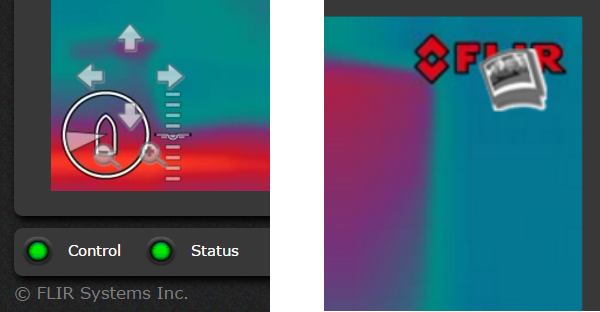
To save a still image from the video feed, click the Snapshot button. The video image is created as a JPEG (.jpg) file at the moment when the snapshot button is clicked. Follow the browser prompts to save the image file; the exact prompts depend on the browser you are using.
M100-Series cameras support tilt movements only.