Control icons
When you position your mouse cursor over an icon, a tool tip is displayed, indicating the icon’s function.
The following table describes the function of each icon.
Icon |
Function |
|---|---|
 |
Zoom In Click and hold to zoom-in the thermal image. The current zoom level (between x1.0 and x4.0) is shown at the bottom-right of the thermal image. |
 |
Zoom Out Click and hold to zoom-out the thermal image. The current zoom level (between x1.0 and x4.0) is shown at the bottom-right of the thermal image. |
 |
Home Click and release to move the camera to its home position. Click and hold to set the current pan and tilt position as the home position. |
 |
Toggle Palette Cycle through 4 different look up table (LUT) color palettes: WhiteHot, RedHot, Fusion, and FireIce. Depending on the subjects viewed and the environmental conditions, one color palette may be preferable to the others. |
 |
Toggle Scene Preset Cycle through 4 different image presets: Day, Night, Docking, and High Contrast. Each preset adjusts the image brightness and contrast. Depending on the time of day, weather, and other conditions, you may find that one preset produces a clearer thermal image than the others. |
 |
Toggle Polarity Switch the polarity of the image to change the appearance of objects on-screen. The available polarity options depend on the currently selected color palette: WhiteHot / BlackHot; RedHot / RedHot Inverse; Fusion / Fusion Inverse; FireIce / FireIce Inverse. |
  |
Toggle De-ice Switch the camera’s de-icing lens heater on or off. The icon displays a red ON overlay when the heater is operating. |
 |
IR NUC Calibration Perform a Non-Uniformity Correction (NUC) operation. This can improve the quality of the thermal video image. |
 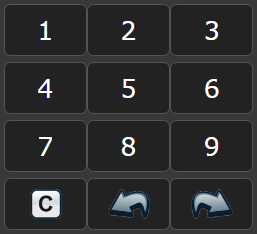 |
Scan Position Presets Display a numeric keypad. Click a number to select an AutoScan (Surveillance) preset position. Click the left-arrow or right-arrow to show the previous or next sequence of preset buttons. Click C to return to the main control icons. |
 |
Toggle AutoScan (Surveillance) mode Switch the camera into and out of AutoScan (Surveillance) mode. While in this mode, the camera pans left and right continuously. Note Surveillance mode is available for M200-Series cameras only. |
 |
Toggle AutoScan (Surveillance) width Cycle through AutoScan (Surveillance) width settings. This controls the range through which the camera pans when in AutoScan (Surveillance) mode. Note Surveillance mode is available for M200-Series cameras only. |
 |
Toggle AutoScan (Surveillance) speed Cycle through AutoScan (Surveillance) speed settings. This controls the speed at which the camera pans when in AutoScan (Surveillance) mode. Note Surveillance mode is available for M200-Series cameras only. |