Pre-installation site survey — Raymarine app
You can also use Raymarine apps such as RayControl or RayView to assess the reliability of the Wi-Fi connection
at the desired installation location.
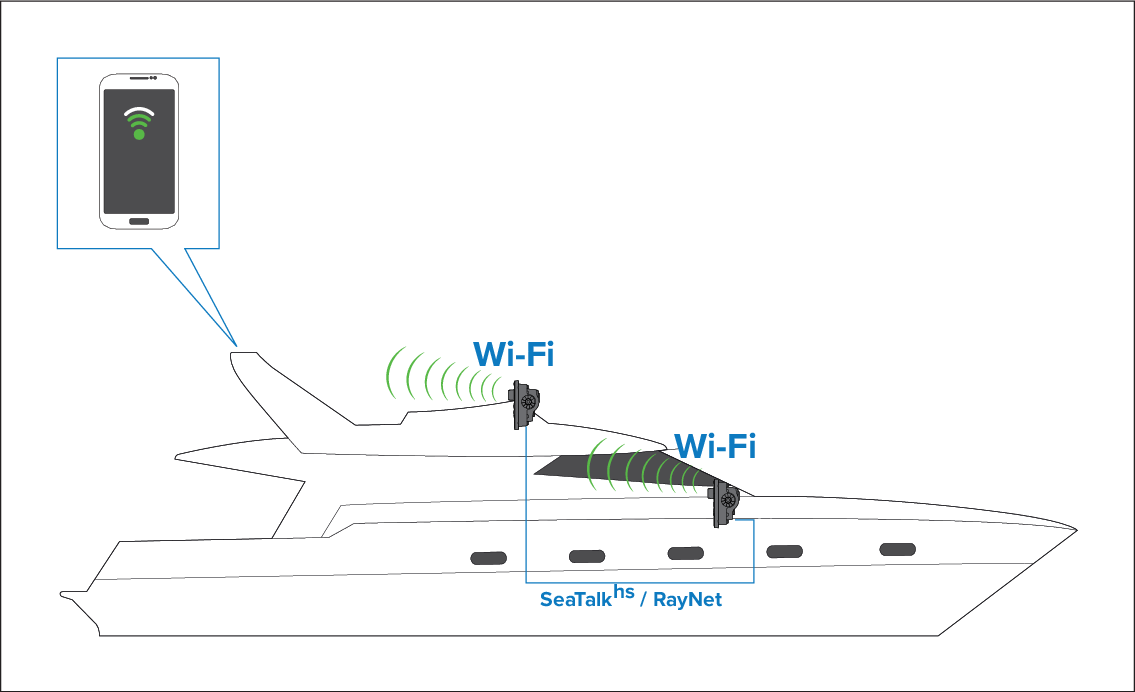
- Enable your MFDs Wi-Fi connection: ()
- Enable ‘Viewing only’ or ‘Remote control’ from the Mobile apps menu: ().
- Make a note of the MFDs Wi-Fi Name ().
- Go to the location you have chosen for your Radar.
- Using your smart device, search for available Wi-Fi networks.
- Find your MFDs network and check the signal strength reported by your device.
- If you have a strong signal strength, open a Raymarine mobile app such as RayView or RayControl and check functionality at the desired location. If you do not experience any performance issues running the app then you can proceed with the installation.
- If you have a weak or intermittent signal then you will need to investigate further, please refer to the Wi-Fi location requirements guide to help establish what may be causing the problem.
- For networks with multiple MFDs, repeat steps 1 to 9 for each MFD in your network.