WG-1 LED diagnostics

The wireless gateway has diagnostic LEDs on the front of the unit. These LEDs are used to identify the unit’s status, and can be used for troubleshooting.

LED diagnostics (WG-1)
TroubleshootingNetwork LED diagnostics

LED indication

LED status and possible solutions

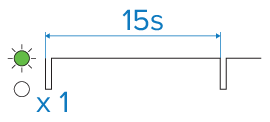
(Green) Powered up / Ok

  • Normal operation — no user action is required.

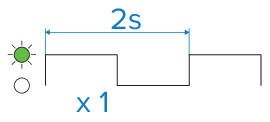
(Green) No wind vane connected / Wind vane connecting

  • Check the relevant product, network cabling and connections for signs of damage or corrosion, and replace if necessary.

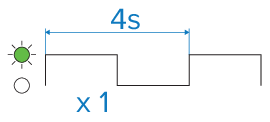
(Green) Update in progress

  • Normal operation — no user action is required.

(Green) Gateway powering on

  • Normal operation — no user action is required.

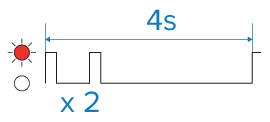
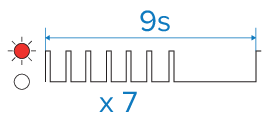
(Red) CAN not connected

  • Check the relevant product, network cabling and connections for signs of damage or corrosion, and replace if necessary.

  • Consider contacting your local dealer or Raymarine® Product Support.

(Red) CAN Fault

  • Check the relevant product, network cabling and connections for signs of damage or corrosion, and replace if necessary.

  • Consider contacting your local dealer or Raymarine® Product Support.

(No color) No power

  1. Check the vessel’s battery voltage, the condition of the battery terminals and power supply cables, ensuring connections are secure, clean and free from corrosion; replace if necessary.

  2. Check the power supply cable and connectors for signs of damage or corrosion; replace if necessary.

  3. Check that the power cable connector is fully inserted into the unit and locked in position.

  4. With the unit turned on, try flexing the power cable near to the connector to see if this causes the unit to re-start/lose power; replace if necessary.

  5. With the product under load, using a multi-meter, check for high voltage drop across all connectors / fuses etc, and replace if necessary.