Changing color modes
In addition to the default Color mode (Day) configuration, the performance display can also be configured for night time use via the available Color mode (Night) setting.
Getting startedColor modesColor modes
If you are using the Color mode (Night) setting at night, be aware that your vision may be compromised when reverting back to either the Color mode (Day) setting or a display screen with a higher level of brightness.
The Color mode (Day) and Color mode (Night) settings are applied globally to all compatible devices in the system, and will therefore automatically synchronize with any networked multifunction displays / chartplotters and daisy-chained performance displays.
To switch between color modes:
- When viewing a data page, swipe down from the top edge of the screen to display the Overlay menu.
- Select between Color mode (Day) or Color mode (Night).
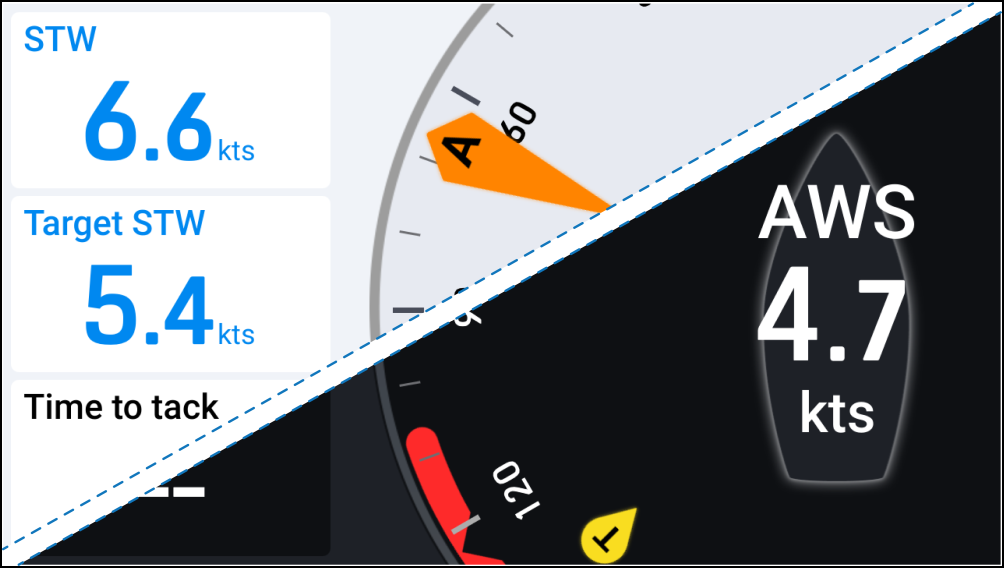
Color mode (Day) |
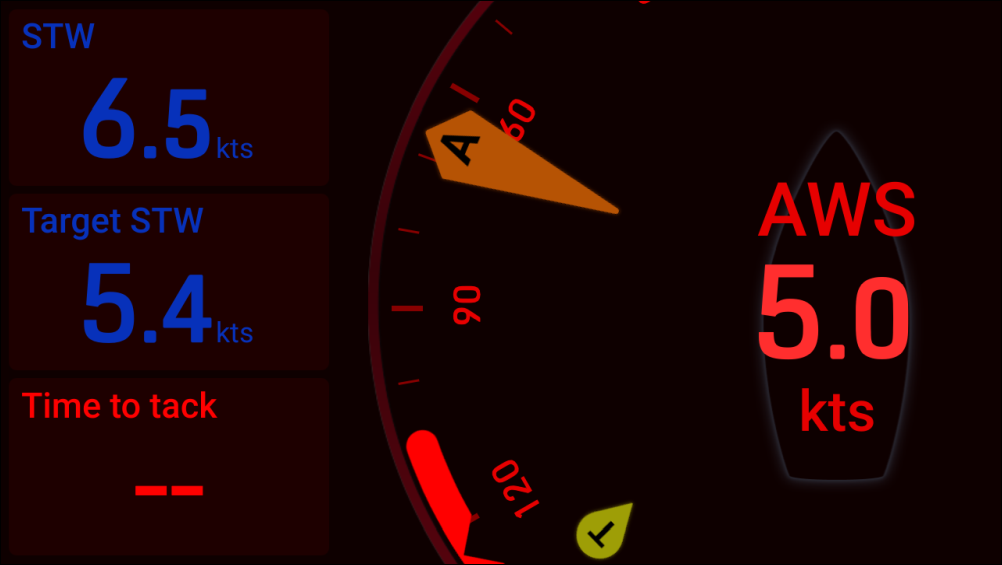
Color mode (Night) |
|---|---|
 |
 |
Color mode (Day) — the default color mode, which uses standard light (default) or dark colors (intended for day use).
Color mode (Night) — uses red text and icons on a darkened background (intended for night use).
For information on how to configure your Color mode (Day) color scheme, refer to: Daytime color settings