Waypoint details
Details for individual waypoints can be viewed and edited.
WaypointsDetailsWaypoint details can be accessed from the group list by, selecting View waypoint details from the waypoint’s pop-over menu.
The waypoint details menu includes the following details and options:
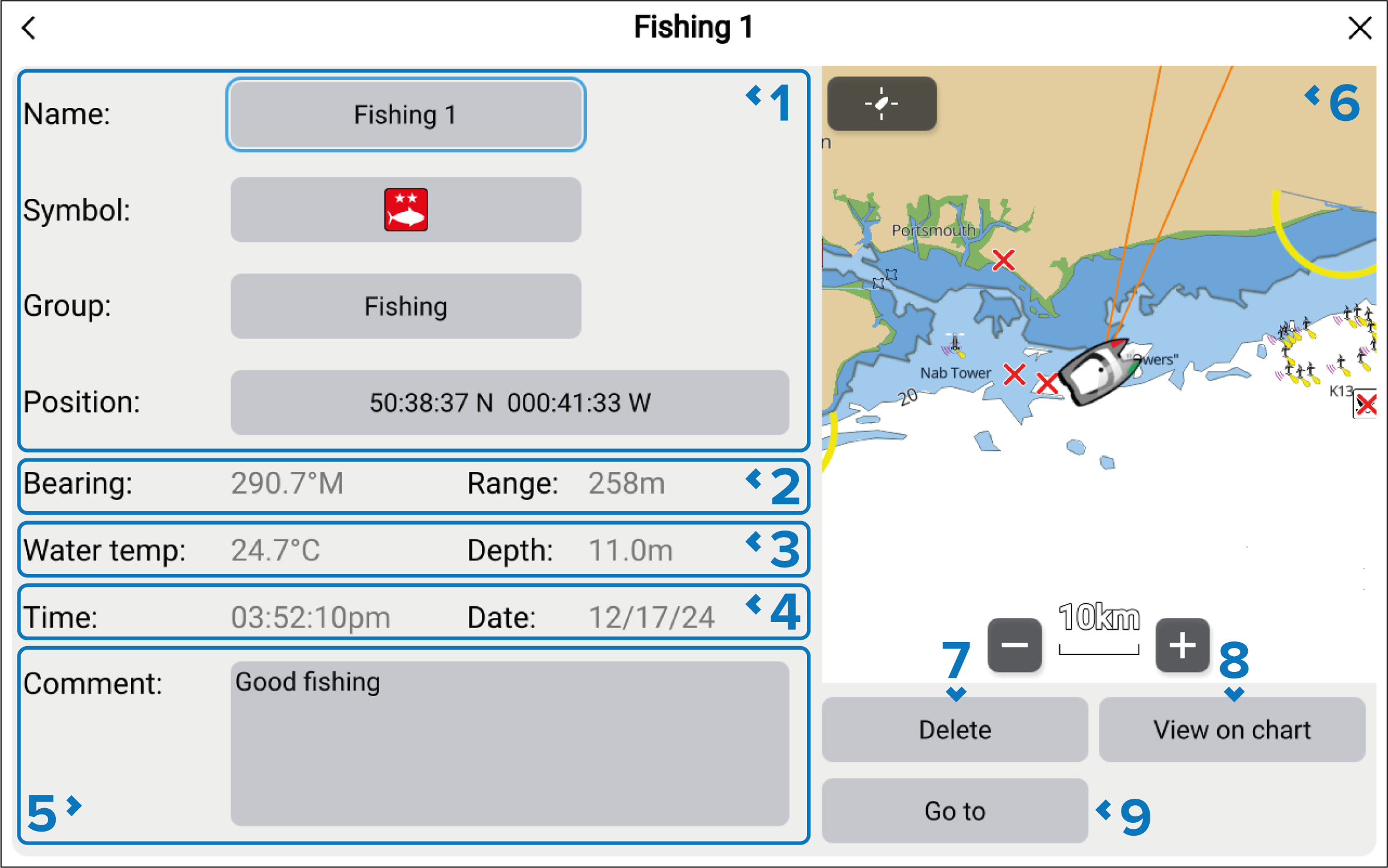
Waypoint Name, Symbol, Group and Position can be edited by selecting the relevant field.
The Bearing and Range from your current position is shown. This is updated in real time as your vessel position changes.
The Water temp and Depth when the waypoint was created is recorded.
NoteRequires Temperature and Depth transducer.
Water temp and Depth will only be recorded when the Waypoint/MOB button or onscreen Waypoint/MOB icon is used to create a waypoint at your vessel’s current location.
The Time and Date the waypoint was created is recorded.
A Comment can be added to provide further details about the location.
LiveViewWaypointsLiveView — When accessed via the Chart app, the LiveView pane is displayed. When a waypoint is selected the LiveView will center the waypoint in the LiveView pane.
The waypoint can be deleted by selecting the Delete button.
Selecting the View on chart will close the menu and center the waypoint in the chart app. The View on chart button is only available when the waypoint details are accessed from the chart app.
Selecting the Go to button will close the menu and start active navigation to the waypoint.