Track list
Tracks are managed using the track list.
TrackListThe track list can be accessed from the Homescreen and from the Chart app:
When the track list is accessed from the Chart app menu, then the selected track is displayed in a LiveView pane on the right of the screen.
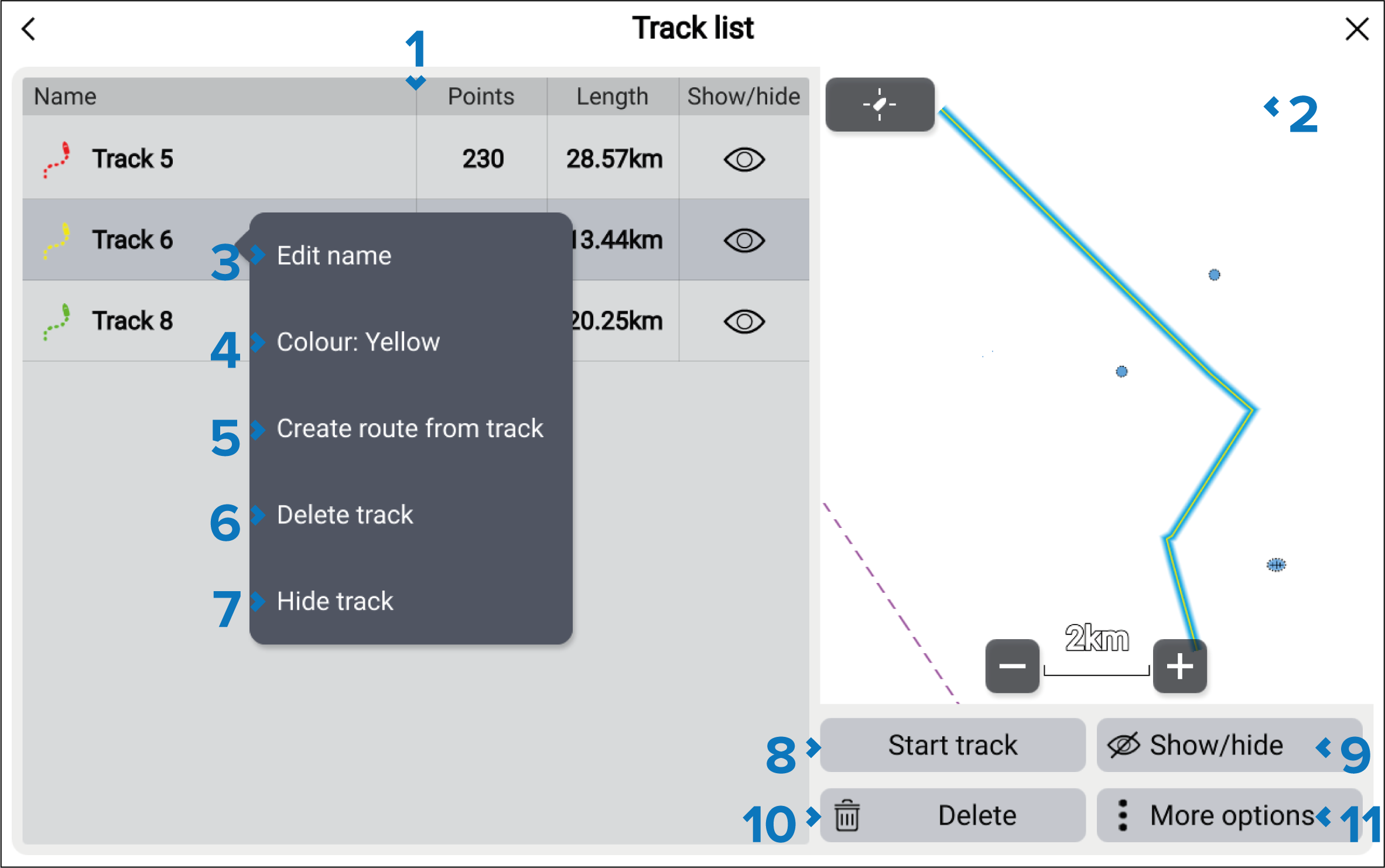
List of tracks. Selecting a track will open the pop-over menu. Selecting a track from the list will open the track pop-over menu.
LiveViewLiveViewTracks LiveView — when accessed via the Chart app, the LiveView pane is displayed. When a track is selected the LiveView will center the track in the LiveView pane.
TracksCustomizeEdit name — customize the track name.
Color — change the track line’s color.
Create route from track — convert the track into a route.
Delete track — delete the track from the system.
Hides track/Show track — Show or hide the track.
Start track/Stop track — Start or stop a track recording.
Show/hide — select tracks to show or hide.
Track DeleteDelete — select tracks to be deleted from the system.
More options — open the More options pop-over menu.