Opening the Audio app
The Audio app is opened by selecting an app page from the Homescreen that includes the Audio app.
Pre-requisites:
Ensure your Entertainment system(s) are compatible by checking the latest details available on the Raymarine website. If in doubt please contact an authorized Raymarine dealer for advice.
Ensure you have installed your Entertainment system(s) in accordance with the documentation that was supplied with the system.
The Audio app will open in 1 of 3 states:
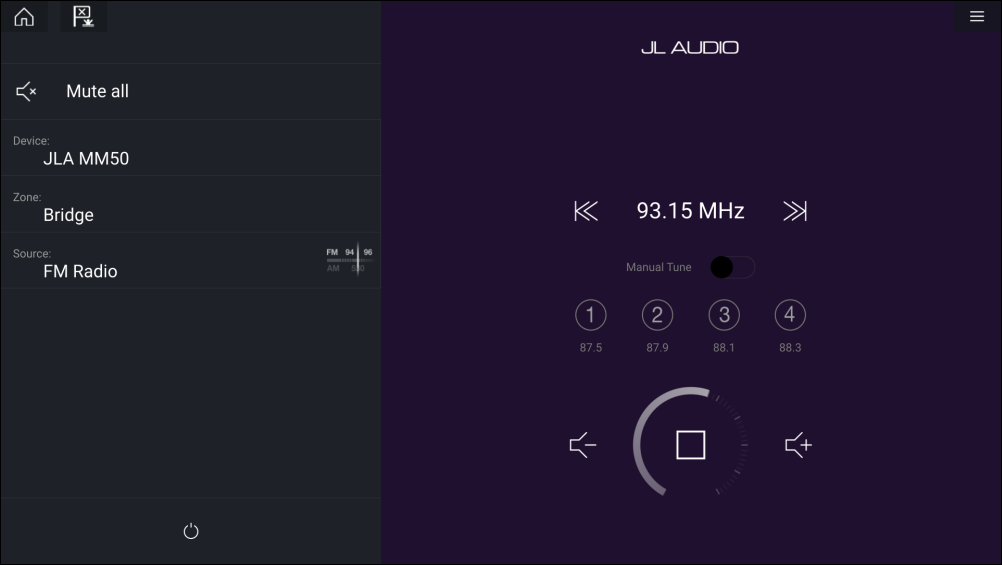
Audio app displayed
Audio appOpeningIf your Entertainment system is powered up and operational then the player controls are displayed and can be used to control your system.
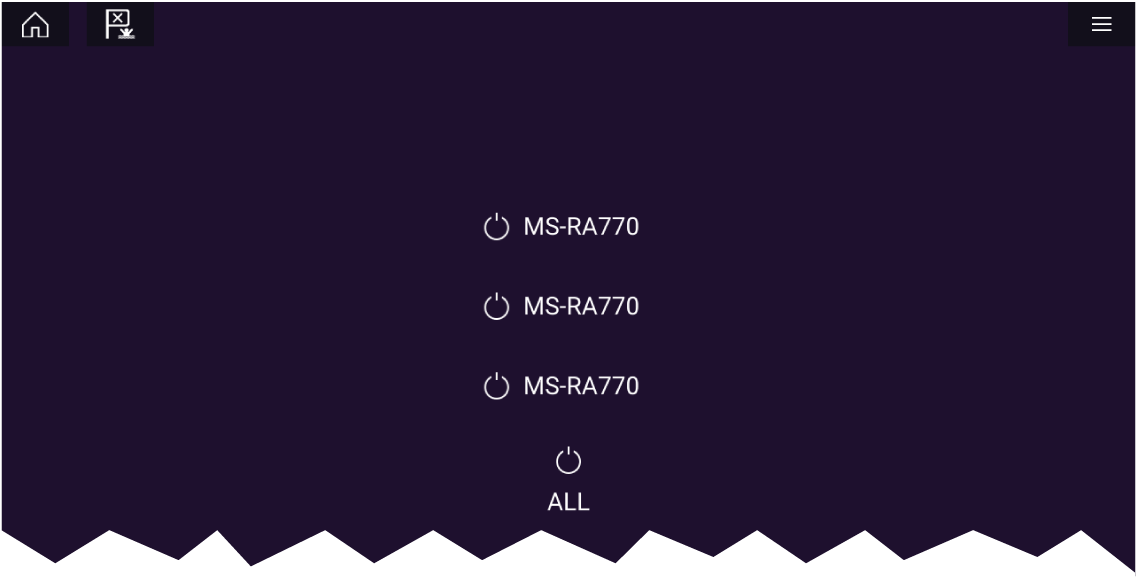
Entertainment system powered off
If all Entertainment systems are powered off then a Power icon is displayed for each connected system. An icon is also displayed to power on All systems. Selecting the Power icon will switch your Entertainment system on. Selecting the All icon will power on all connected systems.
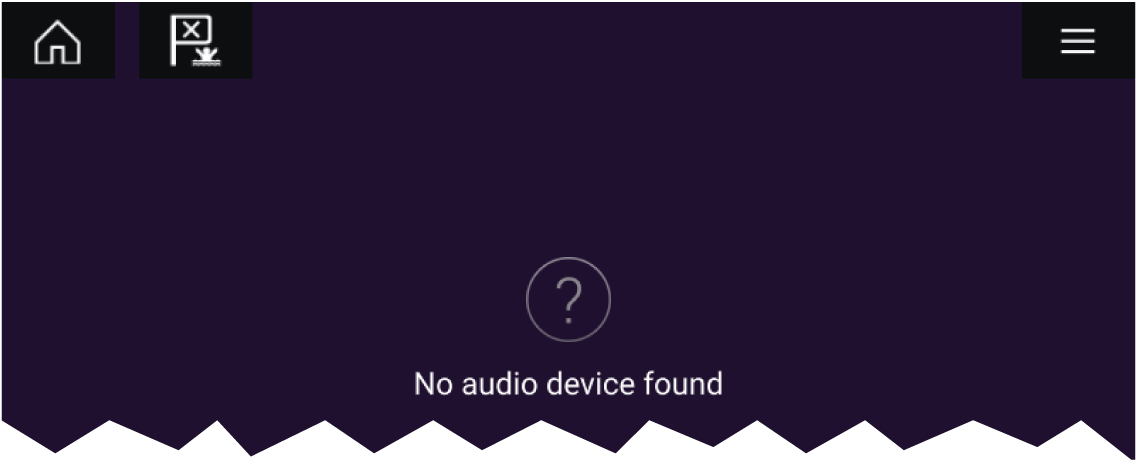
No audio devices found
If the Audio app is opened soon after powering on your MFD, the ‘No audio device found’ message may be displayed whilst the network is being established. If the message is displayed for more than 10 seconds, your MFD cannot connect to your Entertainment system(s). Ensure network and power connections to your Entertainment system(s) and MFD are correct and free from damage and then power cycle your system. If the Entertainment system(s) are still not displayed then refer to your equipment’s installation documentation for further troubleshooting information.