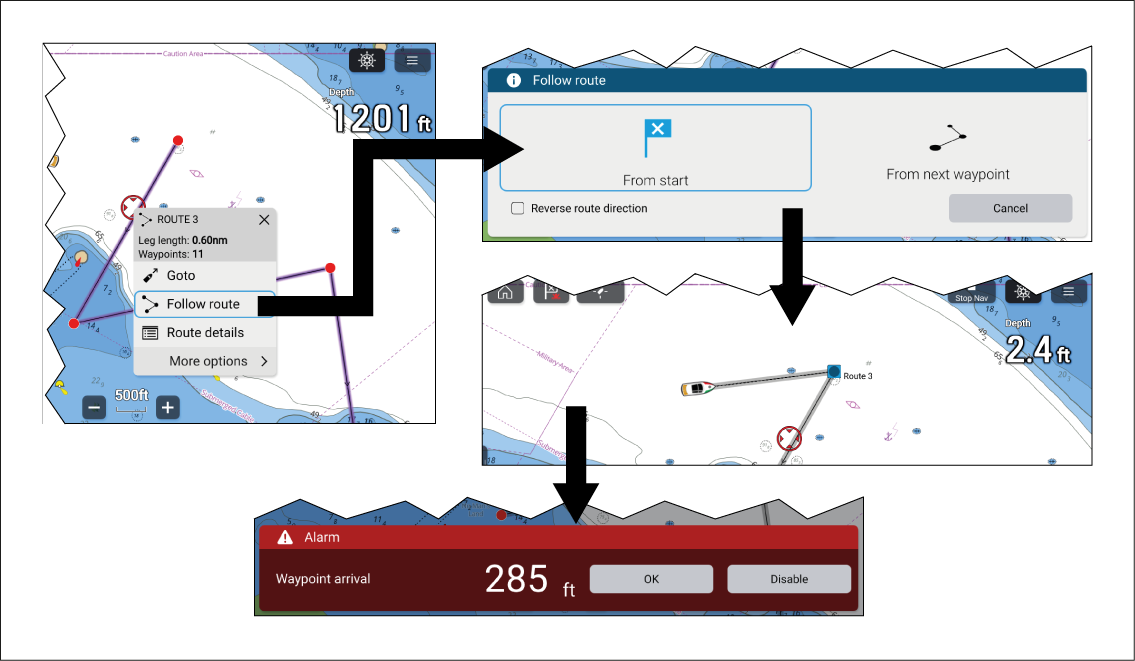
Once a route is created or imported it can be navigated
by performing a Follow route. When performing a Follow route active navigation will commence which guides
you through each route leg to the route’s final waypoint.
Important
It is the captain’s responsibility
to ensure a route is safe to navigate before commencing the follow.
Follow the steps below to perform a Follow route using manual steering:
RouteFollowSelect and hold on any route leg (the line drawn between the each
of the route’s waypoints).
Select Follow Route from the context
menu.
You can also select one of the route waypoints and select more options and then Follow route.
Note
If you select the first waypoint in a route then
the next step is skipped and active navigation commences immediately.
Select the desired follow option from the Follow route
notification:
Select From Start to commence active
navigation from the first waypoint in the route.
Select From next waypoint to commence
active navigation from the next waypoint after the selected route
leg.
Select From this waypoint to commence
active navigation from the selected waypoint.
Note
The Reverse route direction option allows
you to permanently reverse the route (i.e.: switch the start and end
waypoint) so that the route can be followed in the opposite direction.
To reverse the route select the check box and then choose either the
desired options to commence active navigation.
If the selected waypoint is part of more than 1 route then
the Route list will be displayed so that you can choose which route
you want to follow.
Manually navigate the route leg to the indicated waypoint.
The waypoint arrival alarm will trigger when your vessel
reaches the waypoint arrival radius.
The Waypoint arrival radius can be set from the Alarms manager: Homescreen > Alarms > Settings > Arrival radius.
If the Waypoint arrival alarm is disabled then
no notification will be triggered.
Select OK to begin active navigation
to the next waypoint in the route.
Follow steps 4, 5 and 6 above for all waypoint in the route.
Select the Stop Nav onscreen icon located
at the top of the screen or select Stop from the
context menu or Navigation menu to end active navigation.
You can end active navigation at any time by selecting
the Stop Nav onscreen icon located at the top of
the screen or selecting Stop from the context menu
or Navigation menu.
For more information
on routes and route management refer to: Routes