Fixed mount cameras require calibration for Augmented Reality
to function correctly.
For first time setup, either:
Select Enter details from the notification
when the Video app is opened.
Select Enter details from the ClearCruise settings menu: Menu > Settings > ClearCruise.
Select Configure from the Camera setup settings menu: Settings > Camera Setup > Camera Installation > Configure.
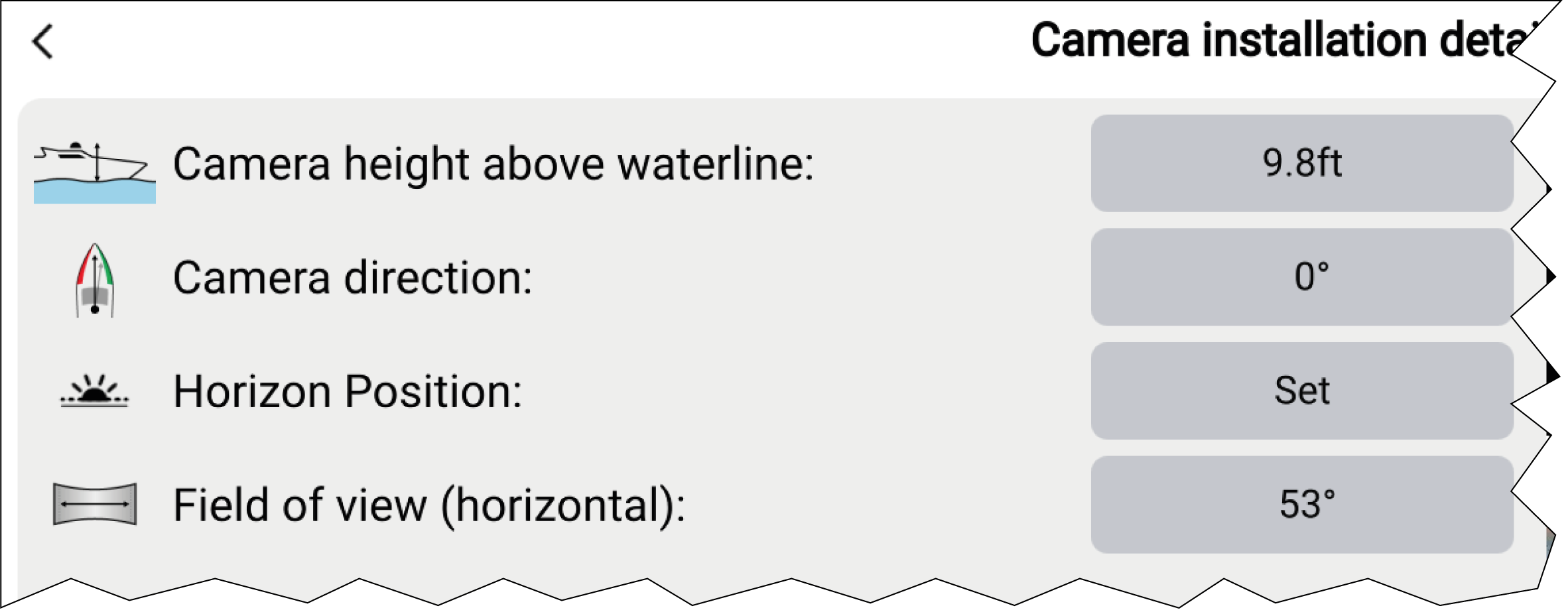
The Camera installation details
page is displayed.
The Camera Installation page contains
camera installation options which all need to be completed correctly.
Adjust the values of Camera height above waterline, Camera direction and Field of view
(horizontal) by selecting the field for each settings and
using the arrows to adjust the value..
Setting
Options
Camera height above waterlineAugmented RealityCamera height
0m to 50m
0ft to 165ft
Camera directionAugmented
RealityCamera direction
0° (Forward) (default)
0° to 180°p (Port)
0° to 180°s (Starboard)
Field of viewAugmented RealityField of View
30° to 120°
[CAM210IP – 53°]
[CAM220IP – 93°]
[CAM300 – 90° recommended]
Note
Incorrect physical camera installation and
incorrect installation settings could result in an inaccurate Augmented
Reality overlay.
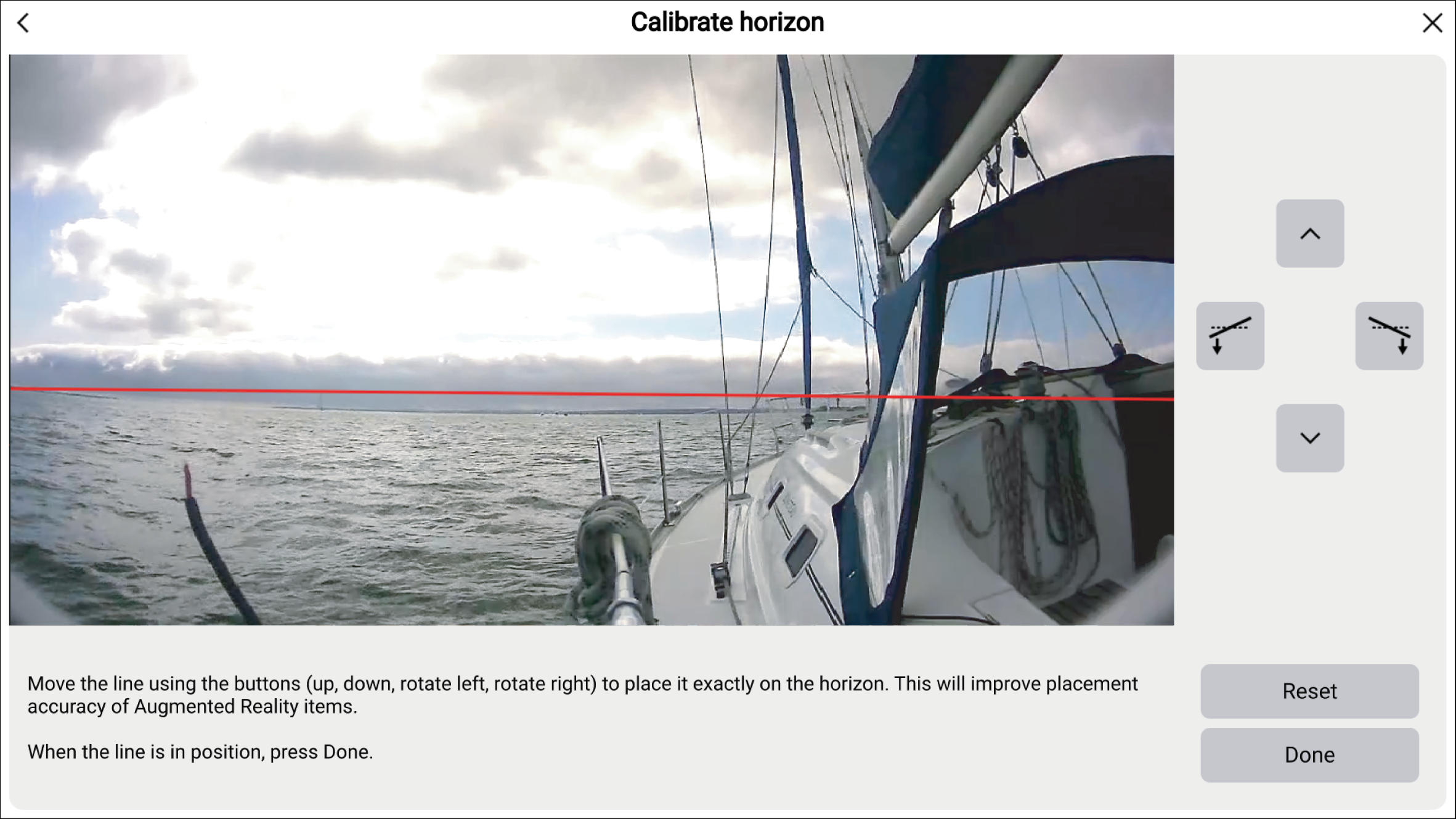
Select Horizon position.
The Calibrate horizon page is displayed.
Use the Up, Down, Rotate left and Rotate right buttons
to align the red line with the horizon.
Select Done.
Important
Calibrating the horizon correctly
is essential for accurate Augmented Reality overlay. Calibrating on
calm water and in clear sight of the horizon is recommended.