Files
The file browser can be used to Open and Delete photos / images and PDF documents, saved to external storage, and can also be used to Import or Delete user data and MFD settings files) saved to external storage.
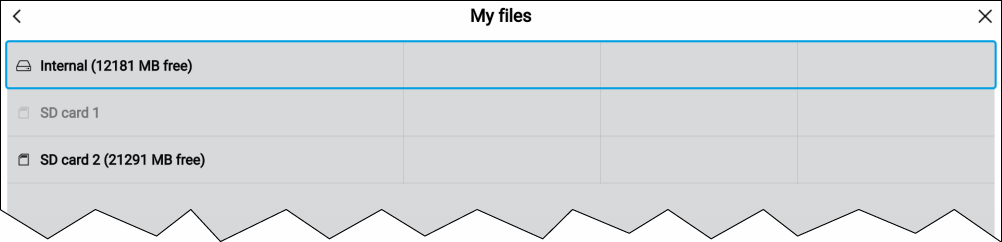
File browserSelecting a storage device expands its contents, allowing you to browse the contents.
The following file type can be viewed:
PDFPDF files — Selecting a PDF document will open a pop-over menu where you can choose to Open or Delete the file.
ImageImage files — Selecting an image file will open a pop-over menu where you can choose to Open or Delete the file.
Video playbackVideo files — Selecting an MPEG4 video file will open a pop-over menu where you can choose to Open or Delete the file.
gpxgpx — Selecting a gpx file (user data file which can contain waypoint, routes and tracks) will open a pop-over menu where you can choose to Import or Delete the file.
Settings Restorelh3 — Selecting a lh3 (MFD settings backup) file will open a pop-over menu where you can choose to Restore or Delete the file.
Lighthouse_id.txtLighthouse_id.txt — Selecting the Lighthouse_id.txt file will open a pop-over where you can Open the file so that you can scan the QR code when installing LightHouse Charts via the Raymarine app.
apkapk — Android apk apps downloaded from the Raymarine website can be installed from the file browser.
Only file types that are supported by your MFD will be visible in the browser.