Display mode
In addition to the default Day display mode the MFD can also be configured for night time use using the Night or Extra dark display modes.
Display modeThe display mode can be changed by selecting the Display mode icon from the Shortcuts menu.

Use the Power swipe area or the Power button to display the Shortcuts menu and select the Display mode icon. You can then switch between Day, Night, and Extra dark display modes.
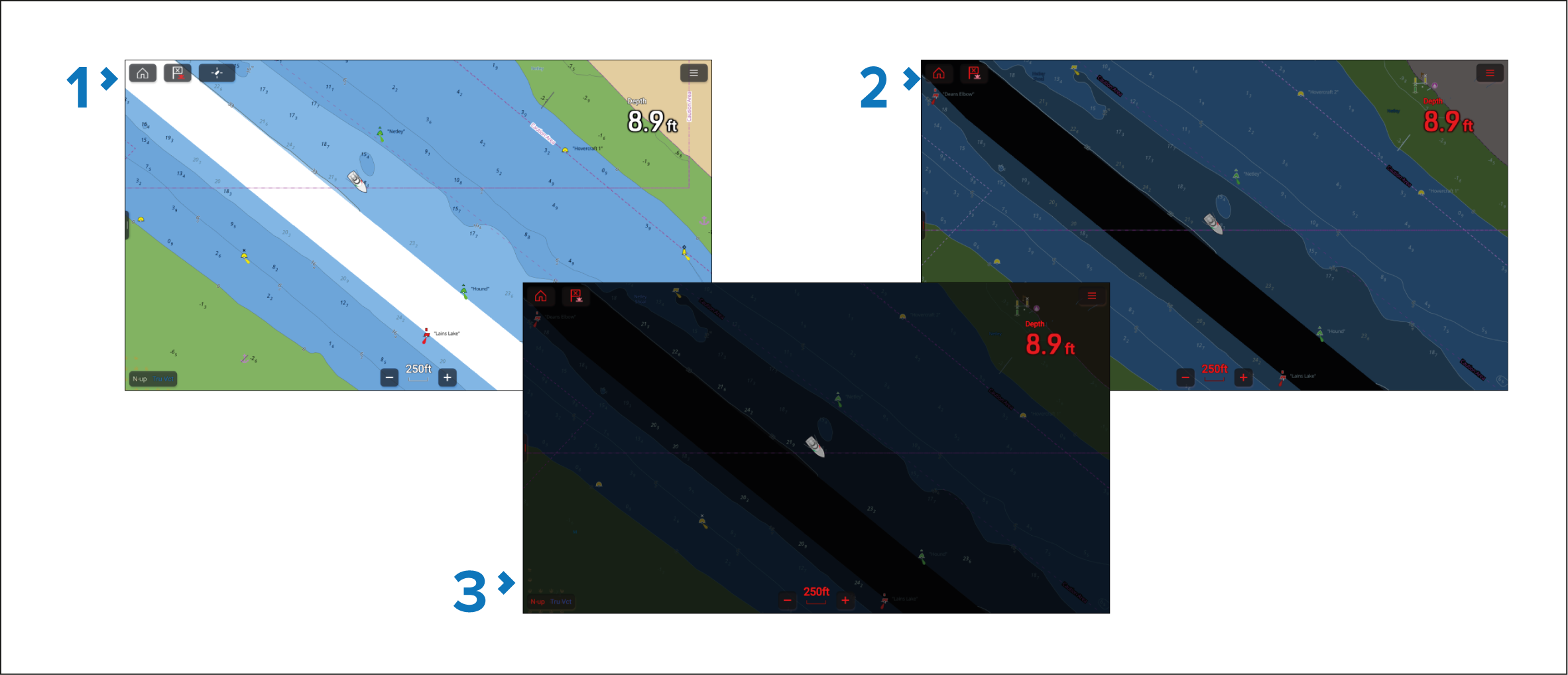
Day — This is the default mode and uses standard colors using either the Light or Dark color theme that is selected in the This display settings menu: .
Night — Uses red text and icons and dark background colors.
Extra dark — Uses red text and icons and very dark background colors. Extra dark mode is only available when dark mode is active.
When using the Night or Extra dark mode at night, be careful when changing back to Day mode or accessing an MFD screen that does not support the mode, as this will instantly increases the display brightness to maximum and may compromise your night vision.
If the display has been set to Night mode or Extra dark mode and is powered on during the day, it can be difficult to see the screen. Under these circumstances you can use the Power swipe area or the Power button to increase the screen brightness. Swipe or press once to open the Shortcuts menu. Subsequent swipes or presses will increase the screen’s brightness.