Creating RealBathy depth contours
RealBathy™ depth contours can be created in realtime as you travel.
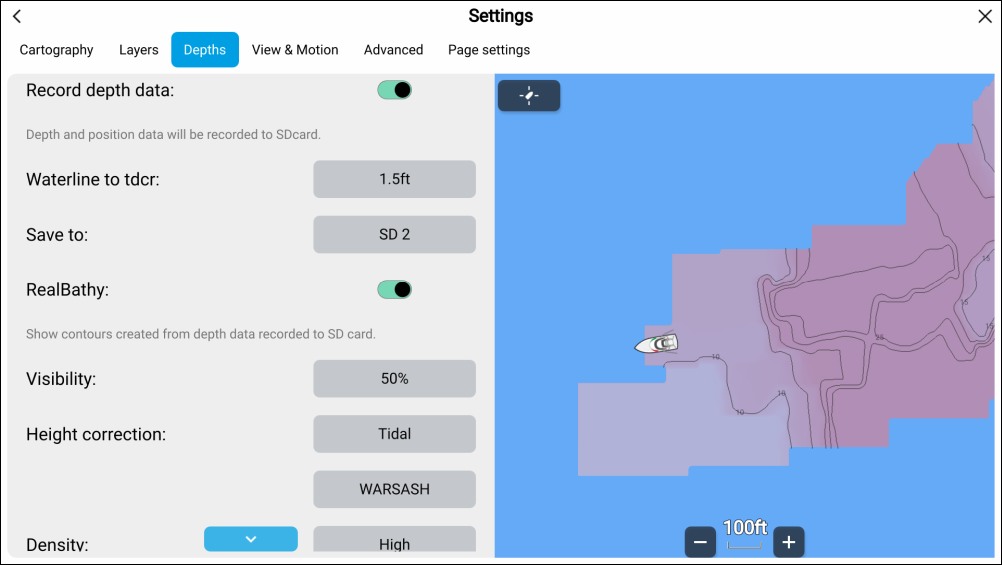
RealBathyChart app RealBathyDepth contoursFrom the Chart app:
- Select the LightHouse Chartsoption from the Cartography menu: Menu > Settings > Cartography.
- Open the Depths settings menu: Menu > Depths.
- Select the Waterline to tdcr field and enter the distance between the waterline and the bottom face of your transducer.
- Select the Save to field and choose the card reader slot that you inserted you memory card into.
- Enable the Record depth data toggle switch.
- Select OK on the notification.
Depth and position data will be logged to the selected memory card slot whenever a card with sufficient space is inserted. Chart data will not be overwritten.
NoteRecording depths is restricted by law in some countries (Sweden, Finland, Norway, China. Please check online to see if restrictions apply for your location.
- Enable the RealBathy toggle switch.
The bathymetry data will be displayed onscreen in realtime.
- Select the Height correction field and
choose an option.
None — No corrections are made.
Tidal — In tidal environments (for example, seas and oceans) select Tidal and then a list of available stations is displayed, select the closest tide station to your location.
Lake level — In fresh water environments (for example, lakes), select Lake level and then enter the current reading from the water level marker for your location into the field located under the height correction field.
- Adjust the Visibility: setting to the
desired transparency.
100% provides full visibility of the RealBathy contours; as the percentage decreases the chart detail behind the RealBathy contours becomes more visible.
- Select the required Density: setting.
Steep drop-offs can result in overlapping contour lines; lowering the density in these situations provides a clearer contour.