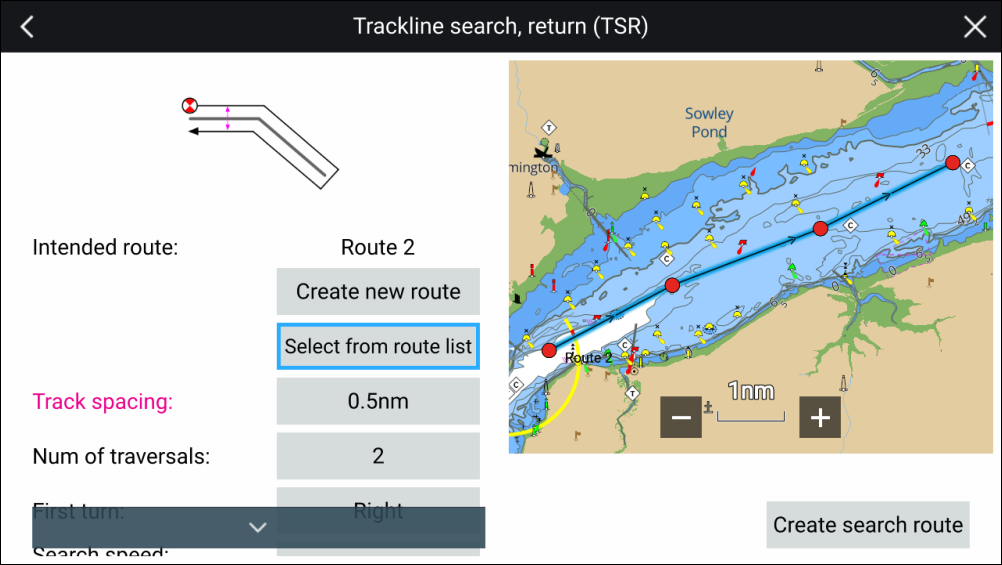
Trackline search (return) patterns can be created from
existing routes or by creating a route using waypoints. To create
a trackline search (return) pattern follow the steps below:
SARTrackline search (return) pattern
Select New from the Chart app menu.
Select Search pattern.
Select Trackline search (return).
The search pattern creation page is displayed.
Select Select from route list.
Select the desired route from the route list.
You can also select Create new route to
create a new empty route that you can then add waypoints to.
Select Select route from the pop-over
menu.
You will be taken back to the search pattern creation page.
Select Track spacing: to adjust the
distance between each search leg.
Select Num of traversals: and select
the number of times you want the search pattern to traverse the intended
route.
The available options are 2, 4 ,6, and 8.
Select First turn: to choose whether
you want the first turn of the trackline to go to the right or the
left.
This will also therefor determine the side of the route which
the Commence Search Point will be placed.
Select Search speed (STW): to enter
the desired speed at which the search should be performed.
Search speed is Speed Through the Water (STW).
Select Create search route.
Select OK to save the search pattern,
or Follow to save the search pattern and immediately
start following the route.
Selecting Back will return you to the
search pattern creation page without saving the search pattern.
The search pattern will be displayed using orange lines
for the search legs. The search pattern will be available in the Searches
list: Menu > Waypoints,
Routes, tracks > Routes > Searches.