Chart app simulator
When using a demo profile, navigation and autopilot control can be simulated in the Chart app.
When a demo profile is active, all data will be simulated by the display.
Alarms raised by real sensor data will not be triggered.
Demo profiles should NOT be used whilst navigating.
Any networked displays will also switch to demo mode.
Demo profilesSimulatorChart app SimulatorYou can perform a Goto, Follow a route, or navigate manually using the onscreen controls. The onscreen controls can only be accessed using the touchscreen.
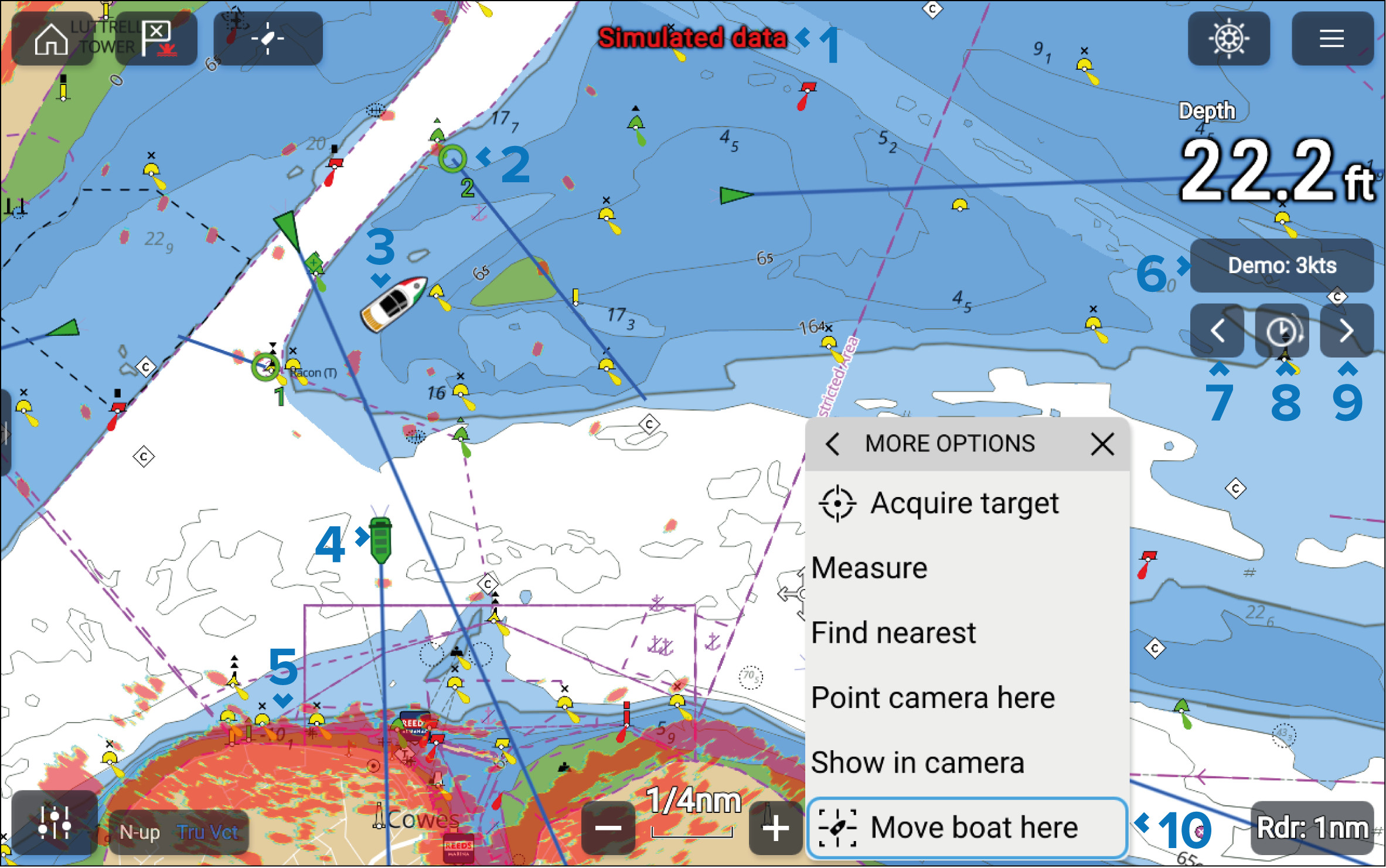
When a demo profile is active, a “Simulated data” message will flash at the top of the screen.
Simulated Radar target. Simulated targets can be acquired when the Radar layer is enabled.
Own vessel boat icon.
Simulated AIS target. Simulated targets are displayed when the AIS layer is enabled.
Simulated Radar layer can be shown onscreen when the Radar layer is enabled.
Select the Demo button to adjust the simulated speed of the boat symbol. The Demo button is not available in the Sailing boat demo profile.
Press the Left arrow button to change the heading to port in 1° increments, or tap and hold to keep incrementing.
Press the Time button to increase the speed of the simulation, or tap and hold to keep increasing the simulation speed.
Press the Right arrow button to change the heading to starboard in 1° increments, or tap and hold to increment continuously.
You can move the boat symbol to any location using the context menu. To do this, use the touchscreen to tap and hold at the required location on the chart, and then select More options and Move boat here.