Manual Bluetooth pairing
The remote control must be paired with the wireless gateway.
BluetoothPairingIf your RCU-1 Autopilot Remote Control and WG-1 Wireless Gateway were purchased as a system pack (E70718), the remote control will be pre-paired to the wireless gateway. The remote control will automatically connect with the wireless gateway when it is powered on.
If you have purchased your remote control and wireless gateway separately (e.g. as a spare or accessory), the remote control will need to be manually paired to the wireless gateway.
When the remote is powered on, after accepting the Terms page, the remote will automatically start searching for wireless gateways.
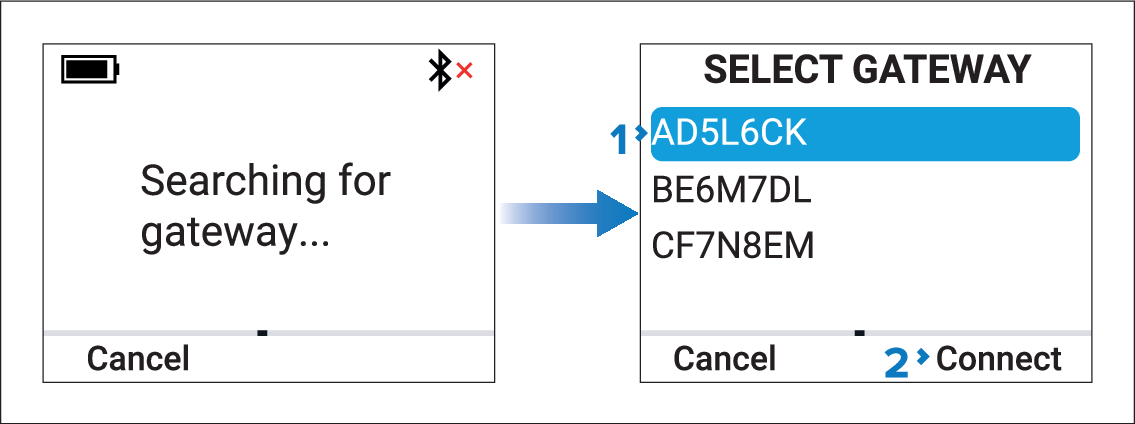
- Press the Connect (Right softkey) button.
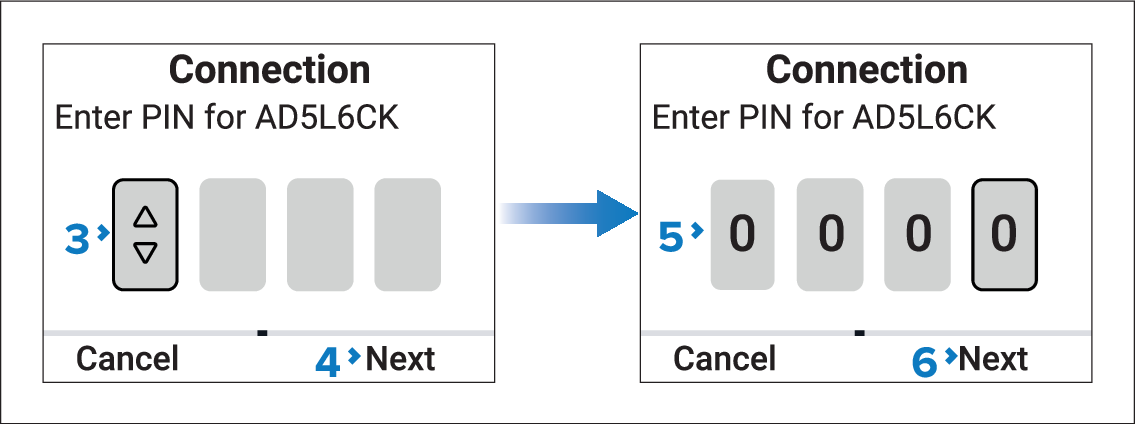
- After entering the fourth digit of the PIN, pressing the Next button will initiate the connection.
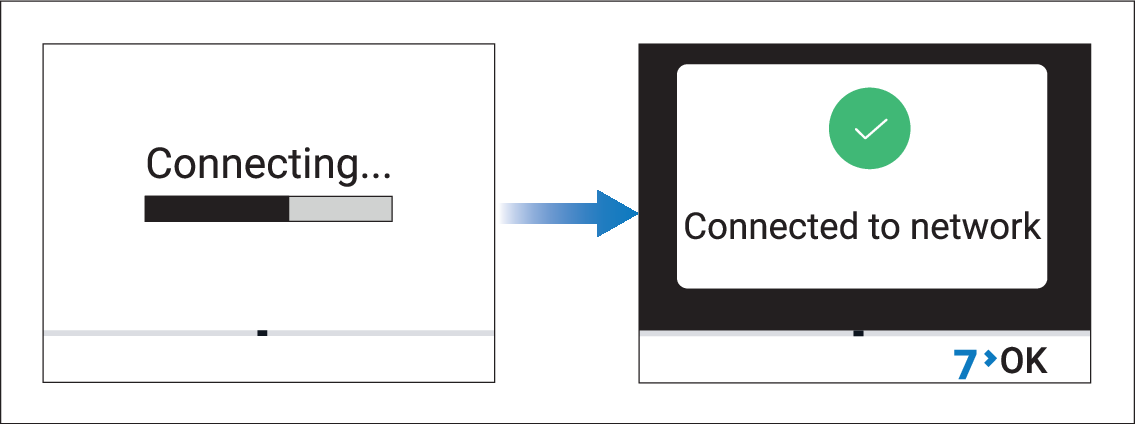
If the pairing process fails, re-check the wireless gateway’s PIN number, power cycle the wireless gateway and the remote control, and then re-attempt pairing.