Customizing the Homescreen background
The display’s Homescreen background can be configured to use a custom animation, or image.
The animation, or image file (for an individual display), or files contained in a zip file (for multiple networked displays featuring different display resolutions) must be saved to a memory card that is inserted into your chartplotter’s card reader.
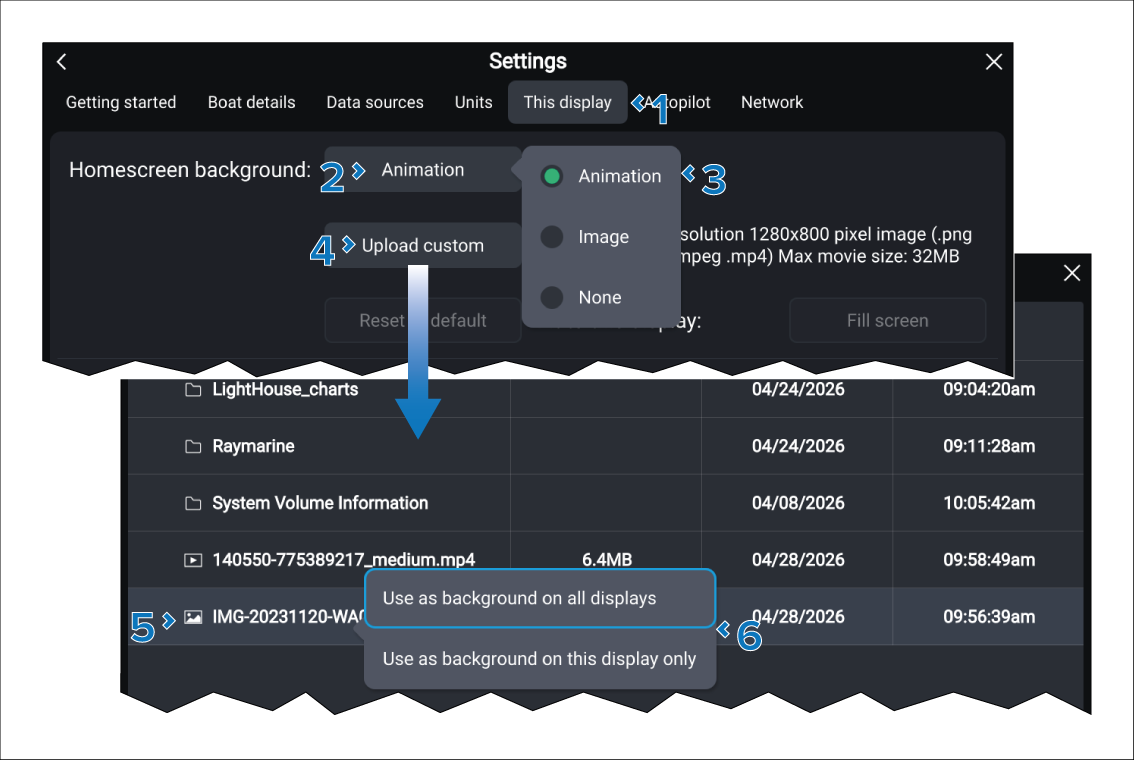
The homescreen background can be reset at any time by selecting the Reset to default button and then selecting Yes on the notification dialog.

If you want to reset the homescreen background on multiple displays, select the Apply to all displays on network check box.
Performing a factory reset will also remove all custom backgrounds.