Widget customization
Each of your widgets can be independently moved and resized to suit your preference.
Widget managementWidget customization
The following customization options will appear when performing a tap-hold gesture on a widget:
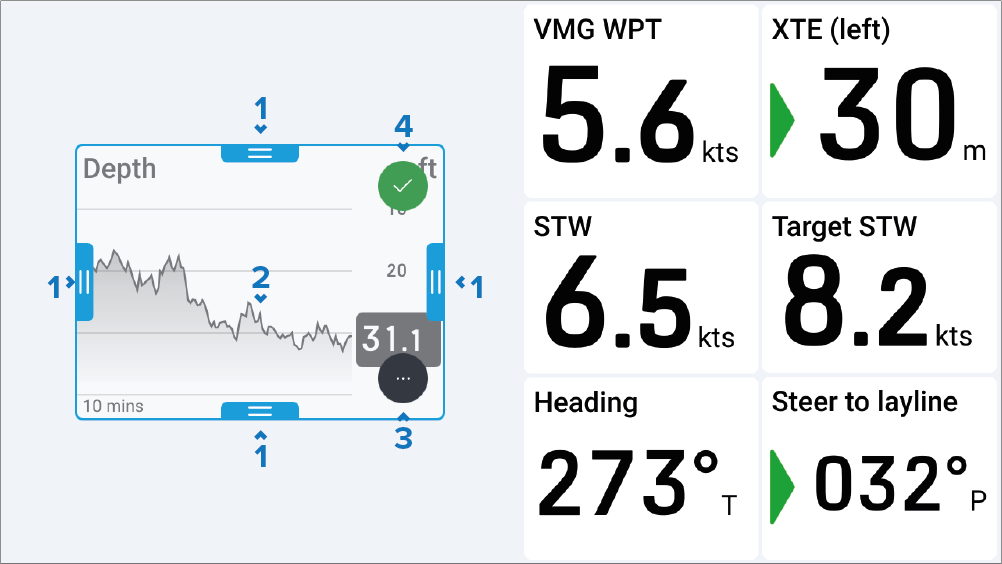
Scale handle — Tap, hold and drag inward or outward to either increase or decrease the size of your widget in the direction of the selected handle.
Move widget — Tap and hold inside your widget, then drag the widget to a new location.
More options — Tap to show more options related to the widget type that you have selected. For more information on each of the widget type options, refer to: Widget types overview
Accept — Tap to confirm your changes.
If the selected widget is scaled within close proximity to another widget, it will automatically snap into alignment.
Any information displayed in a widget will automatically scale to match any dimension changes.