Auto-selecting pages
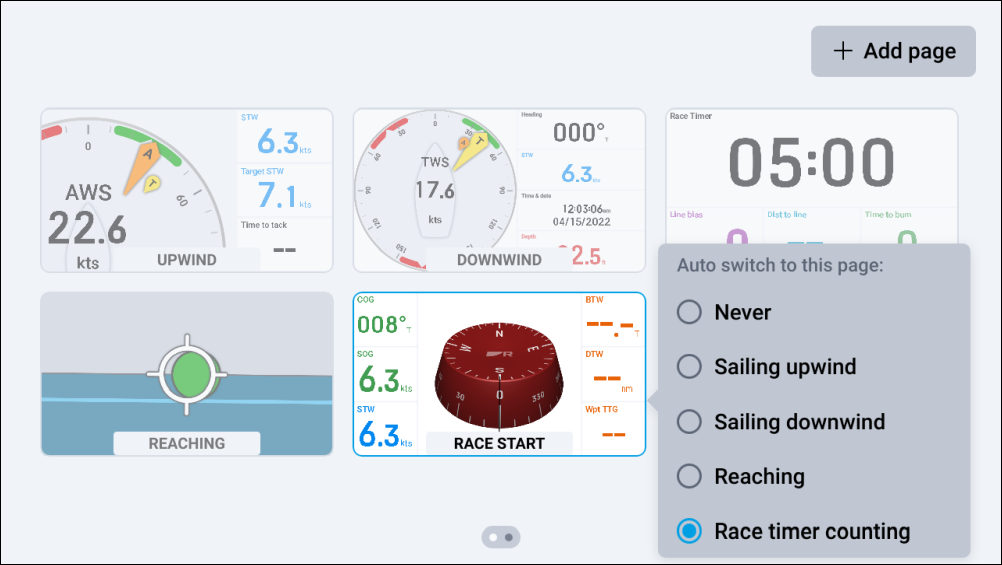
You can configure your data pages to be automatically selected once one of the following conditions has been met:
Page managementAuto-selecting pagesAuto-selecting pages
Never (default).
Sailing upwind.
Sailing downwind.
Reaching.
Race timer counting.
In order for the Auto select page option to appear, your boat activity must be set to Sailing during your connected MFD’s initial startup wizard.
To Auto select your data page(s):
- Navigate to: to display the Pages screen, or use a pinch-in gesture when viewing a data page.
- (If applicable) scroll left and right to find the data page that you wish to configure.
- Tap and hold on your data page, until it is highlighted.
- Once highlighted, release your data page to display the Page options menu.
- Select Auto select.
- Select one of the conditions that has to be met in order for your data page to automatically appear onscreen:
Once selected, a blue circle indicator will appear to the left of your chosen condition, and a label will be shown at the bottom of your data page on the Pages screen.
Each Auto select condition can only be assigned to one data page at a time. If you are duplicating a page which has been assigned an Auto select condition, the condition will not be copied across to the duplicated page.
This setting will be temporarily disabled while your autopilot is engaged AND the Autopilot control preset page is shown onscreen as your current data page.