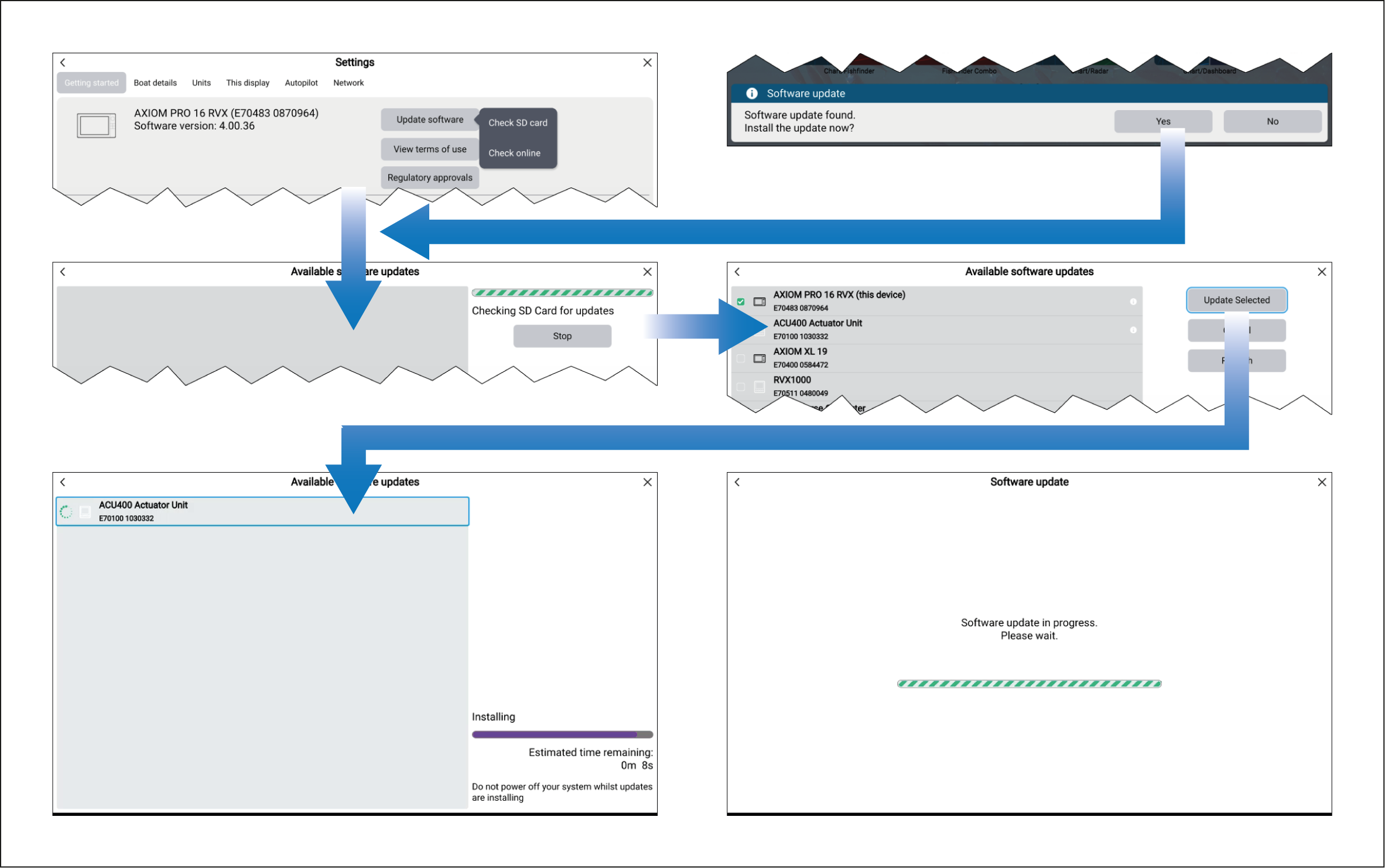
The chartplotter’s and connected product’s software can
be updated using a memory card containing the appropriate software
update files.
- Check the software version of your product(s).
- Compare your product(s) current software version to the
latest version available on the Raymarine website: https://bit.ly/rym-software
- Download any newer software versions for your product(s).
- Copy the files to a MicroSD card.
- With your chartplotter powered on, insert the MicroSD card into the card reader
slot.
Your chartplotter will automatically detect software
files.
- Select Yes when the new software
found notification is displayed.
If the update is not automatically detected, you can
select Check SD card from the Update software pop-over
menu available on the Getting started settings
menu: .
- The chartplotter will check your MicroSD card for available software
updates and display a list of devices for which software updates are
available.
- Ensure that the relevant products in the list are selected.
You can select and deselect product(s) by selecting them
in the list.
- Select Update selected to commence the
update process.
Networked chartplotters will show the software update
in progress screen until all software updates are complete. During
this time, you will not be able to interact with your chartplotter(s).