Pages settings menu
The Pages settings menu is used to customize the Dashboard app.
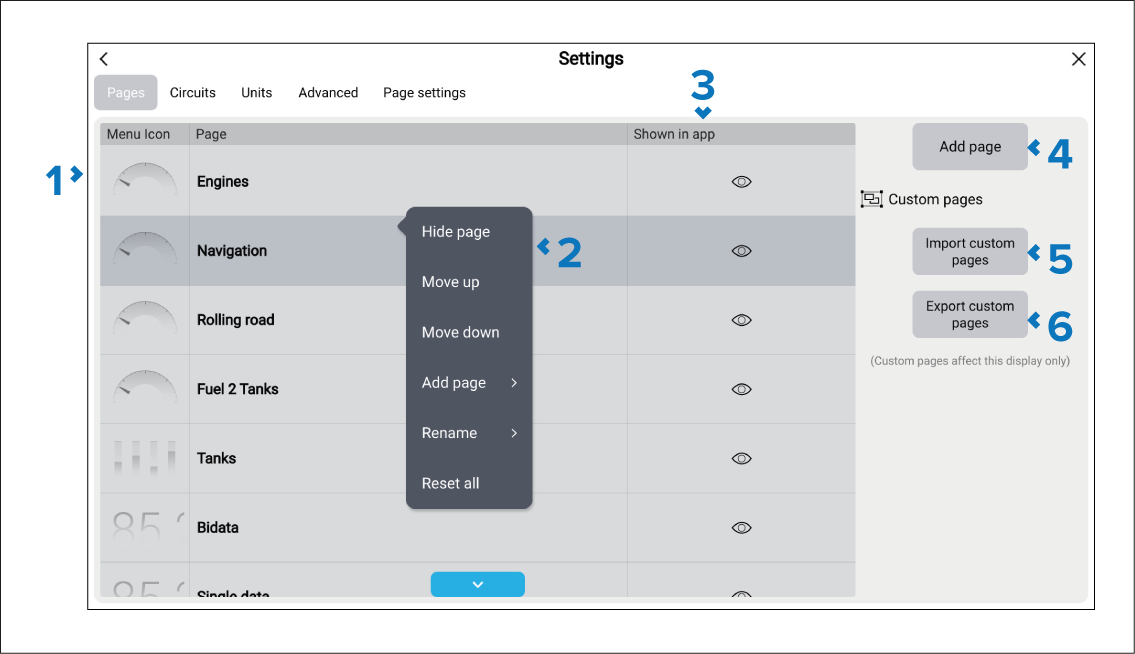
Pages list — A list of all pages that can be displayed in the Dashboard app.
Pop-over menu options — Selecting a page from the list opens the pop-over menu. The pop-over menu includes the following options:
Hide page / Show page — Select to show or hide the page.
Move up — Select to move the page up the list. The page order determines where the page will appear when cycling through pages using the arrows, and also determines the page’s position in the main menu.
Move down — Select to move the page down the list. The page order determines where the page will appear when cycling through pages using the arrows, and also determines the page’s position in the main menu.
Add page — Select to add a new custom page.
Delete page — Select to delete a custom page that you previously added.
Rename — Select to rename the page.
Reset all — Select to reset all data items on all pages to defaults.
Show in app — Identifies if the page is available in the Dashboard app. If the eye icon has a slash through it, the page is currently hidden.
Add page — Select to add a new custom page.
Import custom pages — Select to import a third-party digital switching page or configuration. For details, refer to: Importing digital switching pages
Export custom pages — Select to export a third-party digital switching page or configuration. For details, refer to: Exporting digital switching pages