Opening the Fishfinder app
The Fishfinder app is opened by selecting a page icon from the Homescreen that includes a Fishfinder app.
Pre-requisites:
Ensure your Sonar module is compatible (check the latest details available on the Raymarine website). If in doubt contact an authorized Raymarine dealer for advice.
Ensure you have installed your Sonar module in accordance with the documentation that was supplied with the module.
The Fishfinder app will open in 1 of 4 states:
Please select a sonar channel
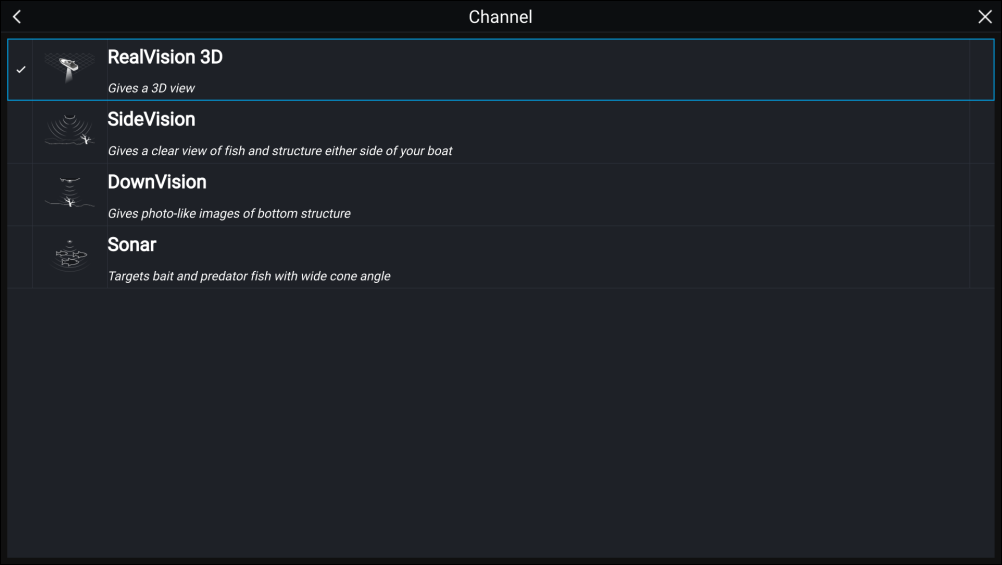
SonarChannel selectionThe first time you open a new app page that includes the Fishfinder app you will need to select a Sonar channel.

Select OK and then choose the Sonar channel you want to use from the list:
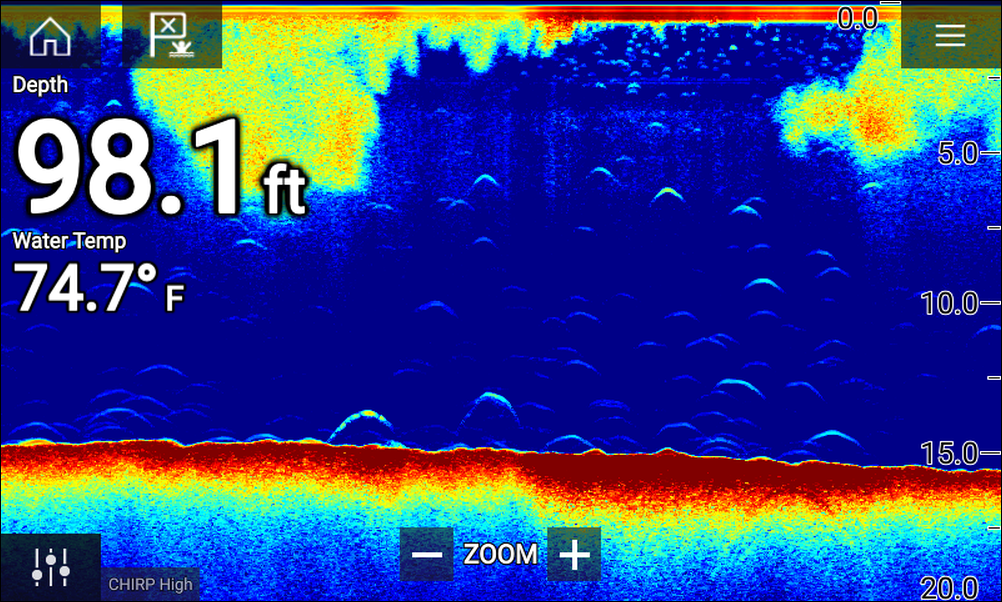
Sonar on and pinging
If your Fishfinder app has already been set up then when the Fishfinder app is opened the Sonar image will be displayed and start scrolling.
No sonar source available
Fishfinder appNo sourceIf the ’No sonar source available’ warning is displayed then either:
your sonar module is still powering up.
your MFD cannot establish a connection with your external Sonar module
your Internal Sonar module has no transducer connected.

Check your external sonar module’s network and power connection, check your MFD’s network or transducer connection ensuring the connections and cabling is correct and free from damage, then power cycle your system. If the Sonar module is still not found then refer to your equipment’s installation documentation for further troubleshooting information.
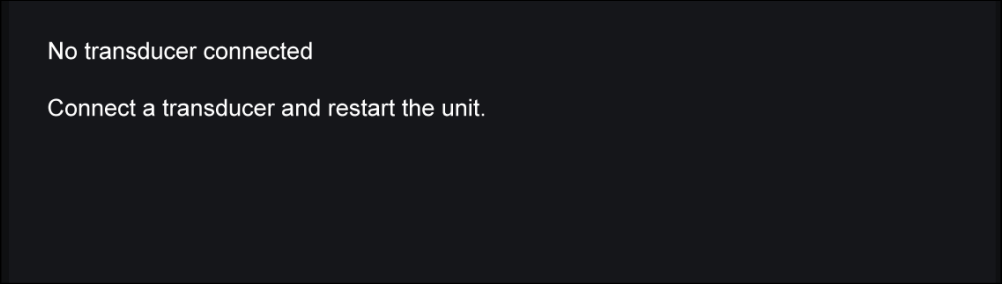
No transducer connected
Fishfinder appNo transducerIf the ‘No transducer connected’ warning is displayed then your Sonar module cannot connect to your transducer.
Check your transducer connection(s) are correct and free from damage, then power cycle your system. If the transducer is still not found then refer to your equipment’s installation documentation for further troubleshooting information.