Image flip and mirroring
Depending on the specific type of camera connected, the video feed can be flipped upside down and reversed.
Video app Image flipMirror image
Flipping the camera image is required when the camera has been installed upside-down (ball-down configuration). In this scenario, flipping the image will correct the image’s orientation onscreen.
Reversing the image is useful for installations where the camera is rear-facing and you are viewing the image on a forward-facing display, as it provides an effect similar to looking through a rear view mirror.
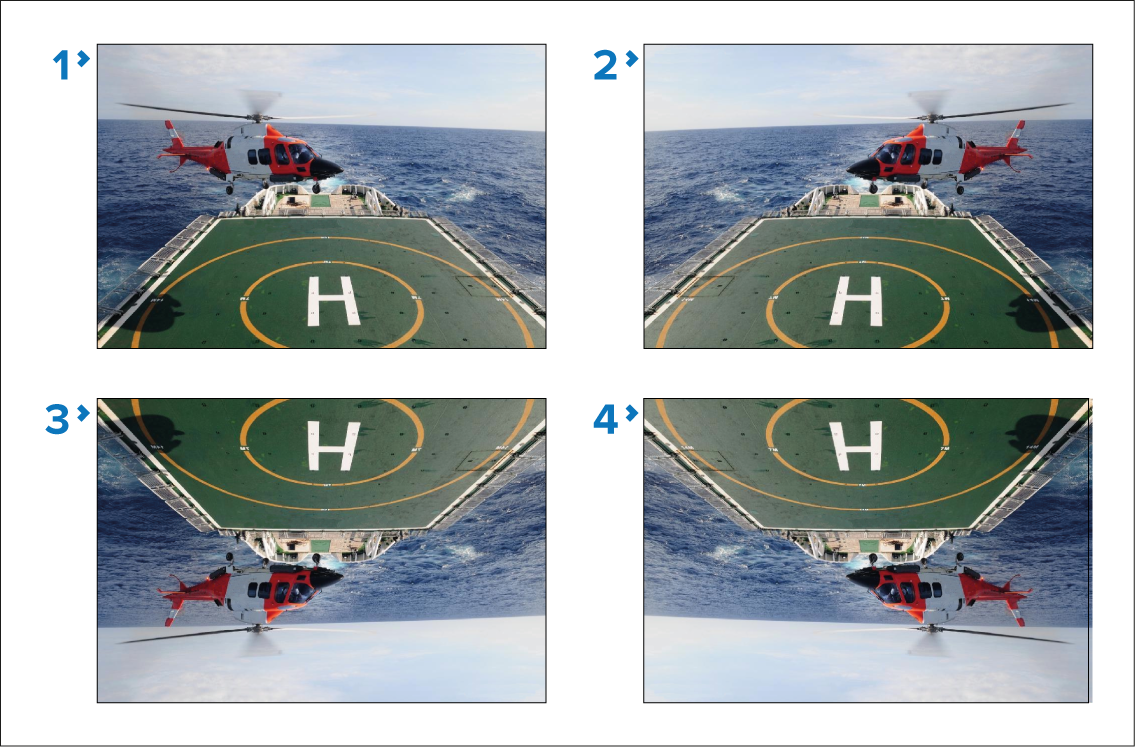
Standard view — For forward-facing cameras.
Mirrored/reverse view — For cameras facing aft.
Image flipped view — For forward-facing cameras, where the camera image appears upside down.
Image flipped and mirrored / reverse view — For cameras facing aft, where the camera image appears upside-down.
On supported cameras, the video feed can be flipped and reversed directly from the Video app’s Camera setup menu. .
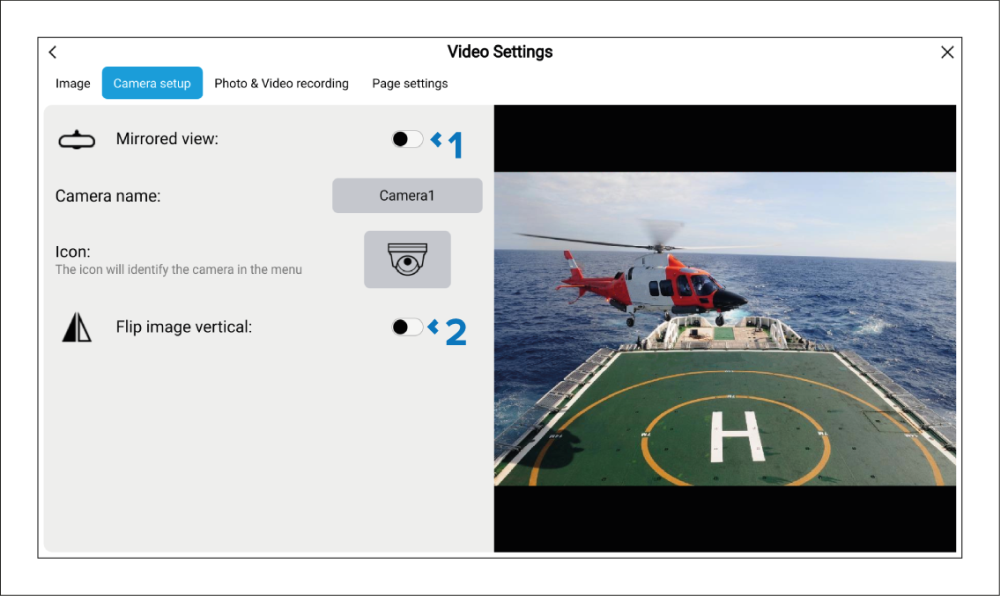
Mirrored view — When enabled, mirrors / reverses the image.
Flip image vertical — When enabled, image is flipped upside-down.
If the camera supports image flip and reversing but the controls are not available in the Camera setup menu, you may be able to access the camera’s built-in web interface to change these settings. Refer to the documentation for your camera for details.
Augmented reality — If your camera supports Augmented Reality (AR), flipping the image and / or reversing the image will prevent Augmented Reality (AR) objects appearing correctly onscreen.