Enabling and configuring the Dynamic tile
You can enable and configure Dynamic tile by following the steps below.
Dynamic tileHomescreen Dynamic tile
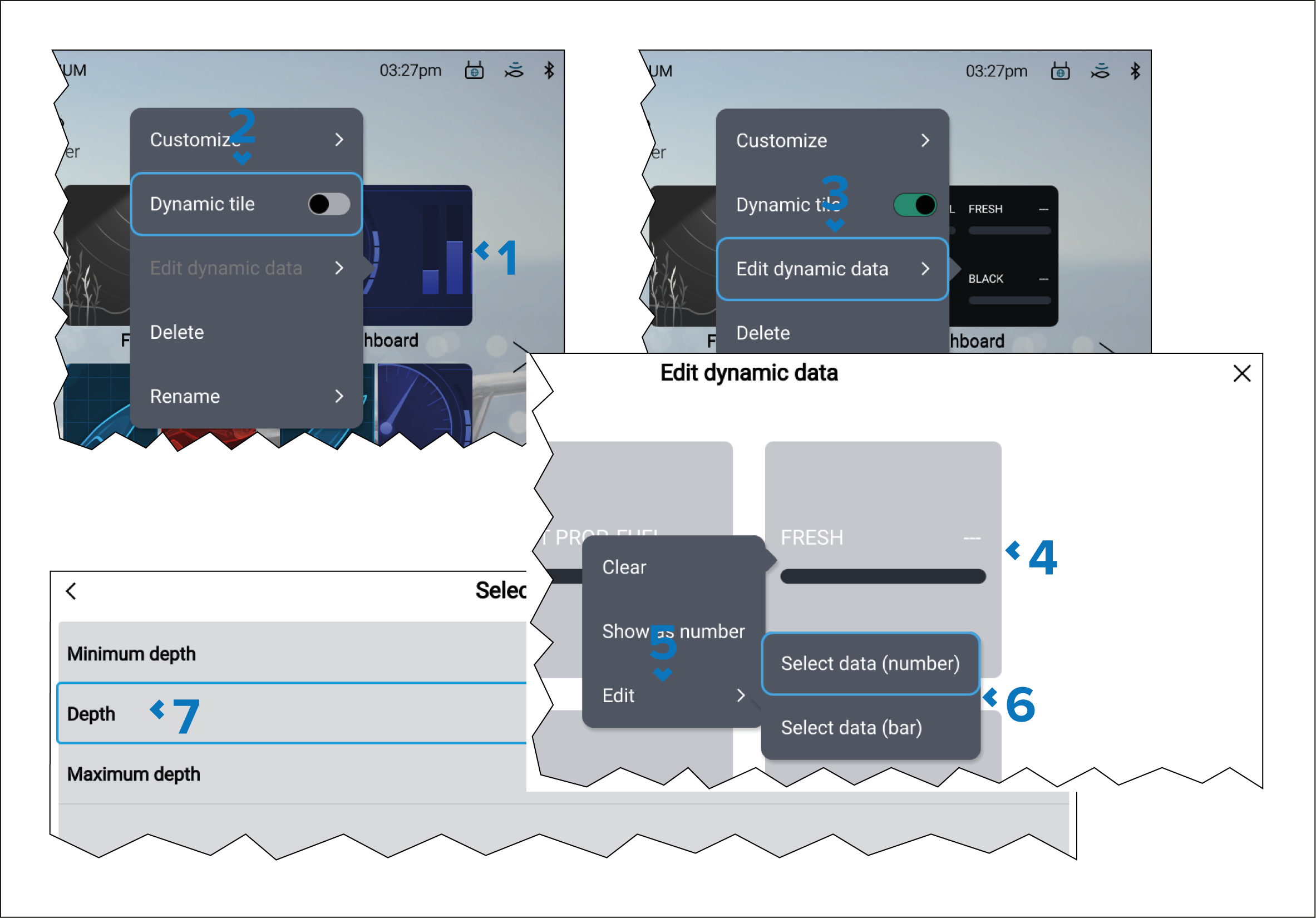
From the Homescreen:
- Press and hold on the fullscreen Dashboard app page icon.
- Enable the Dynamic tile toggle switch for the pop-over options.
- Select Edit dynamic data.
- Select and hold on a data cell.
- Select Edit from the pop-over menu.
- Select either Select data (number) or Select data (bar), as required.
- Select the relevant data category and then select the data item.
Follow steps 4 to 7 for each of the data cells.
To return to the Homescreen, select the < (Back) or X (Close), located at the top of the Edit dynamic data page