Creating a track
Tracks are lines that are drawn on the chart app, which record your vessel’s journey.
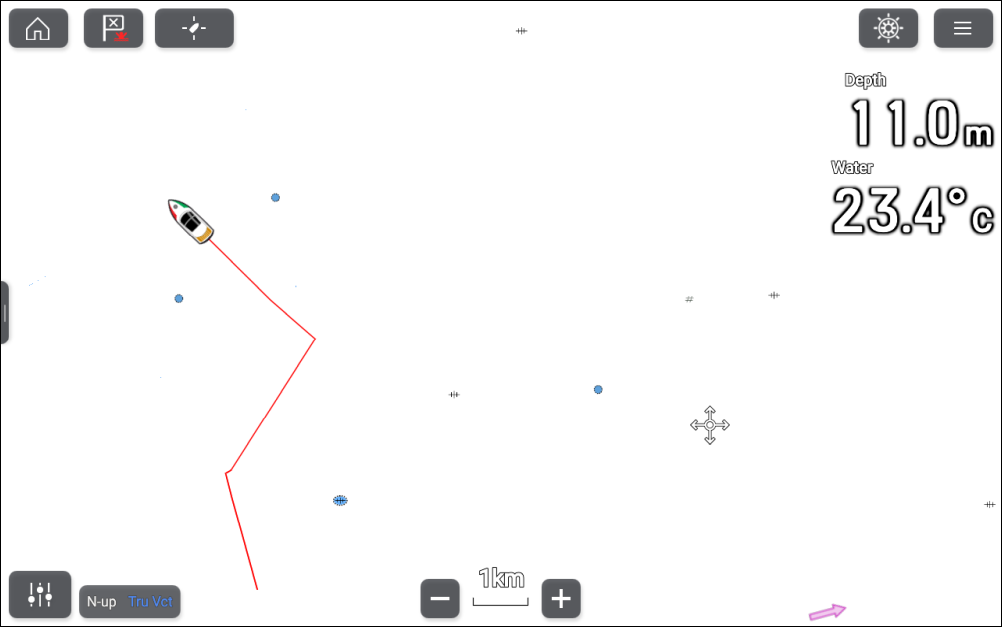
- Select Stop track from the vessel pop-over
options when you have completed your track.
The track stopped notification is displayed.

A track recording can also be started at anytime from the chart app menu: . When using the chart app menu to start a track, if a track is already recording then it will be saved before the new track is started. Once a track is saved it can be converted to a route so that the same passage may be followed again at a later date.