Creating an expanding square search pattern

To create a Expanding Square search pattern follow the steps below:
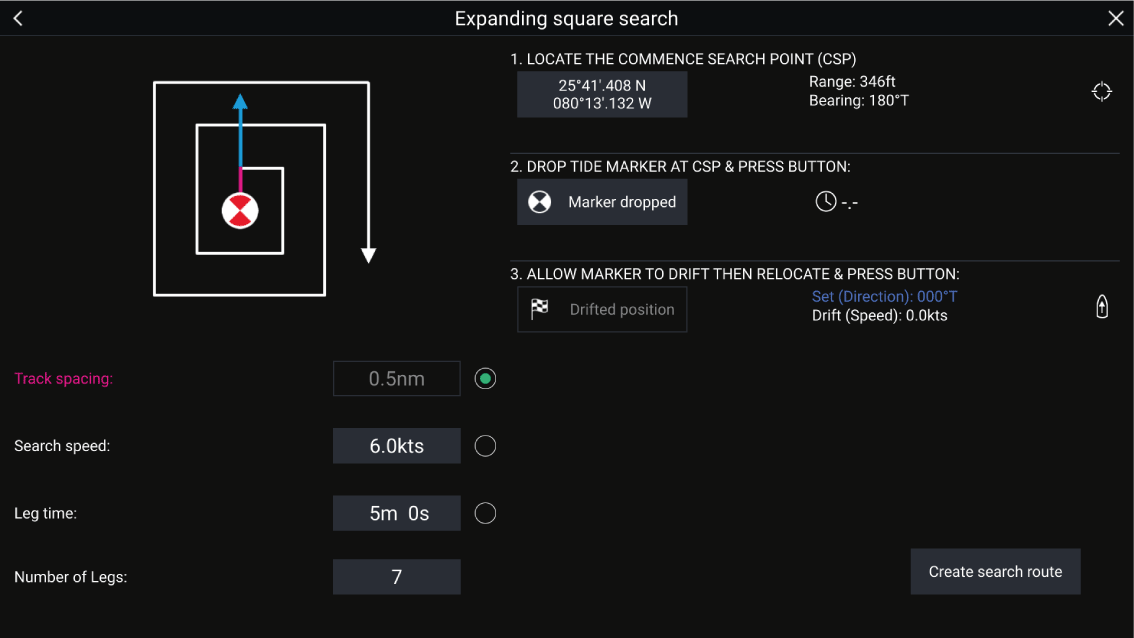
SARcreation CSP (Commence Search Point)
  1. Select Expanding Square from the Search Pattern options: Chart app > Menu > Navigate > Search patterns
  2. Set Commence Search Point (CSP)
    1. Manually input the CSP coordinates; a Range and Bearing are displayed to direct your vessel towards it.
    2. Alternatively, set the CSP as your vessel’s current location by selecting the (1) CSP Shortcut button.
  3. Set Drift
    1. Drop the Datum Marker in the water and select Marker dropped.
    2. Wait for the Datum Marker to drift through the water.
    3. Return to the Datum Marker in the new location and select Drift position to calculate the Set (Direction) and Drift (Speed).
    4. Alternatively, you can use your vessel’s Heading and SOG to define the set and drift by selecting the (2) Set / Drift shortcut icon.
  4. Set Track spacing / Radius, Search Speed, and Leg time
    [All 3 variables are dependent on each other. One variable is always the product of the other two.]
    1. Select one of the variables by selecting the (3) Output icon.
    2. The selected variable will then be calculated as a result of changes made to the other two variables.

      Variable

      Maximum Value

      Track spacing / Radius

      5 nm / 5 sm / 5 Km

      Search Speed

      40 Kts / 46 Mph / 74 Kph

      Leg Time

      59m 59s
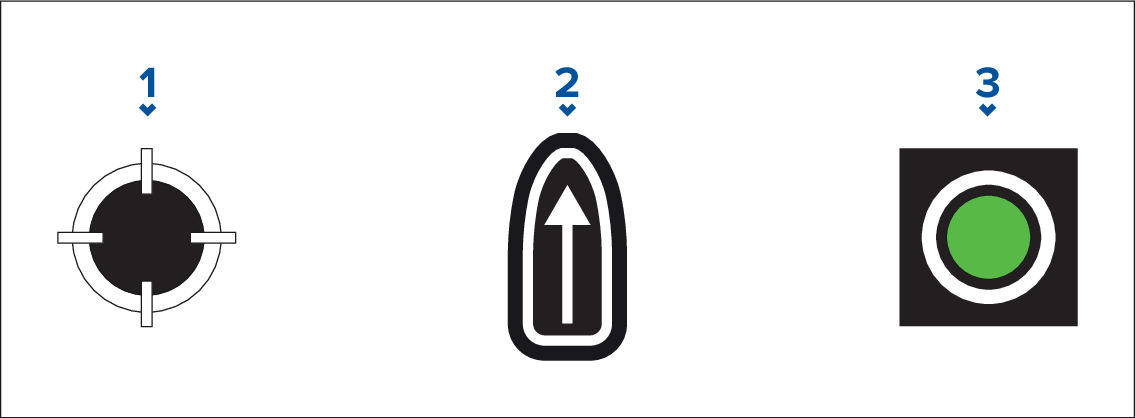
      1. CSP Shortcut

      2. Set / Drift Shortcut

      3. Output

  5. Set the number of legs
    1. Select the number of legs for your expanding square search pattern.
  6. Create search route
    [After all the above steps have been completed you can create your SAR pattern.]
    1. To create a search pattern, select Create search route in the bottom right of the screen.
    2. The creation page will display your SAR pattern data and its location in the Chart app.
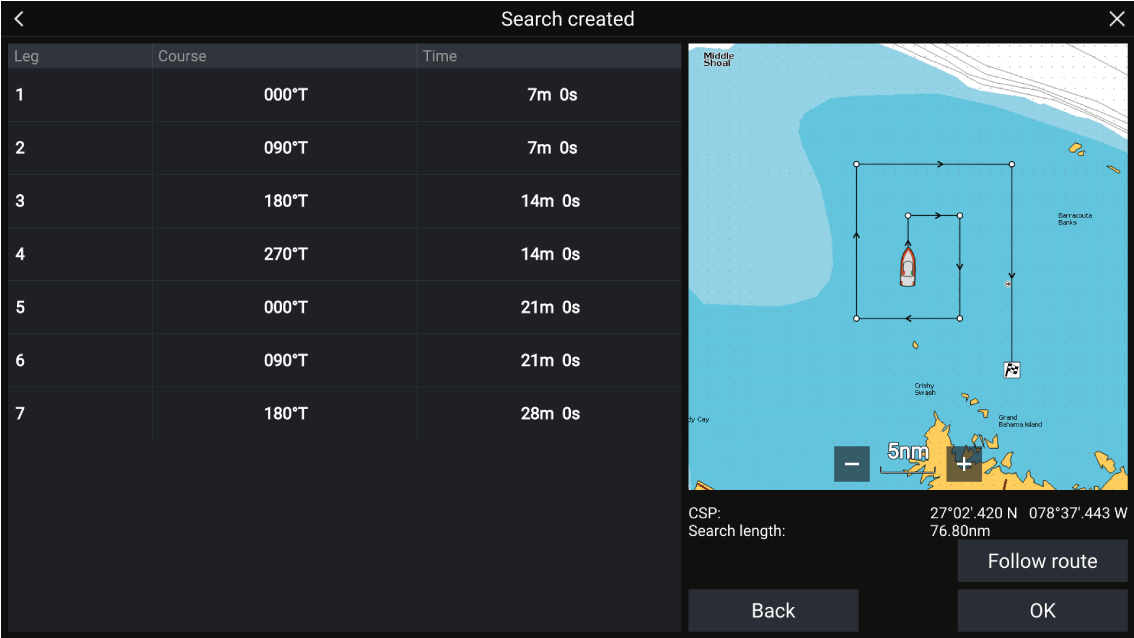
    3. Select Follow Route to overlay the pattern on the Chart app and automatically follow the route.
    4. Alternatively, select OK to overlay the pattern on the Chart app without following it.