Connecting to a wireless display (Miracast®)
The chartplotter’s display screens can be mirrored to an external Miracast®-compatible display (e.g. a Smart TV), or a Miracast®-compatible HDMI dongle.
Wireless displayMiracast®Screen mirroringScreen repeater
- From your chartplotter, select the display icon found under Wireless display: in the This Display menu) ().
The chartplotter will search for available external Miracast®-compatible displays and dongles.
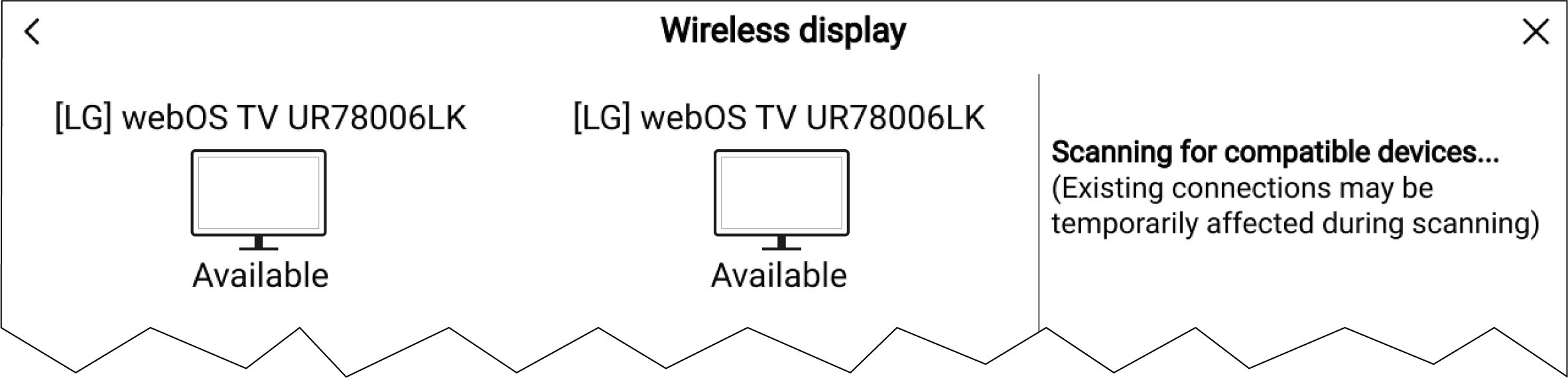
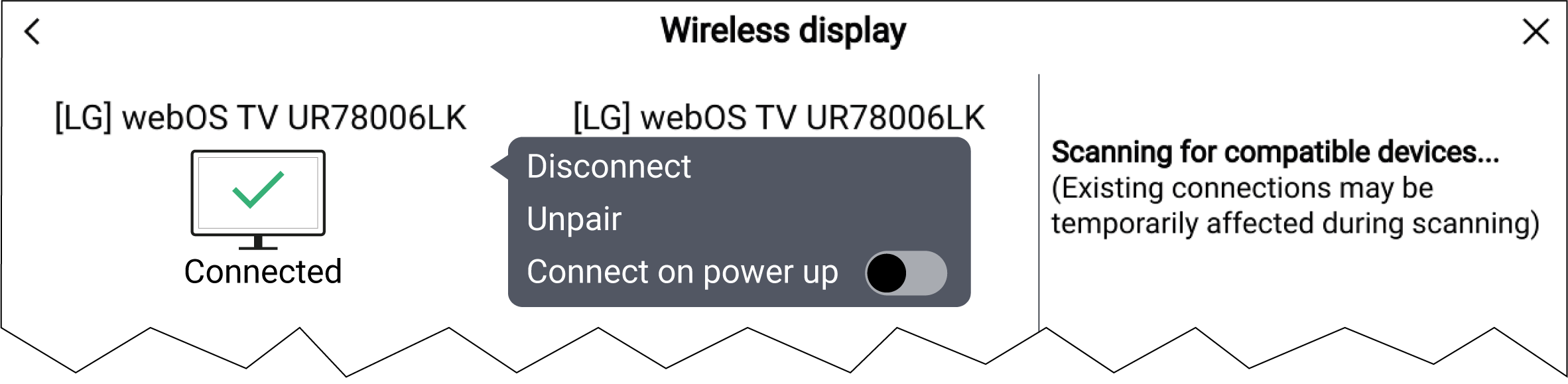
Don’t forget to check your external display for any required confirmations / acknowledgements during the connection process.
Some non-Miracast-certified devices may not be able to connect with Wi-Fi Sharing enabled, in this case disable Wi-Fi Sharing and try again.
If you experience connection issues, try disabling and enabling the wireless display feature on the external display and on your chartplotter, or power cycle both devices.
Once connected / paired to an external display, do not change your chartplotter's Wi-Fi Passphrase, as on certain devices a factory reset may be required to re-establish a connection.